A Word document is a set of instructions for laying out a page, and the page is laid out fresh every time the file is opened. Different fonts installed, a different version of Word, a different operating system, a different default paper size - any of these and the page breaks move, a heading drops to the next page, and a two-page letter becomes three. The document you sent is not the document they see.
A PDF is the page, already laid out. The fonts are inside it, the positions are fixed, and a reader on any device shows the same thing. That is the whole reason the format exists and the whole reason to convert before sending anything whose appearance matters: a CV, a contract, a proposal, an invoice, anything that will be printed.
This guide covers how Word to PDF makes that page, what is preserved exactly and what is not, the mistakes that produce a PDF that does not match the document, and what to do with the file afterwards.
How to convert Word to PDF in three steps
No settings, because a faithful conversion has nothing to choose.
Adım 1: Open the converter
Go to Word to PDF. It takes .docx and .doc. No account, nothing to install.
Adım 2: Add the document
Drag it onto the page or choose it. Up to 20 MB on the free plan, or 250 MB on Pro, which is far more than any document that is mostly text and comfortably more than one full of photographs.
Adım 3: Download the PDF and open it
Page through it once. Fonts, page breaks and images should all be where the document had them. The section below on what changes tells you what to look for.
What is preserved, exactly
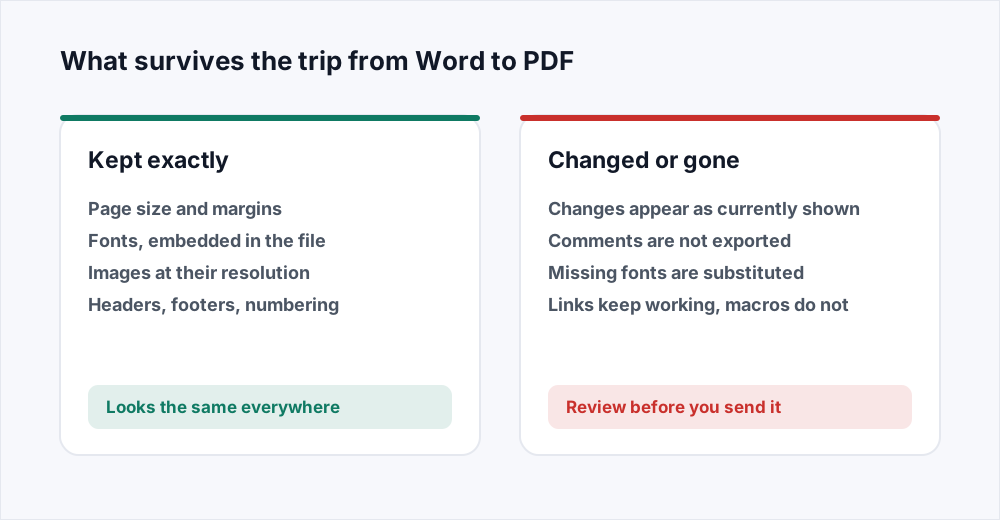
The conversion lays the document out the way a word processor would and writes the result as pages. Page size and margins, paragraph spacing, headers and footers, page numbers, section breaks, columns, footnotes, tables with their borders and shading, images at their full resolution - all of it is reproduced as it stands in the document.
Fonts are embedded. This is the part that matters most and the part a casual conversion gets wrong. Every typeface the document uses is written into the PDF, so the reader never needs to have it installed. The letterforms, the spacing, the line breaks: fixed. A document in a font the recipient has never heard of looks, on their screen, exactly as it looks on yours.
Links are kept as links. A table of contents that jumps to its sections, a URL, a cross-reference - all remain clickable in the PDF. Text is kept as text: selectable, searchable, readable by screen readers and by the software that scans CVs.
What changes, and what to do about it
Comments are not exported. They are notes about the document, not part of it, and a PDF for sending is not the place for them. Resolve or delete them before converting if you would rather they were dealt with than silently dropped.
Tracked changes appear the way the document is currently showing them. If Word is displaying the markup - strikethroughs and underlines in the margins - that markup is what the PDF contains. Accept or reject every change before converting, so the PDF is the finished text and only the finished text. Sending a PDF with visible tracked changes is the most common way an internal draft becomes an external embarrassment.
Fonts the server does not have are substituted. The conversion runs on a server with a large set of standard typefaces, and a document set in any common font converts exactly. A document set in a font that came with a particular design application, or a licensed corporate face, may be laid out in the closest available substitute, and line breaks can move a little. If a specific typeface is essential, check the first page of the result.
Macros do not run and are not included. A PDF is not a program. Anything a macro computed on open needs to have been computed and written into the document before it is converted.
What survives the conversion
| Feature | In the PDF | Note |
|---|---|---|
| Page size, margins, breaks | Exact | Laid out as the document specifies |
| Fonts | Embedded | Uncommon fonts may be substituted; check page one |
| Images | Full resolution | Compress afterwards if the file needs to be small |
| Headers, footers, page numbers | Exact | |
| Tables, columns, footnotes | Exact | |
| Hyperlinks, table of contents | Clickable | |
| Tracked changes | As currently displayed | Accept or reject them first |
| Comments | Not exported | Resolve them first |
| Macros, embedded objects | Not included | A PDF is a document, not a program |
Before you convert: a thirty-second checklist
Almost everything that goes wrong in a Word-to-PDF conversion was already wrong in the Word document. A quick pass first saves converting twice.
- Accept or reject all tracked changes. Then turn off tracking.
- Delete or resolve every comment.
- Update any fields - the table of contents, cross-references, the date field in the footer that still says last March.
- Check the page size. A document set to US Letter converts to US Letter, which prints with odd margins on A4 paper and vice versa.
- Look at the last page. A stray blank page at the end of a Word document becomes a stray blank page in the PDF, and it will be printed.
What to do with the PDF afterwards
A converted PDF is a finished document and the other tools work on it as they would on any other. A proposal made of a Word body, an Excel pricing sheet and a PowerPoint cover can be converted piece by piece - Excel to PDF and PowerPoint to PDF handle the other two - and then combined with Merge PDF into one file.
If the document is full of photographs and the PDF comes out large, Compress PDF reduces the image resolution without touching the text. If it is confidential, Protect PDF adds a password as the final step. And if you spot a typo after converting, Edit PDF fixes it in the PDF directly, in the document's own font, without going back to Word.
What matters for the documents people actually convert
A CV. The single most-converted document there is, and the one where the format matters most, because the reader is often software before it is a person. A PDF from a real conversion keeps the text as text, so a CV-screening system reads it; a print-to-PDF that rasterises the page gives that system a picture and nothing to read. Keep the layout simple, convert properly, and open the result to confirm you can highlight a word in it.
A contract. Accept every tracked change and remove every comment before converting; a PDF that carries your internal negotiation notes to the other side is the classic mistake, and it is irreversible once sent. Check the signature block landed on the page you meant it to. If the other side needs to sign, they can do so in the PDF itself.
An invoice. The numbers are the point, and they are text in the PDF, so a customer's accounts system can read them. Check the currency symbols and any non-Latin characters came through; they almost always do, but an invoice is the document where a stray box character costs money.
A letter or a report going to print. Set the page size to what the printer will use before converting, so the margins are right on paper. A Letter-sized PDF printed on A4 gets a strip of blank at the bottom and, on some printers, scaled type.
Fonts, and why the server matters
When Word lays out a document on your machine, it uses the fonts installed on your machine. When the conversion lays it out on a server, it uses the fonts installed on the server. For the common families - the ones that ship with Windows, macOS and Office, plus the widely used free ones - those are the same fonts, and the PDF matches your screen to the pixel.
For a font that exists only on your machine, the server substitutes the closest it has. The substitute is usually similar in width, so line breaks rarely move by more than a word, but they can move, and a heading that fitted on one line may wrap. If a document depends on a particular typeface, check the first page of the PDF against the document, and if it matters, embed the font in the Word file before converting - Word can do this in its save options, and an embedded font travels with the document to the server.
What happens to your file
Conversion runs on a server, one job at a time, using the same layout engine a desktop office suite uses. The upload is streamed to disk without being held whole in memory, converted, and deleted the moment the job finishes. The PDF is available for thirty minutes and is deleted as soon as you have downloaded it. The security page sets out every stage.
No account is needed and no watermark is added. The result is a standard PDF that opens everywhere.
Frequently asked questions
Will the PDF look exactly like my Word document?
Yes, provided the document uses common fonts, which almost all do. Page size, margins, breaks, images, headers and footers are reproduced exactly and the fonts are embedded. A document in an unusual licensed typeface may be laid out in a substitute; check the first page if that applies to you.
Why does my PDF show tracked changes?
Because the document was showing them. The conversion reproduces the page as displayed, markup included. Accept or reject every change in Word, turn tracking off, and convert again.
Are comments included in the PDF?
No. Comments are notes about the document rather than part of it and are not exported. Resolve or delete them first if you would rather they were handled deliberately.
Does it convert .doc as well as .docx?
Yes, both. Word to PDF accepts either format and produces the same PDF from each.
Will the text be selectable in the PDF?
Yes. The conversion keeps text as text, so it can be selected, searched, copied and read by screen readers and CV-scanning software. If a PDF you made elsewhere cannot be highlighted, it was rasterised by a print driver rather than converted.
Why is the PDF so large?
Because the document contained large images and the conversion keeps them at full resolution, which is the correct default. Compress PDF reduces them to a sensible resolution afterwards without touching the text.
Is it free, and is my document safe?
Free, with no account and no watermark. The upload is deleted when the conversion finishes and the PDF is deleted when you download it; the security page documents the timings.
In short
A PDF fixes the page so it looks the same everywhere, with the fonts inside it and the text kept as text. Accept your tracked changes and resolve your comments before converting, check the page size, and page through the result once. Then merge it, compress it, protect it or edit it like any other PDF - and keep the Word file for next time.
Every tool here is free and needs no account - see them all.