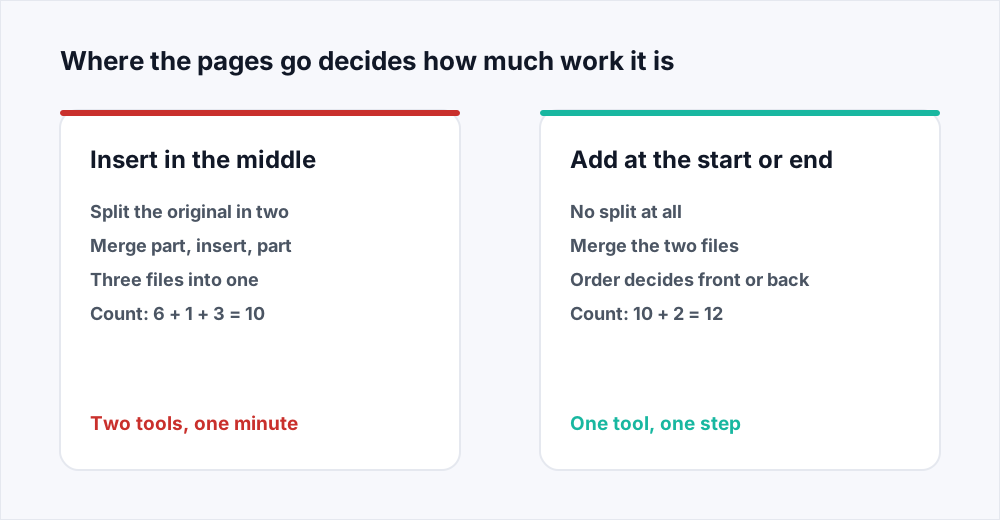
To insert pages into a PDF at a particular position, split the original where the new pages belong, then merge the parts back together with the insert between them: part one, the pages you are adding, part two. If the pages go at the very start or the very end, skip the split and merge two files in the order you want. That is the whole method, and it takes about a minute.
There is no button marked Insert because a PDF is a sequence of pages, and nothing can be put between two pages. What happens in any tool is that a new sequence is built from the old one with the extra pages in place. Splitting and merging is that operation with the steps visible, so you can count the result afterwards.
This guide covers the three-part method with Split PDF and Merge PDF, the arithmetic that tells you the result is right, and the ways it goes wrong.
How to insert pages into a PDF at any position
A ten-page contract that needs a new page at position seven.
Adım 1: Find the insertion point
Note the page the new pages should follow: one that becomes page seven follows page six. Use the number your reader shows in its page box, not the one printed on the paper.
Adım 2: Split the original in two
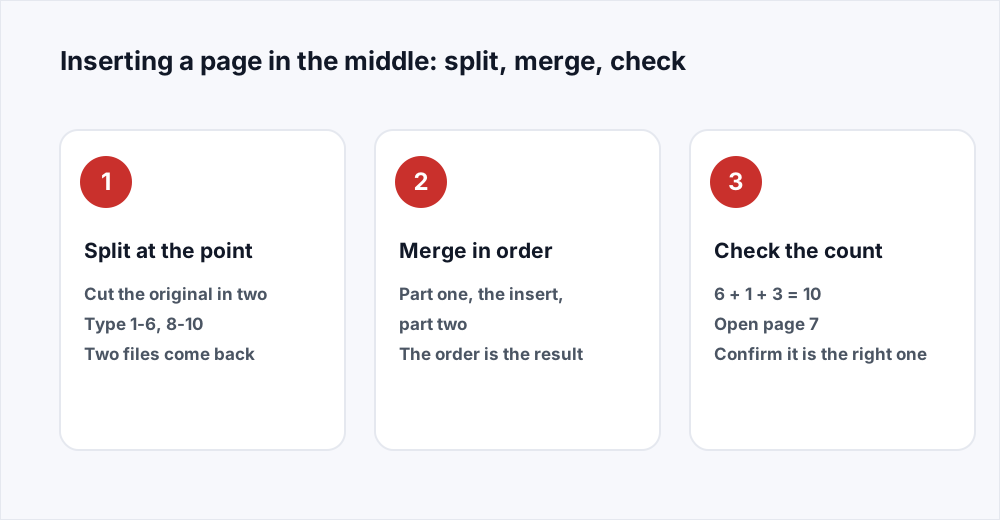
In Split PDF, type two ranges: 1-6 and 7-10. You get a PDF for each side of the cut, and your original is not changed.
Adım 3: Merge the three parts in order
In Merge PDF, add the first part, the pages you are inserting, then the second part. The order of the list is the order of the pages.
Adım 4: Check the count and the page
Six plus one plus four is eleven. Open the result at page seven and confirm it is the page you added. Checking beats sending the wrong contract.
What inserting a page does to the rest of the file
Both halves are copies. Splitting lifts pages out of the source into new files exactly as they were: same page size, same fonts, same image resolution, text still selectable. Merging places finished pages one after another into a single file. Nothing is re-rendered, so a page split out and merged back in is the page you started with.
What does not survive is anything belonging to the document rather than to a page. Bookmarks are a property of the file, so the new file starts without them. Everything drawn on a page comes across unchanged, including a page number in a footer - which is why an inserted page brings whatever number was on it.
The arithmetic that tells you it worked
Every insert has a page count you can work out before you start, and comparing it with what you get is the fastest check there is. The sum has three terms: pages before the cut, pages added, pages after it.
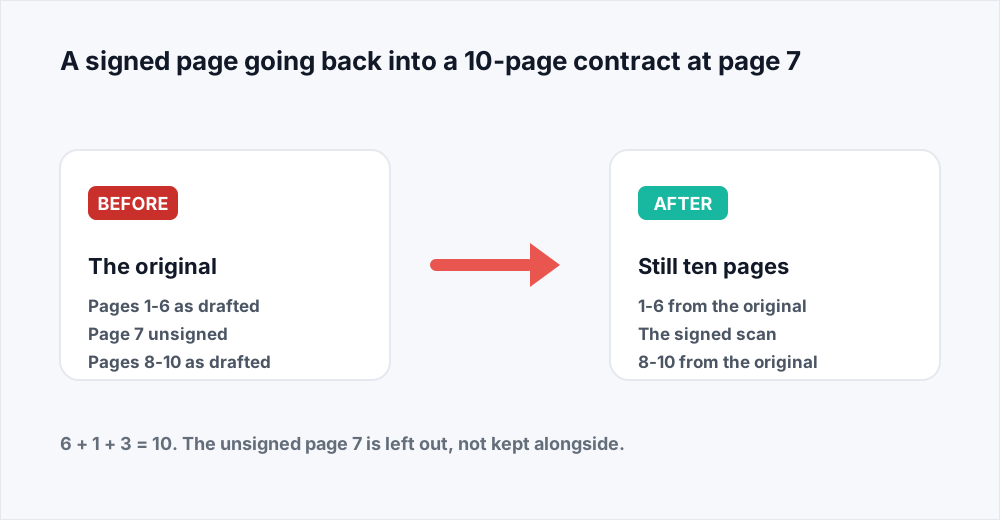
Adding a page to a ten-page document at position seven is 6 + 1 + 4 = 11: the document grows by exactly as many pages as you inserted. Replacing page seven with a signed scan is 6 + 1 + 3 = 10, because the replaced page is in neither part - you split as 1-6 and 8-10 rather than 1-6 and 7-10. When the insert lands at an end, one term is zero and it is a plain merge: a four-page appendix on a forty-page report is 40 + 4 = 44.
If the number you get is not the number you worked out, look at the split rather than the merge.
Page counts for the inserts people do most
Work the sum out first, then compare it with what the merged file says.
| The job | What you split | What you merge | The count |
|---|---|---|---|
| New page 7 in a 10-page file | 1-6, 7-10 | Part one, insert, part two | 6 + 1 + 4 = 11 |
| Signed page replacing page 7 | 1-6, 8-10 | Part one, signed page, part two | 6 + 1 + 3 = 10 |
| 4-page appendix on the end | Nothing | Report, then appendix | 40 + 4 = 44 |
| Cover sheet at the front | Nothing | Cover, then proposal | 1 + 20 = 21 |
| A 12-page PDF inside an 80-page one at 30 | 1-29, 30-80 | Part one, the 12 pages, part two | 29 + 12 + 51 = 92 |
Adding pages to a PDF at the start or the end is just a merge
Most of the time the pages are not going into the middle at all. An appendix goes on the end, a cover sheet goes in front, exhibits go after the agreement. None of those need a split, because the insertion point is already the boundary between two files. Open Merge PDF and put both files in the order you want to read them.
Order is the whole control: the list you build is the document you get, top to bottom, so the file at the top supplies page one. The same holds when you insert a PDF into another PDF wholesale, because a twelve-page schedule behaves as one item in the list - the merge guide goes into ordering in more detail.
Five inserts people actually do
The same split and merge, with different numbers.
- A signed page going back into a contract. Split as 1-6 and 8-10, merge the three parts, confirm the count is still ten.
- An appendix that arrived after the report was finished. No split: merge the report and the appendix in that order.
- A cover sheet in front of a proposal. Merge the one-page template above it; page one is now the cover.
- A page that jammed in the feeder and was scanned on its own. Split the batch as 1-13 and 14-60, merge the rescued page between them.
- A corrected page in a report already circulated. Split either side of the page it replaces and merge the new one in. The rest is untouched, which is the point.
Putting a signed page back into a contract
This is the job that brings most people here. You have a ten-page agreement whose page seven is the signature page, and the other side printed it, signed it and emailed back a one-page scan - or, more often, a three-page scan of pages six to eight, because they scanned whatever was in the tray.
If it came back as three pages, open Split PDF first and type 2 to pull out the middle page; the split guide covers reading the right page number off a scan. Then split the original as 1-6 and 8-10, merge the three files in order, and check: ten pages, page seven signed.
One caution worth stating plainly: this is assembling a document, not applying a signature. We do not offer digital certificate signing or e-signature requests, so a PDF built this way carries a picture of a signature on a scanned page, exactly as a posted contract does. If your process needs a cryptographic signature, that has to happen elsewhere.
Why the inserted page is a different size, and what that means for printing
Merging keeps every page exactly as it was, and page size is part of a page. If your document is US Letter and the signed page comes back as a scan on A4, the merged file has nine Letter pages and one A4 page. Nothing is wrong: a PDF may hold pages of different sizes and every reader handles it.
On screen it is a page slightly taller and narrower than the others - A4 is 297 by 210 millimetres against Letter's 279 by 216 - so the view jumps as you scroll past. In a printer it matters more: most printers scale the odd page to fit the loaded paper, shrinking it a couple of per cent and shifting its margins, and some stop and ask for A4. If somebody else is printing, say so.
Orientation mixes the same way, and usually should: a landscape drawing in a portrait report reads correctly on screen and prints on a sheet turned the other way. If a page genuinely arrived on its side, Organize PDF turns it before you merge, and the guide to reordering and rotating pages explains how rotation is stored.
When Organize PDF is the shorter route
If the pages you want to move are already inside the document, you need no split and no merge. Moving an appendix to the end, or a summary to the front, is a reorder: Organize PDF takes one file and a list of page positions in your order. Pages 20 to 24 of a fifty-page report to the front is 20-24, 1-19, 25-50, in one pass.
The rule is where the pages come from. Pages arriving from another file are an insert, so a merge. Pages already here that belong elsewhere are a reorder, so an organize - as is deleting, since anything left off the list is gone.
What this method cannot do
It works in whole pages. It cannot insert a paragraph into the middle of a page, add a clause that reflows the text after it, or push existing content down to make room. A PDF has no concept of reflowing: every page is a fixed layout, and adding to one is drawing on it rather than inserting into it. For that, Edit PDF changes existing text and adds new text, images and signatures, entirely in your browser so the file is never uploaded.
It cannot insert a blank page either, because there is nothing to merge; make a one-page PDF from an empty document and merge that in. And it cannot renumber anything: a report with an inserted page runs 5, 6, 6, 7 if the insert carried its own number. If continuous numbering matters, number the document once everything is in it.
What happens to your files while you do this
Splitting and merging both run on a server. Uploads are streamed to disk rather than held in memory, and the inputs are deleted the moment the operation finishes. Results last thirty minutes and go as soon as you have downloaded them; the security page sets out each stage.
The free plan takes files up to 20 MB and five files a task, more than an insert needs - three is the usual maximum. No account, no watermark, no limit on how often you do it.
Frequently asked questions
How do I insert a page into the middle of a PDF?
Split the original at the insertion point, then merge three files in order. For a new page seven in a ten-page file, open Split PDF with the ranges 1-6 and 7-10, then Merge PDF with the first part, your new page and the second part. Eleven pages.
How do I add a page to a PDF free, without an account?
Every tool here is free with no sign-up. Merge PDF adds pages at the start or the end in one step: add both files, drag them into order, download. The free plan covers 20 MB a file and five files a task.
How do I insert a PDF into another PDF?
Exactly as you would insert a single page, because a twelve-page PDF behaves as one item in the merge list. On the end or the front, merge the two files in order. At a position inside the document, split the original there first and merge three files.
How do I put a signed page back into a contract?
Split the original so the page being replaced is in neither part - for a signed page seven of ten, the ranges 1-6 and 8-10. Then merge the first part, the signed scan and the second part. The count should still be ten; eleven means the unsigned page is still there.
Why is my inserted page a different size to the rest?
Because merging keeps each page as it was. A scanned A4 page inside a US Letter document stays A4, and a landscape page stays landscape. Every reader handles it, but a printer may scale the odd page to fit the loaded paper, so mention it if somebody else is printing.
How do I combine PDF pages in order?
The order of the list in Merge PDF is the order of the pages in the result, top to bottom. Drag the files until the list reads like the document you want. If pages inside one file are out of order, use Organize PDF first.
In short
Split the original at the insertion point and merge the parts back with the new pages between them. At the start or the end there is nothing to split, so it is one merge. Work the page count out first - pages before, plus pages added, plus pages after - and check it afterwards, because a count one too high usually means a page you meant to replace is still there. Every page keeps its own size, so a scanned A4 insert in a Letter document stays A4.
All of it is free, none of it needs an account, and nothing is kept once you have your file - see every tool.