The file looks right on screen and wrong on paper: an edge cut off, the type a few per cent small, a page sideways, a blank sheet at the end. A PDF that prints wrong is rarely a broken file. It is the file and the printer disagreeing about how big a page is, with the print dialog deciding for you. Four things cause it: scaling, a paper size mismatch, a page's stored rotation, and mixed page sizes in an assembled document.
A PDF page carries its own size, written into the file in points, seventy-two to the inch: an A4 page is 595 by 842 of them wherever you open it. The printer has a physical sheet, and a strip round its edge where the rollers grip and no ink can be laid down. Every job reconciles the two, and the scaling menu is where you say how.
Our tools do not print - there is no driver here - but Organize PDF fixes the rotation and the unwanted pages, which is most of what goes wrong inside the file. The rest is settings, in this order.
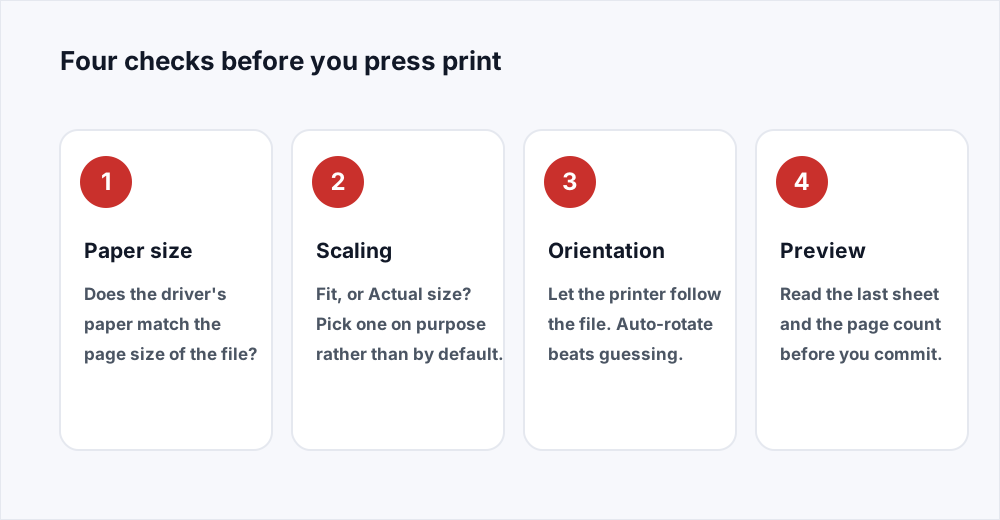
What to check when a PDF prints wrong
Under a minute, and it catches nearly everything.
Adım 1: Read the file's page size
Document properties reports it: 210 by 297 mm for A4, 8.5 by 11 in for US Letter. More than one size means a mixed document.
Adım 2: Match the paper to it
Set the printer's paper size to the same thing, and check the tray holds it. On a shared machine it is whatever the last person used.
Adım 3: Choose a scaling on purpose
Actual size prints at one hundred per cent; fit to printable area shrinks the page to clear the margin. Pick one deliberately.
Adım 4: Read the preview, print one page
Check the sheet count, the last sheet and the edges. On a long job, print page one alone and read the paper first.
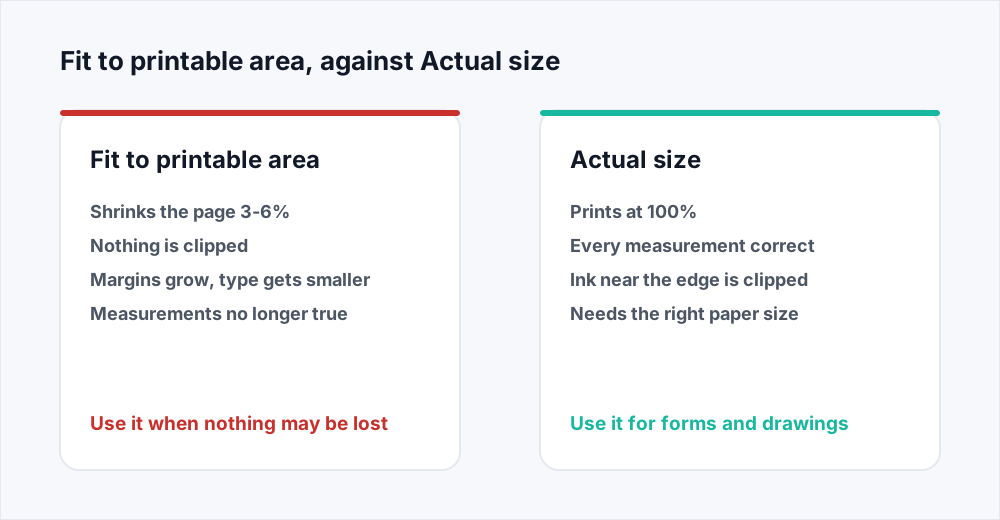
Fit to page vs actual size: what the scaling menu does
Every printer has an unprintable margin: three to five millimetres at the sides, sometimes ten at the foot on an older laser, because that strip is where the paper is gripped as it feeds. The printable area is always smaller than the sheet, and no setting changes that.
Fit to printable area is the dialog's answer: the page is scaled down until all of it clears the margin, usually to between ninety-four and ninety-seven per cent. Nothing is lost, which is the point. What you pay is that everything moves - wider margins, slightly smaller type, every measurement wrong by the same few per cent. This is why a PDF prints small when it looked full size on screen.
Actual size prints at one hundred per cent, so a box meant to be fifty millimetres wide measures fifty millimetres. The cost is that anything inside the unprintable margin is not printed: a footer within four millimetres of the edge loses part of itself.
What each scaling option does to the page
The names vary between readers and drivers. The behaviour does not.
| Setting | What it does | Choose it when |
|---|---|---|
| Actual size (100%) | Prints at the designed size; the margin strip is clipped | Forms, templates and drawings that get measured |
| Fit to printable area | Scales the page down a few per cent to clear the margin | Content runs close to the edge and must not be lost |
| Shrink oversized pages | Reduces only pages larger than the paper | A pack with one A3 drawing among A4 pages |
| Multiple pages per sheet | Two or four pages on one sheet, heavily reduced | Reading copies and proofs, never anything read at size |
A4 on Letter paper is why your margins are cut off
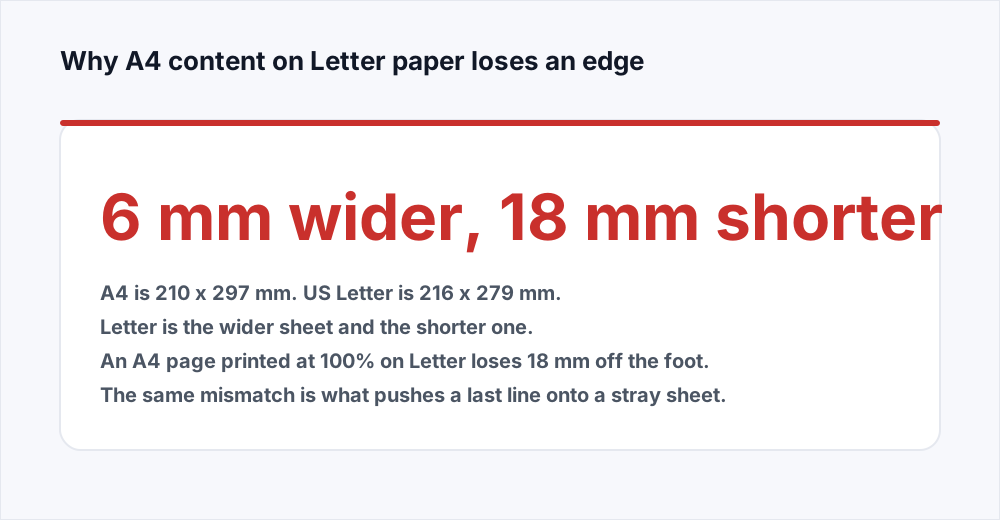
A4 is 210 by 297 millimetres. US Letter is 216 by 279: six millimetres wider and eighteen shorter. Neither sheet contains the other, and that is the whole problem. An A4 file printed at actual size on Letter loses the bottom eighteen millimetres - the page number, the footer, the last row of a table, the signature block. A Letter file on A4 loses six millimetres of width.
Switch to fit and nothing is lost, but everything shrinks: A4 on Letter comes out at about ninety-four per cent whether you wanted that or not. The fix is not a better scaling choice. It is loading the right paper and telling the driver what is in the tray, because a driver set to Letter with A4 loaded will scale a job that never needed it.
The same mismatch produces stray sheets. A PDF page does not reflow, so printing one directly cannot create an extra page - the overflow is clipped instead. But plenty of documents reach the printer through something that does paginate: a browser print path, a word processor, a viewer that re-renders. There, what no longer fits the shorter sheet is pushed onto a new one.
When a PDF prints sideways but looks upright on screen
A PDF page has a stored rotation: a number saying how far to turn it before it is shown, zero, ninety, a hundred and eighty or two hundred and seventy degrees. Readers honour it, which is why a scan that arrived on its side can be set upright without redrawing it.
The trouble is that a page can look right for two different reasons: it may be a landscape page drawn landscape, or a portrait page carrying a rotation of ninety degrees. In a reader they are identical; at the printer they are not, because the driver has its own orientation setting and its own auto-rotate. A page a reader shows upright can reach the paper on its side.
Stop asking the driver to work it out: turn the page in the file so its stored rotation matches how it should sit on paper, then leave the printer on auto-rotate. Organize PDF rotates in quarter turns, and the organize guide covers doing it page by page. A related symptom: a landscape drawing printed with auto-rotate off is scaled until its width fits the narrow side of the sheet, so it arrives as a postage stamp. Nothing looks sideways; it just looks small.
Mixed page sizes in a merged document
A pack assembled from several sources rarely has one page size. The covering letter is A4 from a word processor, the signed page is a scan cropped to 209 by 295 millimetres, the drawing came in at A3. Every page is valid, and together they are a document whose pages are not the same shape.
Printers handle that badly. A driver generally picks one paper size for the whole job and one scaling decision with it, so a single Letter page in an A4 pack can send every page through at ninety-four per cent.
Find the odd page first: the thumbnails give it away, since one page will not be the shape of its neighbours. Then print the pack in two jobs, or rebuild it. Split PDF pulls that page, or everything but it, into a file of its own, and Merge PDF puts a pack back in the order you give. What we cannot do is resize a page: if one is genuinely the wrong size, re-export it from the application it came from.
Why a PDF prints blank pages
There are two kinds of blank page and they need different fixes. Look at the thumbnails: if the blank is there on screen it is in the document; if it appears only on paper, it is the printer's.
Blanks inside the file usually come from a duplex scan of one-sided paper: the scanner photographed the back of every sheet, so twelve pages arrived as twenty-four, half of them white. They are real pages, printed because you asked for them, and they come out by listing the pages to keep.
The blank at the end of a duplex job is a different animal. A double-sided job prints on both sides of each sheet, so an odd page count leaves the back of the last sheet empty. Nothing is wrong: the printer has finished a sheet. Some machines also emit a separator sheet, which is again a setting on the machine.
What to look for in the print preview
The only place the printer tells you what it has decided.
- The sheet count. Twenty-five sheets for a twenty-four page document means something has spilled over, and you can see where.
- The scale figure. Many dialogs show the percentage chosen; anything other than one hundred means the paper and the page disagree.
- All four edges of page one, the footer in particular. That is where a size mismatch shows first.
- The last sheet. Half the blank-page complaints in the world are visible here as an empty thumbnail.
- The orientation of anything that is not text. Drawings and scanned forms are where rotation goes wrong, and the preview shows the printer's decision, not the reader's.
Print a page range rather than the whole file
Most of the cost of a bad print job is that the whole document went through before anyone looked at it. The page range box is the cheapest insurance there is: print page one, look at the paper, then print the rest.
There is a second reason to think in ranges. If the pages are going to a print shop, send only those pages rather than two hundred and an instruction. Split PDF takes a range and gives you exactly those pages, and the splitting guide explains its one trap: the number printed on the page is rarely its position in the file. A report with a cover and a contents page has printed page one at file page four, so a dialog asked for ten to twelve gives the wrong three.
What we can and cannot do about printing
To be straight about it: there is no print dialog here, no driver, no queue. These tools fix the file so the printer makes the right decision. Organize PDF earns its place: it rotates pages a quarter turn at a time and drops what should not be in the job, the duplex blanks and the fax cover sheet. Split PDF gives a range as a file of its own, and Merge PDF assembles a pack in order.
Compress PDF is worth reaching for only when the printer chokes on the size of the file: a heavy scan can stall a machine with little memory, and 150 dpi usually gets it through. It resamples images only, so it changes nothing about page size, margins or rotation.
If the problem is one line sitting too close to the paper edge, Edit PDF moves it inwards, in the browser, without the file leaving your machine. And if you are unsure which tool the job needs, the short decision guide sorts the cases people get wrong.
Frequently asked questions
Why does my PDF print small when it looks full size on screen?
The dialog is set to fit to printable area, which scales the page down by three to six per cent to clear the strip where the printer cannot lay ink. Switch to actual size for one hundred per cent, accepting that anything within a few millimetres of the edge is then clipped.
Why are my PDF printing margins cut off on one side?
Almost always a paper size mismatch. An A4 page printed at actual size on US Letter loses eighteen millimetres off the foot; a Letter page on A4 loses six millimetres of width. Match the printer's paper to the size shown in document properties.
Is fit to page or actual size the right choice?
Actual size when the page will be measured, filled in by hand or laid over something else. Fit to printable area when content runs close to the edge and losing it matters more than shrinkage. If the paper matches the page, actual size is the safer default.
Why does my PDF print blank pages?
Check the thumbnails. If the blank is visible on screen it is a page in the file, usually the back of a duplex-scanned sheet, and Organize PDF removes it. If it is not in the file, it is the printer finishing a double-sided sheet for an odd page count, and no edit to the file will stop it.
Why does my PDF print sideways when the page looks upright?
A page can look upright because it was drawn that way or because it carries a stored rotation, and the printer's orientation setting can override the second. Turn the page in the file with Organize PDF so the stored rotation matches how it should sit on paper, then leave the printer on auto-rotate.
Can I change a PDF from A4 to Letter here?
No. We have no step that resizes a page, and would rather say so than quietly scale your content. Print with fit to printable area, or re-export at the right paper size from the application it came from. Everything we do have is on the tools page.
In short
A PDF prints wrong when the page and the sheet are different sizes and something has to give. Read the file's page size, match the printer's paper to it, choose a scaling deliberately, and read the preview before committing a ream. A page that prints sideways needs its rotation fixed in the file, and one odd page in a pack re-scales the whole job.
The blank at the end of a duplex job is the printer, not your document. We do not print; we fix the file - rotation and unwanted pages in Organize PDF, a range in Split PDF, a pack assembled in Merge PDF. All of it is free, with no account.