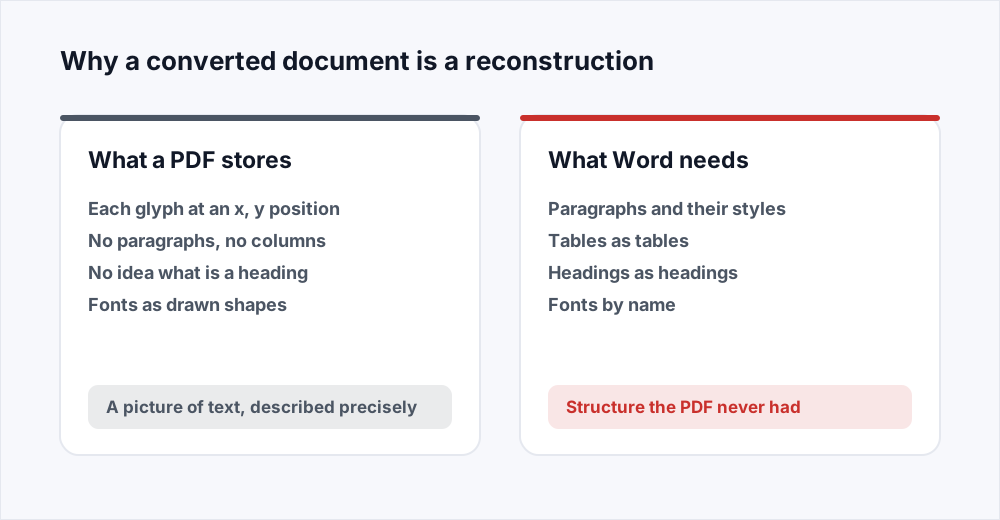
Every PDF-to-Word converter, including this one, is guessing. That is not a criticism of any particular tool; it is a fact about the two file formats. A Word document is made of paragraphs, headings, tables and styles - things with meaning. A PDF is made of instructions to draw glyphs at coordinates. It knows that an M goes at this position and an a goes next to it. It does not know they are the start of a heading, or that the heading belongs to the section below it, or that the twelve lines beneath are one paragraph rather than twelve.
So a converter has to read the drawing and infer the document. Letters close together become words; words on a line become a line; lines with the same left edge and regular spacing become a paragraph; a run of larger, bolder text becomes a heading. It gets this right remarkably often, and when it gets it wrong the result is not subtly wrong but visibly odd - a paragraph broken into lines, a table turned into tab-separated text, a two-column page read left to right across both columns.
This guide explains what to expect from PDF to Word, which documents convert well, which never will, how to get the most usable result, and the cases where you do not want a Word file at all.
How to convert a PDF to Word in three steps
There is almost nothing to set. The one switch that matters is OCR, for scanned pages, and it is part of Pro.
الخطوة 1: Open the converter
Go to PDF to Word. No account, nothing to install.
الخطوة 2: Add the PDF
Drag it onto the page or choose it. Up to 20 MB on the free plan, or 250 MB on Pro. The conversion runs on a server, because the software that does it well is not browser software. If the PDF is a scan, turn on OCR first and choose the languages it is written in.
الخطوة 3: Download the .docx and check it
Open the result in Word, LibreOffice or Google Docs and read it through. The next section says what to look for. The upload is deleted when the job finishes and the result is deleted when you download it.
What converts well, and what does not
The single best predictor of a good result is where the PDF came from. A PDF exported from Word, Google Docs or any word processor carries clean, regular text with consistent fonts and spacing. The converter reads it easily and reconstructs paragraphs, headings and simple tables with very few mistakes. If the original author still has the source document, it is always better to ask for that - but when they do not, this kind of PDF converts well.
A PDF from a design tool - a brochure, a poster, an annual report with text flowing around images in three columns - is much harder. The text is real, but the layout is not linear, and a converter has to decide which column comes first and where each one ends. It will produce something, and the something will need rearranging.
A scanned PDF does not convert at all in the sense people mean, because there is no text in it. Each page is a photograph of a page, and converted as it is, it produces a Word document containing a picture. Getting text out of a scan is optical character recognition, a different job with its own failure modes. On Pro, the converter has an OCR option that reads scanned pages first, in up to three languages per task: English, Arabic, Urdu, Hindi, Bengali, Chinese (Simplified or Traditional), Japanese, Korean, Russian, Turkish, Portuguese, Spanish, French, German and Indonesian. How well it reads depends on the scan, so a clean, straight page does far better than a crooked photocopy, and the result needs proofreading either way.
What to expect by document type
| The PDF is | Text | Layout | Tables | Verdict |
|---|---|---|---|---|
| Exported from Word or Docs | Clean | Close | Simple ones fine | Converts well |
| A form or a letter | Clean | Close | Ruled boxes usually fine | Converts well |
| A multi-column report | Clean | Needs rearranging | Hit and miss | Usable, expect to tidy |
| A brochure or poster | Clean | Rebuilt loosely | Rarely | Get the text, redo the layout |
| A scan or photo | None without OCR | A picture without OCR | Only with OCR | Needs OCR (Pro) - proofread it |
How to get the best result
Most of what makes a conversion good or bad is decided before the file is uploaded, by what the file is. But there are things worth doing.
Convert only what you need. If you want to edit one section of a two-hundred-page document, cut the section out first with Organize PDF and convert that. A shorter document converts faster, and checking six pages for mistakes is a job; checking two hundred is a week.
Read the result before you edit it. A converted document looks finished and is not. Look for paragraphs that break at every line - the tell-tale sign the converter saw lines but not paragraphs - and join them. Look at every table. Look at anything that was in a column. Fix structure first, then start editing content, because editing content in a broken structure means doing it twice.
Check the headings are headings. A converter marks up a heading when it can tell, and often it can. When it cannot, the heading is a bold paragraph, which looks identical and behaves differently: it will not appear in a navigation pane or a generated table of contents. If those matter, apply heading styles yourself.
Images, charts and everything that is not text
Pictures in the PDF come across as pictures in the Word document, placed roughly where they were. A chart that was drawn as vector shapes is usually converted to a picture of the chart rather than to editable shapes, which is fine for reading and unhelpful if the chart needed updating - the numbers behind it were never in the PDF to begin with. Logos and photographs are embedded at their original resolution, so a heavy PDF produces a heavy Word file.
Text that was rotated, curved or set in a text box floating over an image is the most likely to land somewhere odd. It is still there; it is just anchored to a position the converter had to guess at. If a page has a lot of it, expect to move things.
When you do not actually want a Word file
People convert to Word because it is the tool they know for changing text. But if the change is small - a date, a name, a price, a paragraph - converting the whole document, editing it, and converting it back is three steps that each lose something. Edit PDF changes text in place, on the page, in the document's own font, and runs entirely in your browser without uploading anything. For a correction, it is faster and the result is exact.
If what you want is the numbers, not the words, PDF to Excel pulls tables into a spreadsheet directly rather than into a Word table you then have to move again.
And if you only need the text - to quote it, search it, paste it somewhere - open the PDF in any reader and copy it. Converting to Word to get plain text is a long walk to the shop next door. The which-tool guide goes through these choices in more detail.
Converting in practice: five common jobs
The same conversion, applied to documents people actually have, with a note on what to expect from each.
- A contract the other side sent as a PDF, which you need to redline. Converts well if they exported it from Word, which they almost certainly did. Join any split paragraphs, then track changes as usual. Send back a PDF, not the Word file, so your edits are the only ones.
- A CV you no longer have the original of. Converts well. CVs are simple documents, and the tables some use for layout usually survive. Check the dates line up.
- A report to be updated for a new year. Converts adequately. Expect to fix the table of contents, rebuild any charts, and reapply heading styles. Still faster than retyping, and much faster than recreating the tables.
- A government form to be filled in. Usually converts well enough to type into, but if the form has fillable fields, Edit PDF will let you fill it as a PDF, which is what the recipient expects to get back.
- A scanned letter. Without OCR it does not convert - you get a picture in a Word file. With OCR on, which is part of Pro, the text is read from the scan and becomes editable. Pick the letter's language, then read it against the original, because a misread word looks just like a correct one.
What happens to your file
Conversion runs on a server, one job at a time, because the software that reads a PDF's layout and writes a Word file is not something a browser can run. Your upload is written straight to disk without being held whole in memory, converted, and deleted the moment the job finishes. The result is available for thirty minutes and deleted as soon as you have downloaded it. The security page sets out every step.
No account is needed, no watermark is added, and the result is a standard .docx that opens in Word, LibreOffice, Pages and Google Docs.
Frequently asked questions
Will the Word document look exactly like the PDF?
Close, but not exactly, and no converter can promise otherwise. A PDF stores where each letter goes; Word stores paragraphs and styles. The converter reconstructs the second from the first, and fonts you do not have installed are substituted. A PDF exported from a word processor comes out very close. A designed layout comes out rearranged.
Why is every line its own paragraph?
Because the converter saw lines but could not be sure they belonged together - usually where line spacing or left edges were irregular. Select the affected text in Word and join the lines. It is the most common fix and takes seconds per paragraph.
Can I convert a scanned PDF to Word?
Yes, on Pro. A scan contains no text - each page is a picture - so without OCR the Word file contains a picture. Turn on OCR and choose up to three languages the document is written in, and the text is read from the scan first. Proofread the result: recognition is only as good as the scan.
Can I edit the PDF instead of converting it?
Often, yes, and for small changes it is the better choice. Edit PDF changes text in place in the document's own font, entirely in your browser, and saves a PDF. For a correction or an added paragraph it is faster than converting out and back.
Does the converter keep tables?
Simple, ruled tables usually survive as Word tables. Tables drawn with whitespace alone are often read as tabbed text. If the tables are the point, PDF to Excel is built for exactly that and puts them straight into a spreadsheet.
Is it free, and is there a limit?
Free, with no account and no watermark. The free plan takes files up to 20 MB and 3 Office conversions a day; Pro takes 250 MB with no daily limit. Jobs run one at a time on the server, so at busy moments you may see your place in a short queue rather than a spinner.
Is it safe to upload a confidential PDF?
The file is deleted the moment conversion finishes, and the result is deleted as soon as you download it; the security page documents the timings. For material that must not leave your machine at all, Edit PDF runs entirely in the browser and uploads nothing.
In short
A Word file made from a PDF is a reconstruction, and how good it is depends almost entirely on what the PDF was. Documents exported from a word processor convert well. Designed layouts convert loosely. Scans need OCR, which is part of Pro, and a proofread afterwards. Read the result before editing it, fix structure before content, and for small changes edit the PDF in place instead.
Every tool mentioned is free and needs no account - see them all.