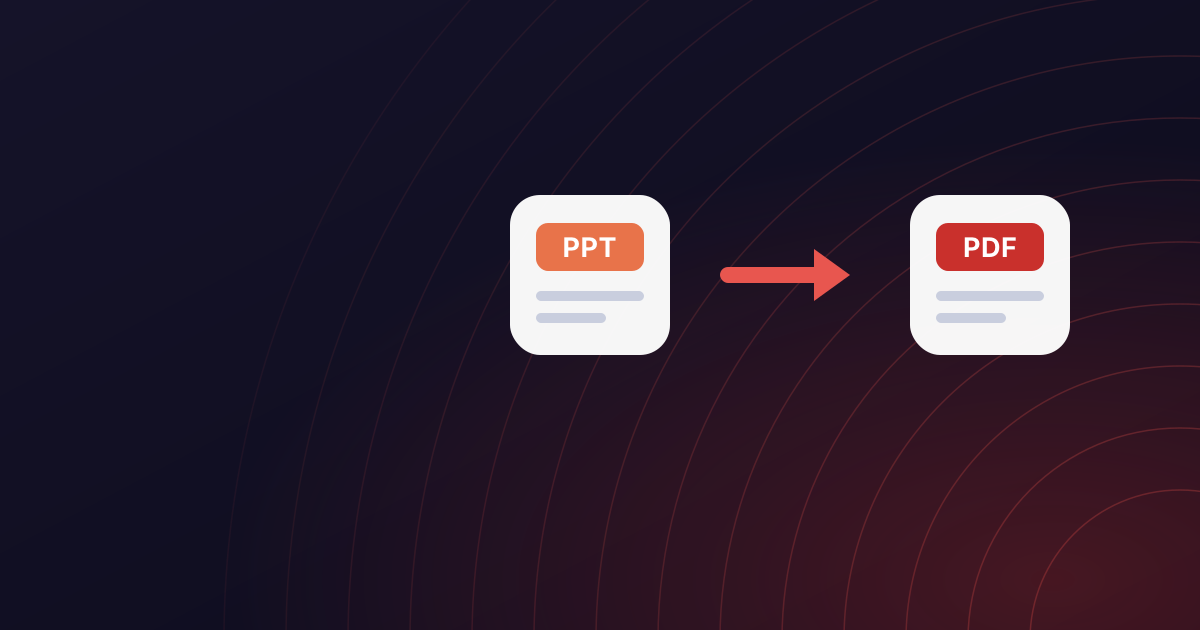
A presentation file is built to be presented: it stores slides, but also the animations that reveal them, the transitions between them, the speaker's notes underneath them, and a dependence on whatever fonts the presenting machine happens to have. None of that helps the person who just wants to read the deck afterwards, and some of it actively hurts - a slide whose bullet points are animated in one at a time is, when opened as a file, a slide with no bullet points on it until you click.
A PDF of the deck is the deck at rest: every slide, fully shown, as a page, with the fonts inside the file. It opens on a phone, in a browser, on a machine with no presentation software, and it looks the same on all of them. It also cannot be edited by a well-meaning colleague who opens it in PowerPoint and accidentally drags a logo.
This guide covers what PowerPoint to PDF keeps and what it leaves behind, why the result is sometimes large and what to do about it, and how to prepare a deck so the PDF is the version you meant to send.
How to convert PowerPoint to PDF in three steps
Most of the choices are made in the deck. The converter adds two: speaker notes and hidden slides.
Schritt 1: Prepare the deck
Delete or hide slides you do not want in the PDF, and make sure any build animations leave the slide in its finished state. The checklist further down covers this.
Schritt 2: Open the converter and add the file
Go to PowerPoint to PDF and drag the .pptx or .ppt onto the page. Up to 20 MB on the free plan, or 250 MB on Pro. No account, nothing to install. Turn on Add speaker notes if you want each slide's notes in the PDF; More options has the switch for hidden slides.
Schritt 3: Download and page through it
Each slide is a page. Check the fonts and that nothing is missing from any slide that was animated. The upload is deleted when the job finishes; the PDF is deleted when you download it.
What is in the PDF
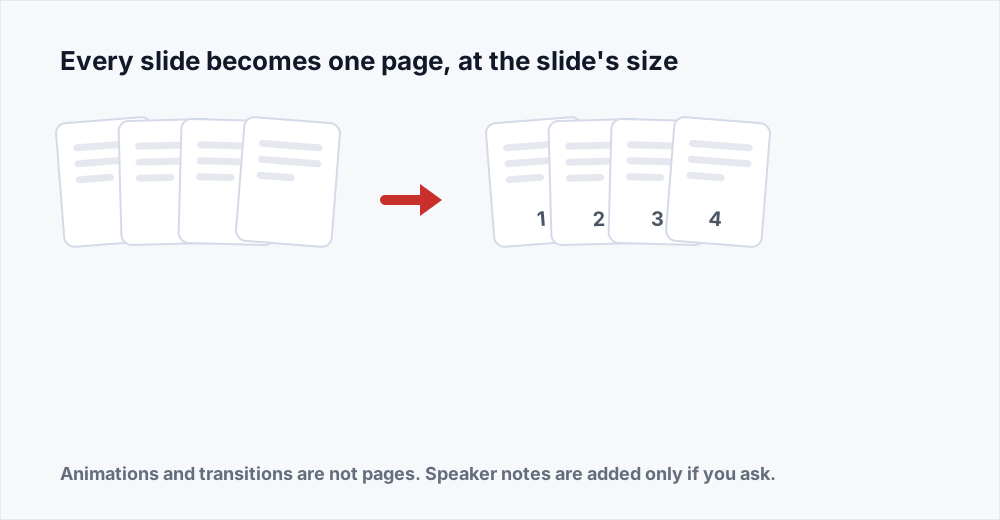
Every visible slide becomes one page, in order, at the slide's own dimensions. A widescreen deck produces widescreen pages; a 4:3 deck produces 4:3 pages. Text stays text, so it can be selected and searched. Images are kept at the resolution they have in the deck. Shapes, charts and tables are drawn as they appear. Fonts are embedded, which is the main reason to convert at all: a deck set in a typeface the reader does not have opens in that typeface anyway.
Links are kept. A URL on a slide, or a link that jumps to another slide, works in the PDF - the second as a link to the corresponding page. Hyperlinked table-of-contents slides survive intact.
Hidden slides are left out unless you turn on the option to include them under More options. That default is the easiest way to leave slides out: hide them in PowerPoint rather than deleting them, convert, and they are absent from the PDF while still in your deck. When the PDF is for you rather than the audience, include them and nothing is missing.
What is not in the PDF
Animations and transitions do not exist on paper. Each slide is rendered in its final state - everything that would have appeared by the end of the slide's animations is shown at once. For a slide that builds up a diagram this is exactly right. For a slide that used animation to show one thing and then replace it with another, both things are on the page at once, overlapping, and it needs to be split into two slides before converting.
Speaker notes are not included unless you ask for them. For the audience, a PDF of the slides is usually what you want. If the notes are the point - a script, a rehearsal copy, a set of slides with commentary - turn on Add speaker notes and each slide's notes follow it on a page of their own.
Embedded video and audio become their poster frame or nothing. A PDF can technically contain media but almost nothing plays it, and the file would be enormous. The slide shows the video's first frame as a picture.
What survives the conversion
| Feature | In the PDF | Note |
|---|---|---|
| Slides, in order, at their size | Yes | One page each |
| Text, shapes, charts, tables | Yes | Text stays selectable |
| Images | Full resolution | Compress afterwards if the file is large |
| Fonts | Embedded | Uncommon fonts may be substituted |
| Links, including slide-to-slide | Yes | Slide links become page links |
| Hidden slides | Only if you include them | Left out by default, the easiest way to drop slides |
| Animations, transitions | No | Each slide in its finished state |
| Speaker notes | Only if you add them | A notes page right after each slide |
| Video, audio | Poster frame only |
Before you convert: a short checklist
The PDF is the deck as it is. Fix the deck first.
- Hide any slide that is not for this audience - the internal numbers, the backup slides, the one with the placeholder text still on it.
- Look at every animated slide and ask what it looks like with everything shown at once. Split any slide that uses animation to replace content rather than reveal it.
- Check for images sitting under other images. They are invisible in the deck and still in the file, and they still count towards the size.
- Delete empty slides at the end. An empty slide is an empty page.
- If the deck uses an unusual font and the exact letterforms matter, check the first converted page before sending the rest.
Common jobs
Sending slides after a meeting. Hide the backup slides, convert, compress at Smaller, send. The recipient gets a file that opens on their phone and cannot be edited.
A proposal made of a deck and a document. Convert the deck here and the document with Word to PDF, then combine them with Merge PDF. Widescreen slides sitting inside a portrait document look fine; every page keeps its own size.
Extracting a few slides for someone. Convert the whole deck, then keep only the pages you want with Organize PDF. Faster than making a copy of the deck and deleting slides from it.
A deck that must not leak. Convert, then add an open password with Protect PDF. A PDF with a password is readable by nobody who does not have it; a .pptx with a password is a good deal less certain.
A last-minute typo. Edit PDF fixes text in the PDF directly, in the slide's own font, without going back to PowerPoint and converting again.
Widescreen slides and paper
Nearly every deck made in the last decade is 16:9, and a 16:9 page is not a paper size. On screen that is irrelevant - a PDF page can be any shape - but the moment somebody prints the PDF, their printer has to fit a wide page onto a portrait or landscape sheet, and it does so by shrinking the slide until it fits, leaving a band of white above and below. That is normal and it is not something the conversion can change; the slide is the shape it is.
If the PDF is primarily for print, the choice is made in PowerPoint before converting: set the slide size to A4 or Letter in the design settings, let PowerPoint rescale the content, check nothing has fallen off the edge, and then convert. For a PDF read on screens, which is most of them, leave the slides as they are.
Charts, tables and things embedded in slides
Charts are rendered exactly as they appear on the slide, as vector drawings where the deck holds them as vectors, so they stay sharp at any zoom. A chart linked to an external spreadsheet is rendered with the values it currently shows; the conversion does not open the spreadsheet, so refresh the link in PowerPoint first if the numbers have moved.
Tables come across as drawn, with their borders and fills. SmartArt and shapes are drawn as shapes. Slide numbers, footers and dates in the footer are on the page if they are on the slide. Embedded documents - a Word file or a spreadsheet dropped onto a slide as an object - become the icon or preview the slide shows, not the document inside; the PDF is the slide, and the slide only ever showed a picture of them.
Checking the result
Two minutes with the PDF before it goes anywhere.
- Page count matches the number of visible slides, plus the notes pages if you added speaker notes. If it is higher, a hidden slide was not hidden; if lower, a slide was.
- Any slide that had animation looks right with everything shown at once.
- Fonts on the first and last page match the deck. Substitution shows up as slightly different letter widths and, occasionally, a line that wraps.
- Charts show current numbers, not last quarter's, if they were linked.
- The file size is reasonable for how it will be sent. If not, compress it - the images are what weigh, and the text is untouched.
What happens to your file
Conversion runs on a server, one job at a time, using the same rendering engine a desktop office suite uses. Decks are large, so the upload is streamed straight to disk rather than held in memory, converted, and deleted the moment the job finishes. The PDF is available for thirty minutes and is deleted as soon as you have downloaded it. The security page sets out every stage.
No account is needed and no watermark is added.
Frequently asked questions
Does the PDF include my speaker notes?
Only if you ask. By default the PDF contains the slides, one per page. Turn on Add speaker notes and each slide is followed by a page with its notes.
What happens to animations?
Each slide is rendered with all its animations complete - everything that would have appeared by the end is shown. Slides that used animation to replace one thing with another will show both; split those into two slides before converting.
How do I leave slides out of the PDF?
Hide them in PowerPoint. Hidden slides are not converted unless you include them under More options, and they stay in your deck for next time.
Why is the PDF so big?
Because the deck was, and the conversion keeps images at their full resolution. Compress PDF brings them down to screen resolution afterwards; for a deck read on screen, the Smaller level is usually indistinguishable and a fraction of the size.
Will the fonts look right?
For any common font, yes - they are embedded in the PDF. A deck set in an unusual licensed typeface may be laid out in the closest available substitute; check the first page if that matters.
Does it convert .ppt as well as .pptx?
Yes. PowerPoint to PDF accepts both and produces the same PDF from each.
Is it free, and is my deck safe?
Free, no account, no watermark. The deck is deleted the moment conversion finishes and the PDF is deleted when you download it; the security page documents the timings.
In short
A PDF is the deck at rest: every visible slide as a page, fonts embedded, animations finished, speaker notes only if you add them. Hide what should not be sent, split any slide that relied on animation to replace content, convert, and compress the result if it is going by email.
Every tool here is free and needs no account - see them all.