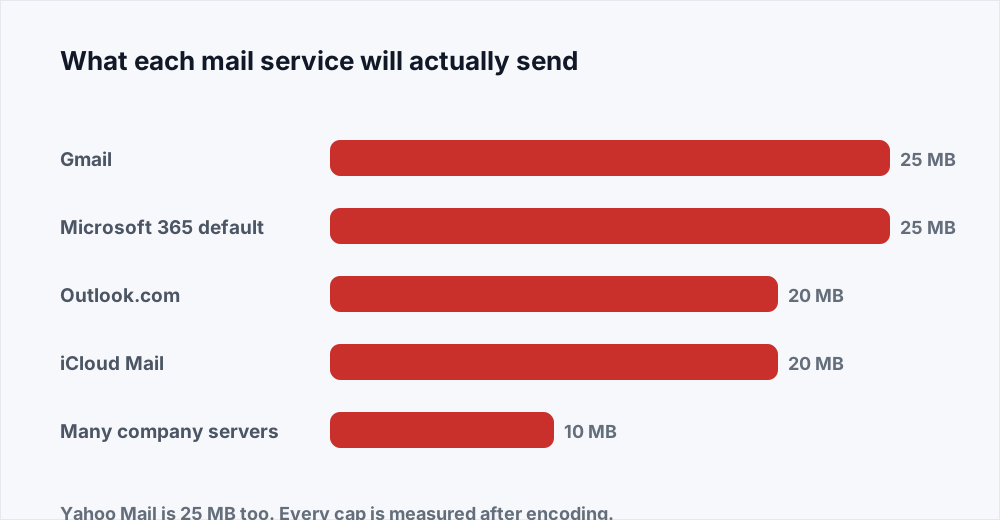
Your PDF is too big to email because mail systems cap the size of a single message, and the cap is lower than most people think. Gmail and Yahoo stop at 25 MB, Outlook.com at 20 MB, Microsoft 365 at 25 MB unless an administrator has changed it, iCloud Mail at 20 MB, and a great many company servers at 10 MB. Worse, the cap is measured after the message has been encoded, which adds about a third to your file. There are four ways out: compress it, split it into parts, send a link instead, or take out whatever is making it heavy.
Which of the four you reach for depends on the document and on who is receiving it, and the encoding detail is the one that catches people out. Somebody trims a 26 MB file to 24 MB, feels clever, and watches it fail anyway.
So: what the limits really are, why your file grows in transit, and how to choose. Most of the time the answer is Compress PDF and you are done in under a minute.
How to send a large PDF in four steps
The short version, for someone with a failed send behind them.
Schritt 1: Find the real size
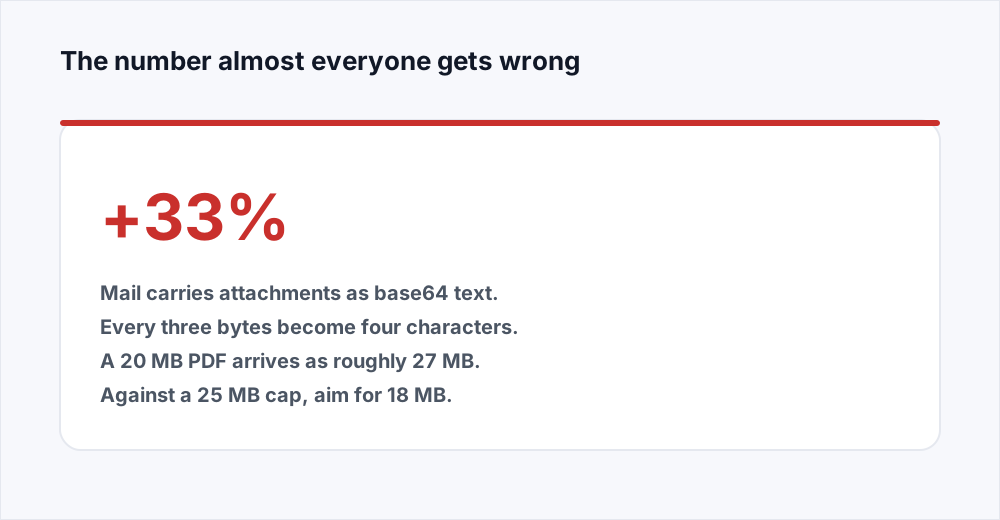
Check the file's size on disk, then add a third. That total is what the mail server weighs. A 20 MB PDF is a 27 MB message, and 27 MB does not fit through a 25 MB door.
Schritt 2: Compress it
Open Compress PDF, add the file, and choose Balanced. You are shown the old size and the new one before you download anything, so you can see immediately whether it was enough.
Schritt 3: Aim below the cap, not at it
Target about 18 MB for a 25 MB limit, 14 MB for a 20 MB limit, and 7 MB for a 10 MB one. The gap covers the encoding and leaves room for your message text and signature.
Schritt 4: If it still will not fit, change the shape of the job
Split the document into parts with Split PDF, send a link from whatever cloud drive you already have, or send only the pages the recipient asked for.
The Gmail attachment size limit, and everyone else's
Every mail provider sets a maximum message size, and the numbers have barely moved in fifteen years. Gmail is 25 MB, Yahoo Mail 25 MB, Outlook.com 20 MB, iCloud Mail 20 MB. Microsoft 365 ships with a 25 MB default that an administrator can raise or lower, and plenty of them lower it. Business servers are the unpredictable ones: 10 MB is a very common setting, and some legal and government systems are stricter still.
These are limits on the whole message, not on the attachment alone. Your subject line, your message text, your HTML signature with a logo in it, and the mail headers all count against the same total.
There is one more thing the numbers do not say. A provider's published figure is what it will let you send. What your recipient's server will accept is a separate number, over which you have no control at all.
Email attachment size limits by provider
The published caps, and what they mean once encoding has taken its share. Treat the last column as your actual budget.
| Service | Message limit | Practical file size |
|---|---|---|
| Gmail | 25 MB | About 18 MB |
| Yahoo Mail | 25 MB | About 18 MB |
| Microsoft 365 (default) | 25 MB | About 18 MB |
| Outlook.com | 20 MB | About 14 MB |
| iCloud Mail | 20 MB | About 14 MB |
| Typical company server | 10 MB | About 7 MB |
Why a 20 MB file arrives as a 27 MB message
Email was designed to carry text, and its standards assume text is all anybody will ever send. A PDF is not text. It is binary data, full of byte values a mail server would read as control characters and mangle on the way through.
So attachments are encoded before they travel. The scheme is base64, and it rewrites every three bytes of your file as four printable characters. Three into four is a third more data, by definition and with no exceptions, plus a fraction of a percent for the line breaks the format inserts every 76 characters.
The result is that your 20 MB PDF becomes about 27 MB of message body, and it is that 27 MB the server weighs against its limit. This is why a file that looks comfortably inside the cap is rejected, and why so many people conclude the published limit is a lie.
Turn it round and you have a rule worth remembering: divide the published limit by 1.35 and send less than the answer. Twenty-five becomes eighteen. Twenty becomes fourteen. Ten becomes seven.
The four ways to get the document there
In the order to consider them. The first that works is the right one, because each of the later ones asks more of the person receiving it.
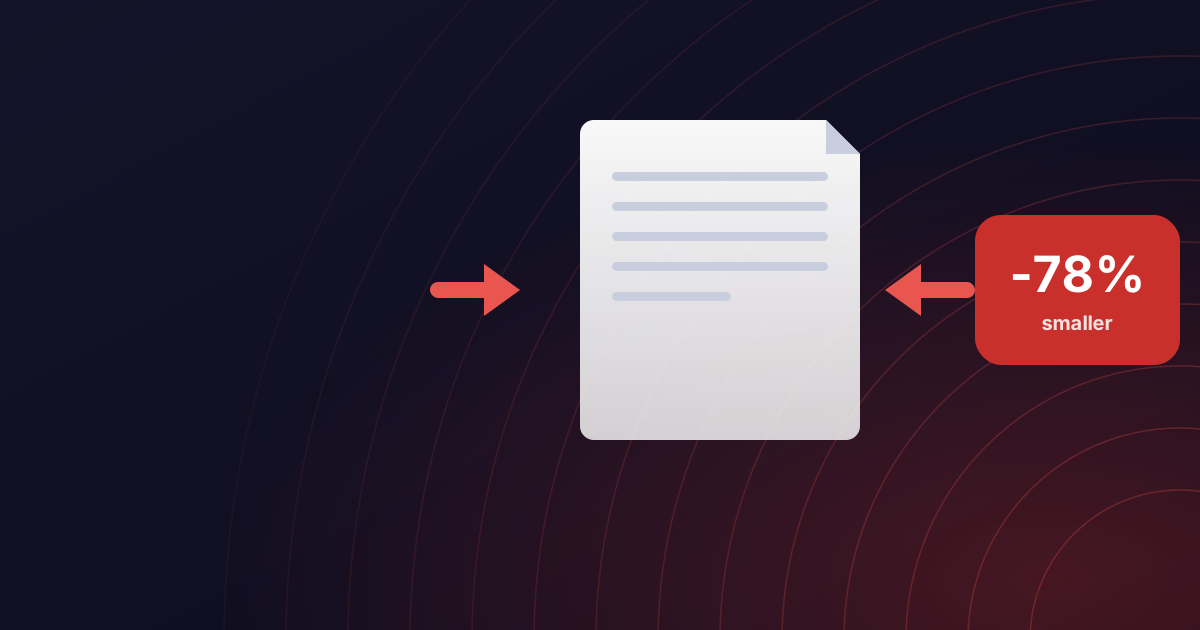
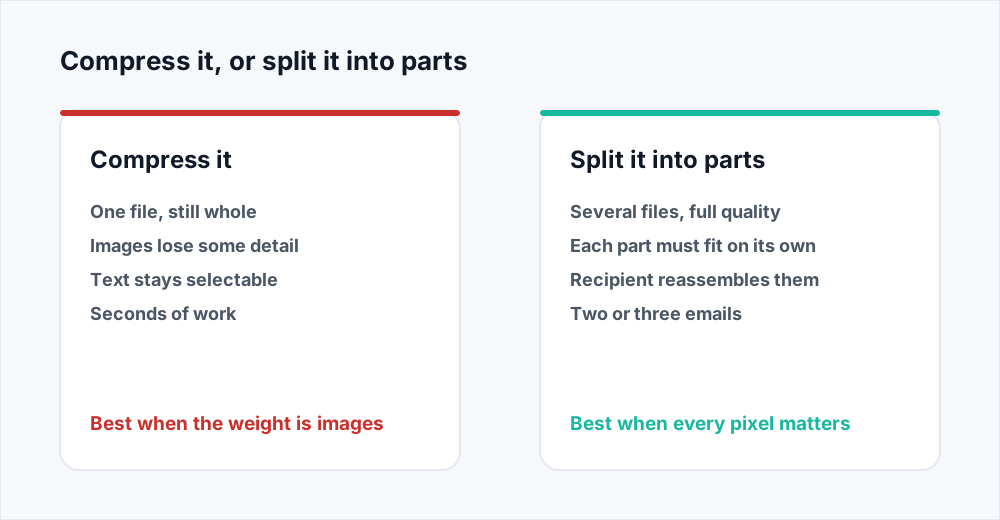
- Compress it. The weight of almost every oversized PDF is in its images, and resampling them is usually enough on its own. Compress PDF does it in one step and shows you the result before you commit.
- Split it into parts. Full quality is kept and each part is sent separately. Split PDF turns each page range into its own file, so a 60 MB board pack becomes four 15 MB sections.
- Send a link. Upload the file to whatever cloud storage you already use and paste the link into the message. Nothing is attached, so no limit applies.
- Remove what is heavy. A document is often large because of pages nobody asked for: forty pages of appendices, or a scanned cover sheet that adds nothing. Sending less is always smaller than squeezing the same thing.
How to reduce PDF size for email without ruining it
Compression is the first thing to try because it is the only option that changes nothing about how the document is received. One file arrives, opens, and reads exactly as it did, minus some detail in the pictures that nobody was studying anyway.
What happens inside is that the images are resampled. Compress PDF offers three levels: Smaller at 72 dpi, Balanced at 150 dpi, and Higher quality at 300 dpi. Text and vector drawing are untouched at every level, so the words stay selectable, searchable and readable by a screen reader.
Balanced suits anything read on a screen, which is almost everything sent by email. Smaller is for a document that only has to be legible - a receipt, a scanned form, a proof of address. Higher quality is for something going to a printer, and it is the level least likely to get you under a limit.
The saving depends on what is inside. A twenty-page contract scanned at 600 dpi colour can lose ninety per cent of its weight and look identical on a screen; a text-only report will barely move. The compression guide goes through what each level changes and how to predict the result.
When splitting is the better answer
Compression trades detail for size, and some documents cannot make that trade. Architectural drawings, medical scans, photographs submitted as evidence, artwork going to a printer: in all of these the detail is the point, and a smaller file is a worse file.
For those, split the document and send the parts. Split PDF copies whole pages into new files without re-rendering anything, so each part is exactly as good as the pages inside it. The guide to splitting covers the page range notation and the mistake nearly everyone makes with printed page numbers.
Two things to get right. Each part must fit under the limit by itself, so divide by the practical budget rather than the published cap: a 60 MB file against a 25 MB Gmail limit needs four parts, not three. And name the parts for what they are, because a recipient looking at three files called report-1-20, report-21-40 and report-41-60 has been given a puzzle rather than a document.
Say in the message how many parts there are and in what order. If they need it back as one file, Merge PDF puts the parts together again in the order given, and nothing is lost in the round trip.
When a link beats an attachment
Past about 30 MB, attaching a file stops being reasonable whatever the limits allow. A 25 MB attachment sent to eight people is 200 MB of mailbox storage consumed, permanently, for one document.
Sending a link avoids every size limit in this article, because nothing is attached. Upload the file to the cloud storage you already have - OneDrive, Google Drive, Dropbox, your company's own file share - and paste the link in. Gmail and Outlook both offer to do this for you when an attachment is too large, which is worth accepting.
We should be plain about one thing: OrbitexPDF does not host files or generate share links. Every tool here takes a file, does one job to it, gives it straight back and deletes its copy. Where you send the result is entirely your business.
A link does ask something of the recipient. They have to reach your storage, which sometimes means signing in, and a link into a service their firewall blocks is worse than no link at all. For someone outside your organisation, a compressed attachment arrives with less friction.
When compression will not help you
Three cases come up often enough to name, and in all three a compressor is the wrong tool.
A text-only PDF is already small for what it contains. A 200-page policy document of pure text might be 4 MB, and compressing it will take off a few per cent at most, because there are no images to resample.
A PDF that has already been compressed hard will not give much more. Its images are at low resolution already, so a second pass costs quality without buying size. If a file has been through a compressor twice and is still too big, it needs splitting.
And a file that is large because of how many pages it has is a different problem wearing the same clothes. Sixty pages of appendices behind a two-page letter is not a compression job. Take out what nobody asked for and send the rest.
Sizes, plans and what happens to your file
Every tool here is free with no account. The free plan takes files up to 20 MB, which covers most of what fails to send; Pro raises that to 250 MB, at five dollars a month on the pricing page.
Compression runs on a server, so the file is uploaded, processed and deleted as soon as your download is done. The security page sets out the full path a file takes.
Frequently asked questions
What is the Gmail attachment size limit?
25 MB for a single message, counting the text, the signature and every attachment together. Because attachments are base64 encoded in transit, which adds about a third, the largest file that reliably fits is around 18 MB.
How do I send a PDF over 25 MB?
Compress it first with Compress PDF; a scan or an image-heavy document often drops below 10 MB at the Balanced level. If the detail has to be kept, split it into parts and send them as separate messages, or upload it to your own cloud storage and send the link.
Why does my 20 MB PDF fail a 25 MB email attachment size limit?
Because mail encodes attachments as base64 text, which turns every three bytes into four characters and makes the message about a third larger than the file. A 20 MB PDF travels as roughly 27 MB, which is over a 25 MB cap. Divide any published limit by 1.35 to get the file size you can actually send.
How do I reduce PDF size for email without losing quality?
Use the Balanced level, which resamples images to 150 dpi and leaves text and vector drawing untouched. Text stays selectable and sharp at every level. The compression guide explains what each level changes and which documents can afford which.
Does the recipient's email limit matter?
Yes, and it is the one you cannot see. A message can leave your provider and be rejected by theirs, which produces a delivery failure notice some hours later. Corporate servers commonly cap inbound mail at 10 MB, so assume that figure when you are sending to a business you do not know.
Can I zip the PDF to make it smaller?
Rarely worth it. A PDF's contents are already compressed internally, so zipping saves a few per cent and sometimes adds a little. It also makes the recipient unzip it, and many corporate mail filters delete zip attachments before anybody sees them.
In short
Mail limits sit between 10 MB and 25 MB depending on who is sending and who is receiving, and encoding makes your file about a third heavier in transit, so divide the published cap by 1.35 to get your real budget. Compress first, because most oversized PDFs are oversized images. Split when the detail cannot be traded away. Send a link when the file is genuinely large. And weigh the file before you attach it, because the recipient's server has a limit of its own and its bounce arrives long after you have stopped watching.
Everything here is free and none of it needs an account - see every tool.