Aller au contenu
OrbitexPDF
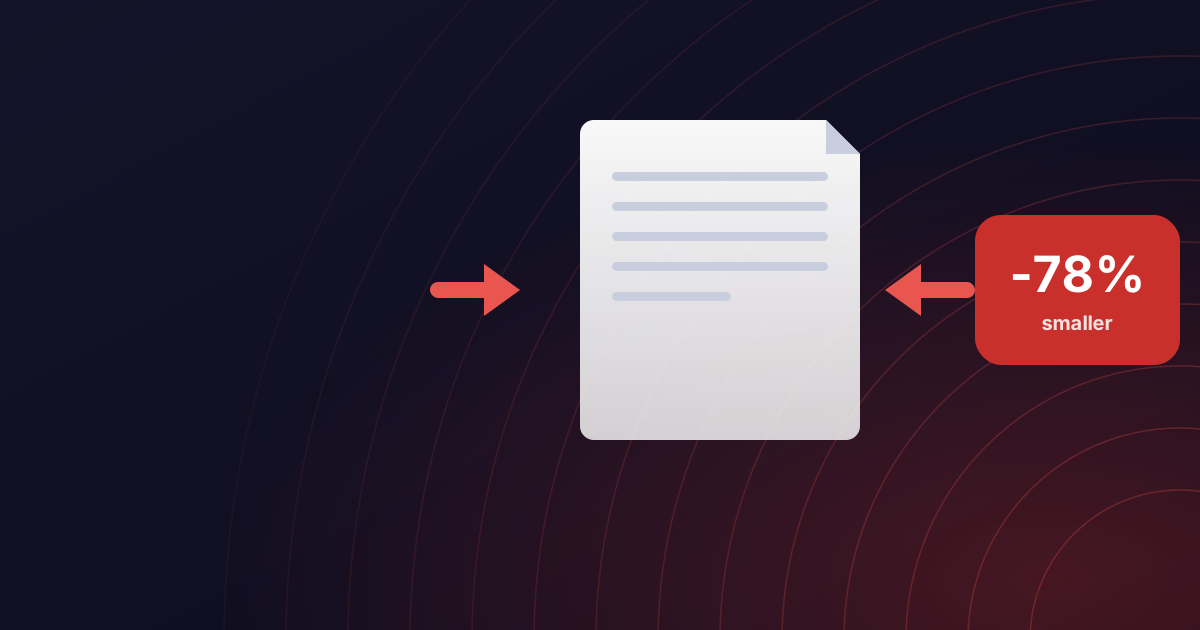
A PDF page squeezed by two arrows beside a panel reading 78 percent smaller
Compresser PDF

Compress without losing quality

How to compress a PDF without losing quality

Choosing the right compression level matters for email attachments, web uploads, and print-ready documents.

Compressing a PDF is mostly a question about images. Text and vector graphics are already compact; what makes a document heavy is photographs and scans stored at a resolution far higher than anyone will ever look at.

So the useful question is not how hard to compress, but what the file is for. Our three levels are exactly that question, asked in plain language.

Smaller - for email and the web

Images are reduced to roughly 72 dots per inch, which is about what a screen shows. Choose this when the document is going to be read on a phone or a laptop and then forgotten. It produces by far the smallest file.

Balanced - the default

Around 150 dots per inch. Text stays crisp, photographs stay recognisable, and the file is usually a fraction of the original. If you are not sure, this is the one.

Quality - still meant to be printed

Around 300 dots per inch, which is the usual threshold for print. The saving is smaller because the detail is kept. Use it for anything going to a printer or a client.

When compression cannot help

Some documents are already optimised, and some are almost entirely vector art with nothing to downsample. Pushed hard enough, rewriting such a file can make it slightly larger rather than smaller.

When that happens you get your original back, unchanged. Handing you a bigger file under the word compressed would be worse than doing nothing.

A note on text

None of the levels re-render your text, so words stay selectable and searchable at every setting. If a compressed PDF ever comes back as flat images, something has gone wrong - tell us.
Cet article vous a été utile ? Partagez-le.

Commentaires

Les commentaires sont ouverts à toute personne ayant un compte. C'est gratuit, et c'est la seule chose qui garde cette section libre de spam.

Connectez-vous pour commenter

Personne n'a encore rien dit. Si ce guide a oublié quelque chose, nous préférons l'apprendre ici que pas du tout.

Guides associés

Tous les articles
A PDF document with a dashed measuring frame around a small solid block, standing for a file squeezed to fit a size limit
Compresser PDF

PDF under 100 KB

How to Compress a PDF to 100 KB (or Any Size a Form Demands)

A visa portal wants 100 KB and your scan is 1.8 MB. Here is how to find out what is making the file heavy, which level to pick, and what to do when Smaller still is not small enough.

10 min readLire le guide
A PDF document with a red warning triangle over it, marking a file that will not send as an email attachment
Compresser PDF

Too big to email

Your PDF Is Too Big to Email: The Limits and What Actually Works

The send button failed, or the message bounced an hour later. Here are the real attachment limits at Gmail, Outlook and a typical company server, why your file gets a third bigger in transit, and the four ways to get the document there.

11 min readLire le guide
Two stacked sheets of paper under a large magnifying glass, standing for a scanner looking at a page as a picture
Compresser PDF

Why scans are large

Why Scanned PDFs Are So Large, and How to Shrink Them

Ten typed pages are 200 KB. Ten scanned pages are 40 MB, and they say the same thing. The difference is that a scan is a photograph of a page rather than the words on it. Here is the arithmetic, and what to do about it.

11 min readLire le guide