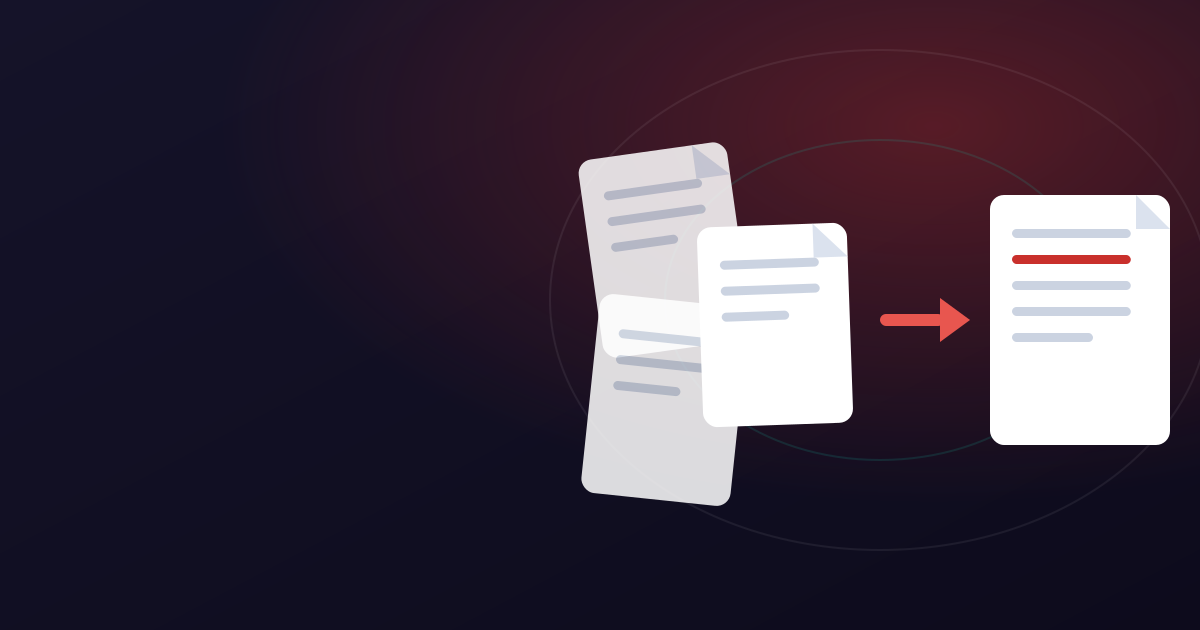
There are two versions of this job and they finish in different places. A folder of forty invoices has to become forty PDFs for filing. Or twelve Word documents have to become one PDF pack for a client. To convert multiple files to PDF here you add the documents to the converter together: Word to PDF takes two files in one task on the free plan and twenty on Pro. They come back as separate PDFs in a ZIP, or, if the answer has to be a single document, with Combine into one PDF turned on, as one PDF with a bookmark for each file, joined in the order the files are listed. Almost everything that goes wrong with a batch goes wrong in that last clause, and the fix is in the file names.
It helps to know what a conversion does, because it is not a copy. A Word file is not a page; it is a set of instructions for making one. The converter follows them on a server, lays the document out, and writes the finished pages as a PDF with the fonts inside it. That is why the result looks the same everywhere, and why a document that leans on a typeface the server lacks can come back with its page breaks a line from where you left them.
This guide covers both shapes: the folder that becomes a folder, and the pile that becomes one document. It explains how Word to PDF and Merge PDF fit together, how naming keeps the pack in sequence, what the free limits mean for a dozen documents, and what to check in the result.
How to convert several documents to PDF at once
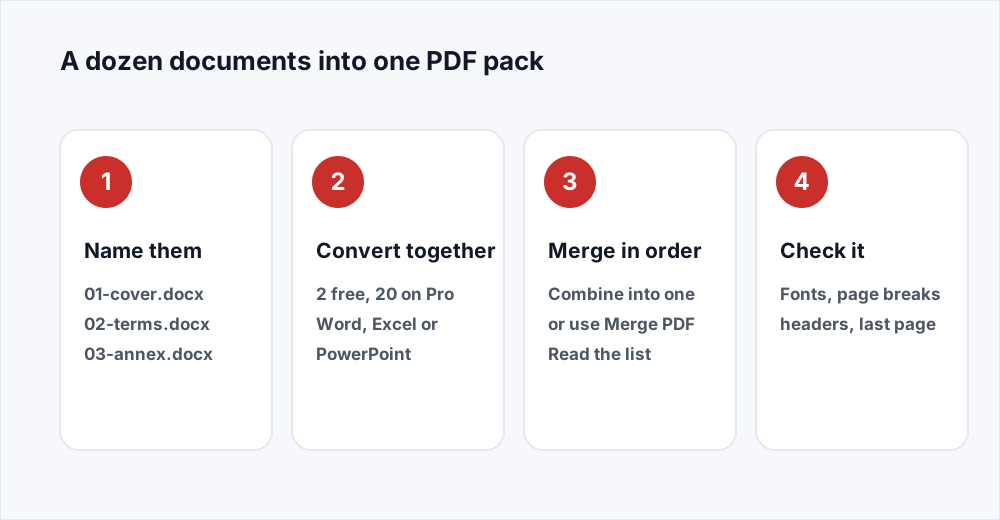
Four moves. The first is the one people skip, and the one that saves the afternoon.
Langkah 1: Name the files in reading order
Put a two-digit number at the front of every filename: 01-cover, 02-terms, 03-annex. Do it in the folder, before you upload anything.
Langkah 2: Convert them together
Add the files to Word to PDF in one go: two a task free, twenty on Pro. Spreadsheets go through Excel to PDF and decks through PowerPoint to PDF. Up to 20 MB a file free, or 250 MB on Pro. Several results come back as a ZIP; unpack it into one folder.
Langkah 3: Merge them, if the answer is one file
When every file is the same kind and fits in one task, turn on Combine into one PDF before converting. Otherwise drag the whole folder of PDFs onto Merge PDF at once. The list shows the order they will be joined in. Read it top to bottom and drag anything out of place.
Langkah 4: Open the result and page through it
Check the first page of each converted document for a substituted font, the section boundaries for a page break that moved, and the end for a stray blank page.
Many files to many PDFs, or many files to one
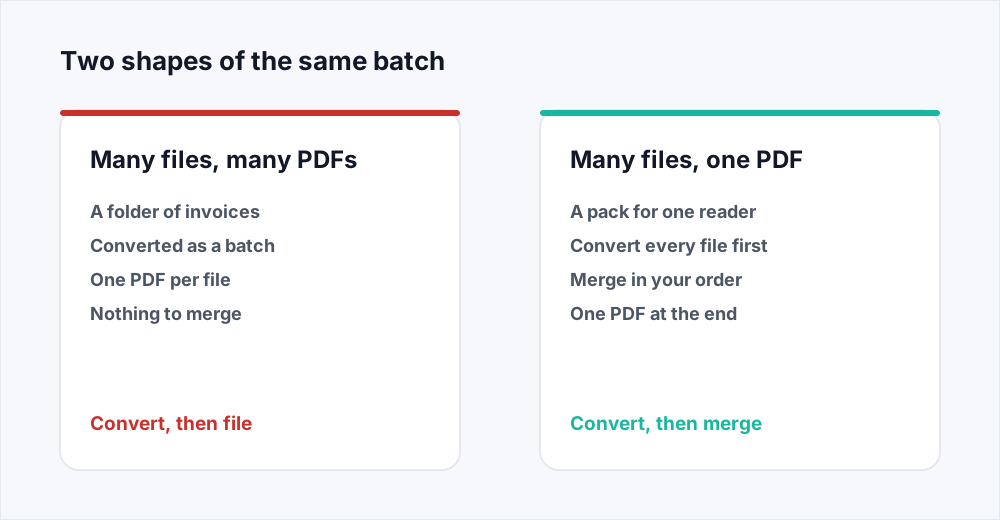
Work out which of these you are doing before you touch anything, because the second half of the work is completely different. Many files to many PDFs is the filing job: a folder of invoices, a set of signed forms, a year of statements. Each stays its own document, and the only reason it is becoming a PDF is that a PDF opens everywhere and will still open in seven years. There is no merge at the end.
Many files to one PDF is the pack job: a covering letter, a scope document, a pricing sheet and a slide deck, or a tender a portal will only take as a single upload. Every file is converted and then joined into one, and the order matters because it is the order somebody will read.
They split at the joining. Every office document is laid out as a PDF of its own; a batch of the same kind can then be joined by the converter itself, with Combine into one PDF, which gives one PDF with a bookmark per file. Merge PDF is for everything else: it takes several PDFs and produces one PDF, and never looks at anything that is not already a PDF. That is why a .docx dropped onto the merge tool is refused, and why a pack of Word, Excel and PowerPoint files is converted first and merged after.
How file names decide the order of the merged pack
When you select a folder of files, the chooser hands them over in the order it is showing them, which is alphabetical. Alphabetical is not numerical: names are compared character by character, and 0 sorts before anything else. A set named section1 to section12 arrives as section1, section10, section11, section12, section2, section3. The merged pack has its second section in fifth place, and nobody notices until a client does.
Two digits fix it permanently. Rename them 01 to 12 and the alphabetical order and the numerical order are the same order. Three digits if there might be more than ninety-nine. It is not a workaround; it is how any system that sorts names as text expects numbers to be written.
Do the renaming on the Word files, before converting: the converted file keeps the name it arrived with, so the prefix carries through and you do the job once. The converter joins files in the order they are listed and has no rows to drag, so if the documents must keep their given names, add them one at a time in reading order, or convert them and drag the rows into place in the Merge PDF list instead.
What a file chooser does with your names
The same twelve documents, named three ways.
| How you name them | The order you get | Verdict |
|---|---|---|
| section1 ... section12 | 1, 10, 11, 12, 2, 3 ... | Wrong, and quietly so |
| 01-section ... 12-section | 1, 2, 3 ... 12 | Right, and stays right |
| cover, terms, annex, pricing | annex, cover, pricing, terms | Alphabetical, not meaningful |
| 01-cover, 02-terms, 03-annex | cover, terms, annex | Right, and readable in the folder |
What the free limits mean when you have twelve documents
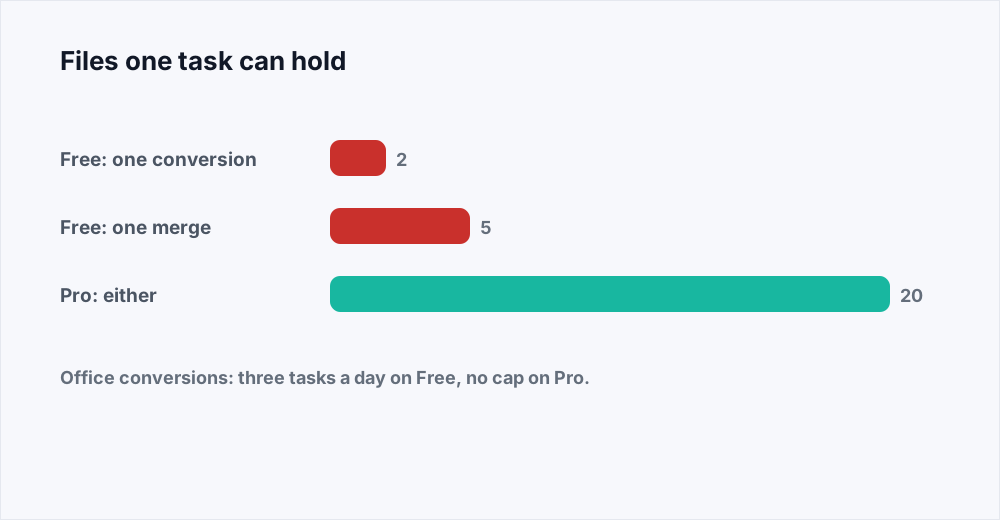
Four numbers decide how a batch goes. Each file can be up to 20 MB free. A conversion task takes two files free, whether they come back separately or combined. A merge takes up to 5 files free. And Office conversions are capped at three tasks a rolling day on the free plan, counted across Word, Excel and PowerPoint together, because each one starts a full office layout engine on a server.
That last number is the one that bites, so it is worth saying plainly: three tasks of two files is six documents a day, so on the free plan twelve Word documents take two days. Or take Pro, which removes the daily cap, converts twenty files in one task and raises a file to 250 MB: all twelve go through at once, as twelve PDFs or one combined PDF.
The 5-file merge limit is gentler, because merging is not capped by day. Twelve PDFs merge free in three passes: five into one file, then that file plus the next four, then that file plus the last three. The pages come out in the same order either way. The pricing page has both plans side by side.
Free and Pro, for a batch specifically
| Limit | Free | Pro |
|---|---|---|
| Size of one file | 20 MB | 250 MB |
| Files in one merge | 5 | 20 |
| Files in one conversion task | 2 | 20 |
| Office conversion tasks a day | 3 | Unlimited |
| Merges a day | Unlimited | Unlimited |
What conversion changes inside a Word file
A PDF is a page that has already been laid out. A Word document is not: it is text, styles and rules, and the page is built fresh every time it is opened. The converter builds it once, on a server, and freezes the result.
The gap opens when a font is missing. Layout on the server uses the fonts installed on the server: the common families shipped with Windows, macOS and Office, plus the widely used free faces. A document set in a licensed corporate typeface is laid out in the nearest substitute. Substitutes are usually close in width, so most documents are unaffected, but a slightly wider letterform over a page of text can push one line onto the next page, and from there a heading, and from there a section boundary.
To avoid a surprise across twelve files, embed the fonts in the Word documents first, which Word can do in its save options, or convert one file and look at it. The Word to PDF guide covers a single conversion in detail: comments are not exported, and tracked changes come through exactly as the document is displaying them. A batch multiplies that. One document sent out with visible tracked changes is an awkward email; twelve is a policy failure. Clear them all before the first conversion, not after the twelfth.
What to check in the first PDF before you convert the rest
Whatever is wrong here will be wrong in all twelve, and finding it now costs one conversion.
- The fonts on page one, against the document on screen. Different letter shapes mean a substitute was used.
- The page breaks at each section boundary. A heading that sat at the top of a page and now sits at the foot of the previous one is the sign of a substitution or a different paper size.
- The headers and footers: page numbers, titles, and the date field that still says last March. Fields freeze at the value they held when the file was converted.
- The last page. A stray empty page at the end of a Word document becomes a blank in the middle of the merged pack.
- The text itself: try to highlight a word. If you can, it is real searchable text.
Batch converting a folder of invoices for filing
This is the shape with no merge at the end. The point of filing as PDF is that the document will open in a decade without the application that made it, so the name has to carry the meaning the folder carries now. 2026-03-14-acme-inv-4471 survives being moved; invoice3 does not.
Rename before converting, for the same reason as before: the output keeps the input's name. Date first in year-month-day order, then the counterparty, then the reference, which sorts chronologically in any file chooser. Spreadsheet invoices go through Excel to PDF, and the same daily allowance counts them.
Merging the converted files into one pack, in order
If the pack is all one kind of file and fits in one task, Combine into one PDF has already made it. Otherwise, once every file is a PDF, the pack is one step. Drag all of them onto Merge PDF together, check the list, name the result something a recipient will recognise, and download. The first file's pages come first, then the second file's, and the order of pages inside each file is never touched. The merge guide covers the edge cases.
Two things merging cannot do are worth planning around. It will not renumber pages: a printed page number is part of that page's content, so a twelve-document pack carries twelve separate page ones unless you set continuous numbering in the source documents first. And it will not reorder pages within a file, so if the annex has its cover sheet at the back, fix that document, then convert, then merge.
If the pack comes out heavy, which it will when one document was full of photographs, run Compress PDF once at the end rather than on each file as you go.
What happens to the files you upload
Every conversion and every merge runs on a server. The input is deleted the moment the job finishes, and the result as soon as you have downloaded it. The files in one task are one job, and a batch spread over several tasks is that sequence repeated, with nothing carried between them: the server does not know your second task has anything to do with your first. The security page sets out each stage.
Frequently asked questions
Can I batch convert Word to PDF in one go?
Yes. Word to PDF takes two documents in one task on the free plan and twenty on Pro, and gives them back as separate PDFs in a ZIP or, with Combine into one PDF, as one PDF with a bookmark for each file. The free plan allows three Office conversion tasks a rolling day; Pro removes the cap, which is what turns a dozen documents into one sitting.
How do I merge Word files into one PDF?
Add them to Word to PDF together and turn on Combine into one PDF: they are converted and joined in the order listed. When there are more than one task takes, convert them first and put the PDFs through Merge PDF in the order you want them read. The merge tool only accepts PDFs. Name the Word files 01, 02, 03 before you start and both lists are already right.
How many files can I bulk convert to PDF free?
Two files in each conversion task and three tasks a rolling twenty-four hours, counted across Word, Excel and PowerPoint together, with each file up to 20 MB: six documents a day. Pro takes twenty files a task with no daily cap. Merging is not capped by day, and one merge takes 5 files free or 20 on Pro.
Why did my merged PDF come out in the wrong order?
Because the files were listed alphabetically and their names sort badly. A set named 1 to 12 sorts as 1, 10, 11, 12, 2, 3. Rename with two-digit prefixes, or drag the rows in the merge list first.
Do page breaks move when a Word file is converted?
They can, if the document uses a font the server does not have, because the page is laid out again in the nearest substitute and a small difference in letter width accumulates. Documents in common fonts convert exactly. Embed the fonts, or convert one document and check it first - the Word to PDF guide has the detail.
Can I put Word, Excel and PowerPoint files in the same pack?
Yes. Convert each with its own tool - Word to PDF, Excel to PDF and PowerPoint to PDF - then merge the PDFs. Combine into one PDF only joins files of one kind, so a mixed pack is finished in Merge PDF. All three share the same daily allowance on the free plan.
In short
Converting several files to PDF is one conversion task for the batch, and then either filing the results or joining them, which the converter does itself when the files are all one kind. Name the files with two-digit prefixes before you start and the order looks after itself. Expect two files a task and three tasks a day free, twenty files and no cap on Pro, and a merge of 5 files free or 20 on Pro. Convert one document first, check its fonts, page breaks and last page, then commit the rest.
Every tool used here is free and needs no account - see them all.