
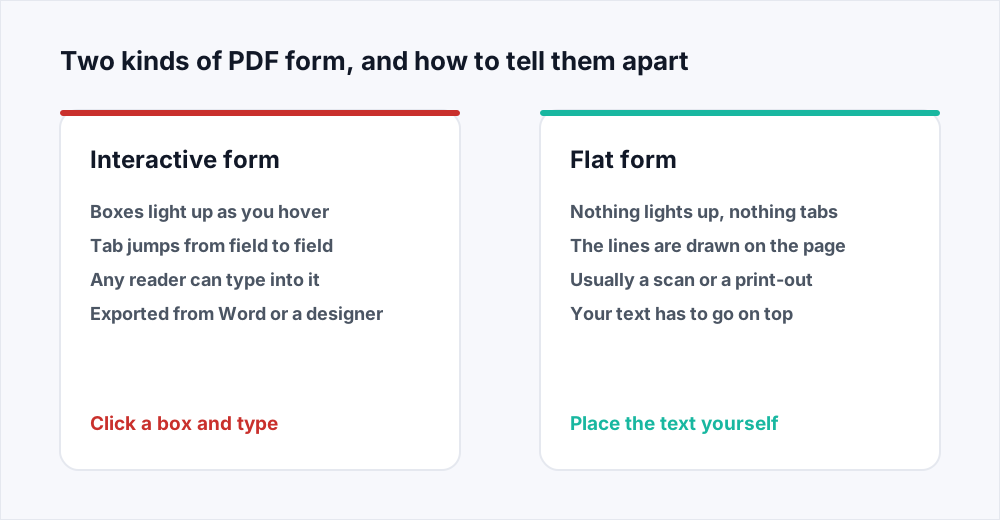
A form arrives by email. You open it, click where your name should go, and nothing happens: no cursor, no box lighting up, and whatever you type goes nowhere. There are two kinds of PDF form, and how you fill in a PDF form depends on which one is in front of you. Hover the mouse over a box. If it lights up or shows a text cursor, the form has real fields and any PDF reader will type into them. If nothing happens, the form is only a picture of a form, and you fill it by placing your own text on the printed lines.
The difference sits inside the file. A form with fields carries a structure the format calls an AcroForm: a list of named objects, each a box on a page with a type, a value and a few flags. A text field called Surname holds a string; a tick box holds an on or off state. A flat form has none of that. Its lines and boxes are drawing instructions in the page content, and on a scan not even that - the whole page is one photograph. Nothing there holds a value, and no setting will turn it on.
This guide covers how to tell the two apart, how to fill each with Edit PDF, how to make typed answers look like they belong on the page, what flattening does and why a filled form should be flattened before it is sent, and the one job we cannot do.
The two-second test for a form that will not let you type
Open the file in a reader and try three things. Move the pointer across the page where an answer should go: an interactive field tints, gains an outline, or turns the cursor into an I-beam. Press Tab: in a form with fields, focus jumps from one to the next, which is also the fastest way to fill a long one. Then look at the top of the reader, where most post a bar saying the document contains fillable fields.
If all three do nothing, try selecting text with the mouse. If you can drag a selection across the printed labels, the form came from a digital original and nobody added fields; if you cannot select anything, the page is an image. Both are flat and both are filled the same way. Do the test in a proper reader rather than a preview pane, which is where most of the false alarms come from.
Why your PDF form fields are not working
There are only a handful of reasons. The commonest is that the form has no fields: somebody designed it in Word, printed it to PDF and never added them, or somebody scanned a paper form. The second is the viewer - browser previews and mobile quick-look panes often draw the page and skip the interactive layer, so a good form looks dead. The third is that the fields are read-only, which a reader normally says when you click one. The fourth is a form flattened before it reached you: the boxes are still drawn, but the fields behind them are gone.
The fifth is rarer and worth recognising. A form built with Adobe's old XFA technology shows a purple page asking you to open it in Adobe Reader, and almost nothing else can fill one. Print it to PDF for an ordinary flat page, and fill that.
How to fill out a PDF that is not fillable
The flat case, which is the one most people are stuck on.
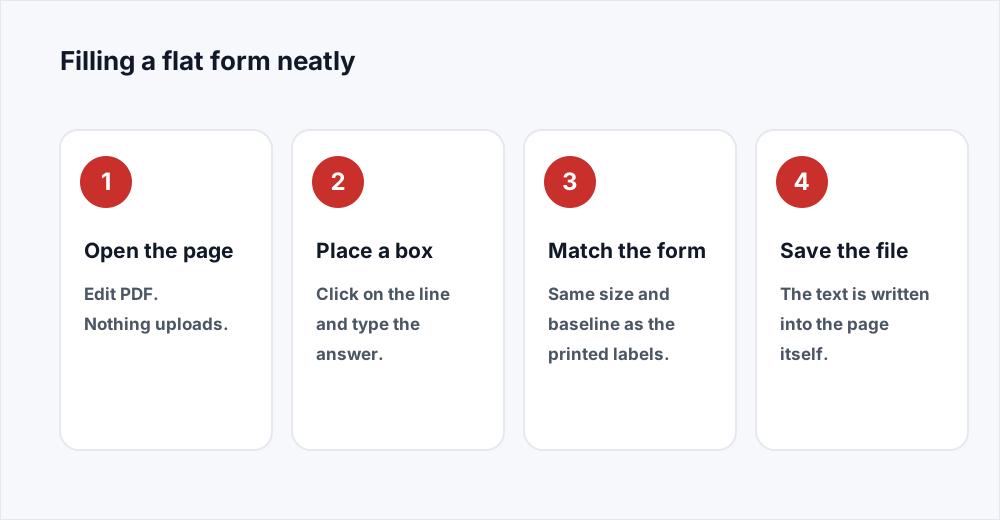
第 1 步: Open the form in the editor
Go to Edit PDF and choose the file. It opens in your browser and is never uploaded, which matters here: a filled form carries your name, address and often a bank account.
第 2 步: Place a text box on the line
Take the text tool from the Insert group and click where the answer goes. One box per answer is easier to adjust than one long box you keep nudging.
第 3 步: Match it to the printed form
Set the size so your answer is the same height as the label beside it, and drag the box until the letters sit on the printed rule rather than above it.
第 4 步: Save the filled form
The button at the top writes a new PDF and downloads it. Your text goes into the page itself, so what you send is a finished document, not boxes somebody can retype.
Making typed answers sit on the line instead of floating above it
Anyone can drop text onto a page. A filled form looks patched when the answers ignore the geometry under them, and there are three measurements to get right. The first is size. Most printed forms set their labels between 9 and 11 point, and an answer typed at 14 shouts. Compare your first answer's letter height with the label to its left, and drop a point or two if it is visibly taller. A ruled comb of boxes tells you its size directly: the box height is about one and a half times the text it was drawn for.
The second is the baseline, the invisible line letters stand on. A printed rule is a baseline waiting for text: the answer looks right when the letters rest on it with the descender of a g or a y dropping just below, and wrong when it floats two millimetres above. The third is the left edge. Answers that each start in a slightly different place are the clearest sign a form was filled with a mouse.
Matching your text to the printed form
Check these on the first answer. The rest are copies of it.
| What to match | How to judge it | How it looks when it is wrong |
|---|---|---|
| Size | Letter height against the label beside it | Answers that dwarf the labels |
| Baseline | Letters rest on the rule, descenders below | Text floating above the line |
| Left edge | The same small offset inside every box | A ragged column of answers |
| Colour | Near-black, or dark blue to read as ink | Pure black on a grey scan |
| Typeface | Helvetica for a form, a script face only to sign | Courier, which reads as a typewriter |
Tick boxes, dates and the comb that wants one letter per box
A tick box on a flat form is a small printed square, and the most reliable thing to put in it is a capital X in the same typeface as your other answers, sized to fill the square without touching the sides. A drawn tick looks friendlier and is easy to make too large; the pen draws one, but check it at print size.
Dates are where forms are fussiest. A date box split into compartments for day, month and year is three answers, not one: place three boxes and centre each in its compartment. A long comb of small boxes, for an account number or a postcode, is one answer with its letters spread out. Type it into a single box and raise the letter spacing until each character lands in its own compartment - quicker than eleven boxes, and the spacing stays even when you drag it.
A signature belongs on the page as an image rather than as typed text. The editor has a pad you draw on once and then place at whatever size looks believable. It carries the weight a scanned signature carries, which for a consent slip or an internal approval is what is being asked for - but it is not a digital certificate signature, and we do not offer one.
What flattening a filled form actually means
When you fill a real fillable PDF form in a reader, your answers are stored as the values of field objects; the page underneath is unchanged, and the reader draws the values into the boxes each time the file is opened. That has two consequences people meet at the worst moment. The recipient can tab into any field and retype it, because the fields are still fields. And a viewer that does not render form appearances can show the form back as blank.
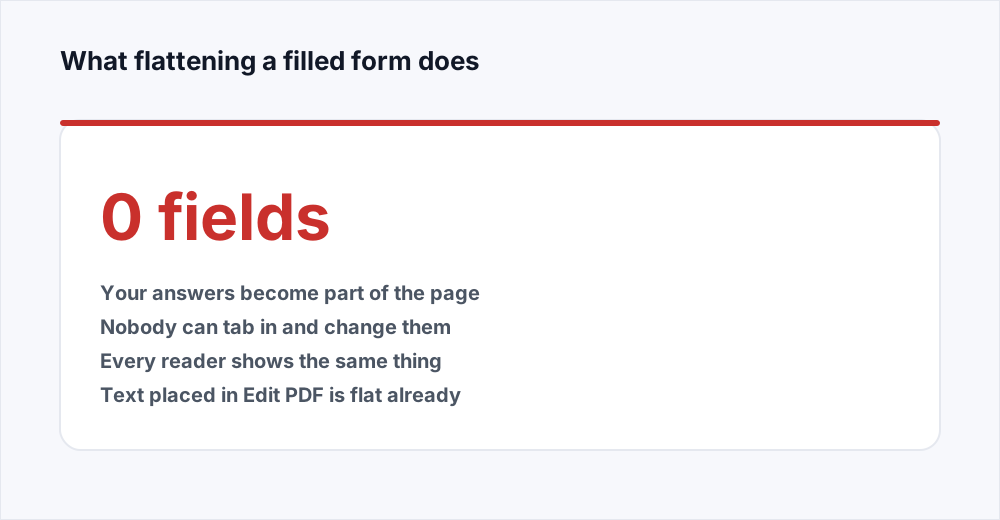
Flattening fixes both. It writes the current values into the page content as ordinary text and drawing, then removes the fields. Nothing looks different, but every reader now shows the same thing and nobody can change an answer without editing the document.
There is no separate flatten button here, and for a flat form none is needed: text you place with the editor is written into the page content when you save rather than stored as a field, so a form filled that way is flat the moment it downloads. To flatten a fillable form you filled in your own reader, print it to PDF - Save as PDF on a Mac, Microsoft Print to PDF on Windows.
Five forms people are actually sent
The same two techniques, applied to what turns up in a real inbox.
- A tenancy inventory scanned from paper. No fields and no selectable text: text boxes down the right-hand column, and an X in each condition box.
- A tax form from an official site. Usually genuinely fillable, so tab through it in a desktop reader, then print it to PDF before emailing it.
- A consent slip printed, signed and scanned back. Flat and often crooked, so match your answers to the tilt of the line rather than the edge of the page.
- A supplier form with a comb of boxes for an account number. One text box with the letter spacing raised until each digit lands in its own compartment.
- An expense claim exported from a spreadsheet. Flat, with selectable text, and filled like any other.
Turning a flat form into a fillable PDF form
If you are the one sending the form out, filling it yourself is the wrong end of the problem. The Forms group in Edit PDF adds real fields to a flat page: text fields, tick boxes, radio groups, dropdowns and list boxes. Drag each over the printed box it belongs to, and the saved file is a fillable PDF form anyone can type into in any reader.
Two details matter. A field's name is what a program reads the answer back out by, so Surname and Account number are worth typing in place of Text 1 and Text 2. And fields sharing a name share a value, which is how a set of radio buttons behaves: three options, one name, one answer between them. The guide to editing a PDF covers the rest of the toolbar.
Sending the filled form
Open the downloaded file before you send it and check that every answer is inside its box, that nothing overlaps a printed label, and that no blank field holds a stray empty text box. A phone makes a good second look, because a mobile viewer draws the page with none of the editor's outlines.
A filled scan is often heavy, and some portals refuse a file over a few megabytes; Compress PDF resamples the images and leaves your typed answers untouched. If the form carries a bank account or medical details, consider an open password from Protect PDF, sent separately - the guide to password-protecting a PDF explains what it covers, and the security page says how long an uploaded file lives on our servers.
Frequently asked questions
How do I type on a PDF that will not let me type?
The form has no fields, so there is nothing to type into. Open it in Edit PDF, take the text tool and click where the answer goes - a box appears there, and your text is written into the page when you save. A scan works the same way.
Why are my PDF form fields not working?
Usually because there are none: the document was printed or scanned to PDF without any being added. Otherwise it is the viewer - browser previews and mail apps often ignore fields - or the fields are read-only, or the form is an old Adobe XFA form only Adobe Reader can fill. Try a desktop reader before assuming the file is broken.
How do I write on a PDF online free, without an account?
Edit PDF is free, needs no account, and runs in your browser, so the file is never uploaded. Place text boxes, an X in a tick box, a drawn signature or freehand notes anywhere on the page, then save a new PDF.
What does flattening a PDF form do?
It writes the field values into the page as ordinary text and removes the fields, so the answers become part of the document. Nobody can tab in and retype one, and viewers that ignore form fields no longer show the form back as blank. Text placed with our editor goes into the page already, so it needs no flattening.
Can I turn a flat form into a fillable PDF form?
Yes. The Forms group in Edit PDF places real text fields, tick boxes, radio groups, dropdowns and list boxes on a flat page. Give each a meaningful name, save, and the file is a fillable form any reader can type into.
Can you fill a scanned form and get the answers back out as data?
Not as form data. Filling a scan does not recognise it, so in the saved PDF the printed questions stay an image while your typed answers are real text. On Pro, PDF to Word with OCR turned on can read both into a Word document, but that gives you text to check, not fields that pair each answer with its question.
In short
Hover over a box. If it lights up, the form has real fields and any reader will fill it - then print it to PDF so the answers are baked in before you send it. If nothing happens, the form is a picture, and you place your own text on the printed lines: match the size to the labels, sit the letters on the rule, use letter spacing for a comb of boxes. Text placed that way is part of the page, so it is flat already.
It is free, it needs no account, and the editor never uploads your file - see every tool.