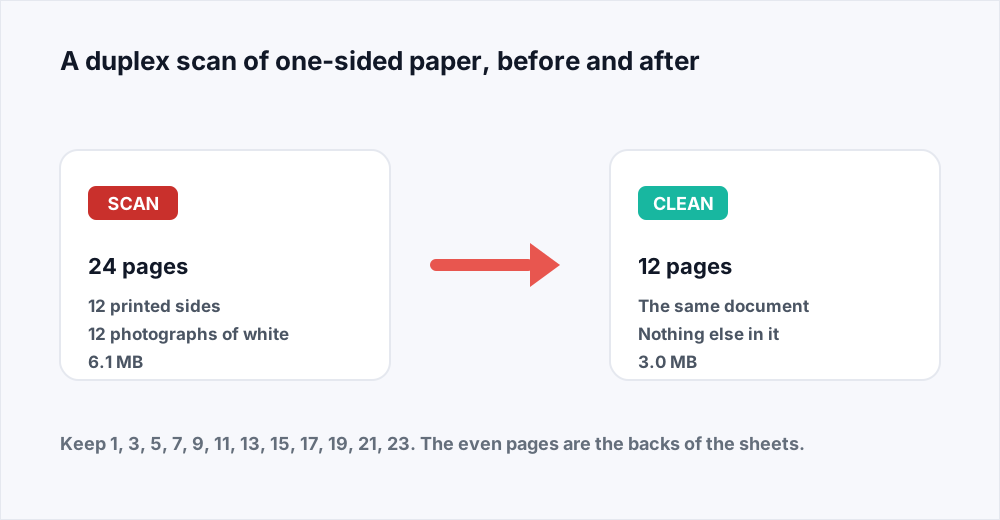
To remove blank pages from a PDF, open Organize PDF, add the file, and type the pages you want to keep. Anything you leave out of that list is gone from the result. For the usual case - twelve sheets of one-sided paper fed through a double-sided scanner, so every second page is blank - the list is 1, 3, 5, 7, 9, 11, 13, 15, 17, 19, 21, 23, and a 24-page file comes back as the 12-page document it always was. It takes about a minute, it is free, and it halves the file size as a side effect.
That is the whole job. The rest of this guide is about the part people get wrong: knowing which pages are blank before you start typing, and being sure afterwards that you removed the blanks and nothing else.
It is worth saying plainly at the top that we have no automatic blank-page detection. A person looks at the thumbnails and writes down the numbers. That is quicker than it sounds, because blanks in a scan almost always arrive in a pattern, and once you have spotted it you are typing a sequence rather than hunting.
Why your scan has a blank page after every real one
Nearly every office scanner has a duplex setting, and on many it is the default, because most of what gets scanned is printed on both sides. The feeder takes a sheet, photographs the front, photographs the back, and writes both as pages. Feed it twelve sheets printed on one side only and it does what it was told: twenty-four pages, twelve of them the empty backs.
The same thing happens on a smaller scale with other habits. A separator sheet dropped between documents, so the operator can tell where one invoice ends and the next begins, becomes a page of its own. A fax cover sheet that mattered for ninety seconds in 2011 is still page one of the file somebody sent you last week. And a document exported to PDF rather than scanned can carry a trailing blank, because the original had a page break after the last paragraph or a section was set to start on an odd page.
None of these are faults. The scanner did not malfunction and the file is not corrupt. The document simply contains pages you do not want.
A blank scanned page is not actually blank
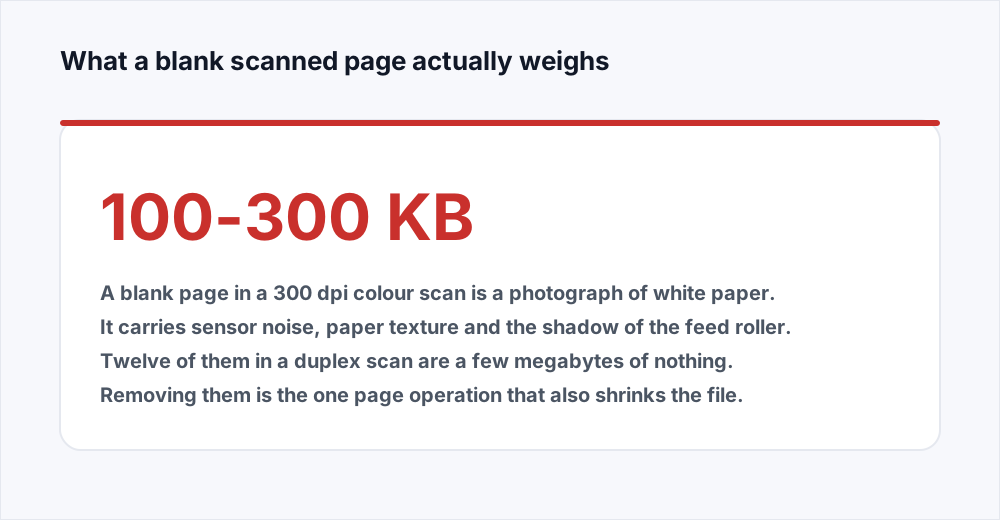
This is the part that surprises people, and it is why removing blanks is worth doing rather than merely tidy. A blank page in a scan is not empty in the way a blank page in a Word export is. It is a photograph of a sheet of white paper, taken at whatever resolution the scanner was set to, and stored as an image like any other.
That image is not uniform white either. It carries sensor noise, the texture and off-white cast of the paper, a faint shadow where the feed roller passed, the show-through of whatever was printed on the other side, and often a grey band where the sheet went in slightly skewed. A JPEG encoder cannot throw any of that away, because as far as it is concerned it is detail. So a blank A4 page in a 300 dpi colour scan usually lands between 100 and 300 kilobytes, and a greyscale one is not much lighter.
Multiply that by the twelve blanks in a duplex scan and you have a few megabytes of photographed nothing, which is often the difference between a file that goes through an email gateway and one that does not. Deleting pages is the one page operation that reliably shrinks a document, because the weight of a PDF is mostly the weight of the images inside its pages.
How to remove blank pages from a PDF in one pass
Four steps, one upload, one download. Do the reading first and the typing takes seconds.
ধাপ 1: Read the thumbnails first
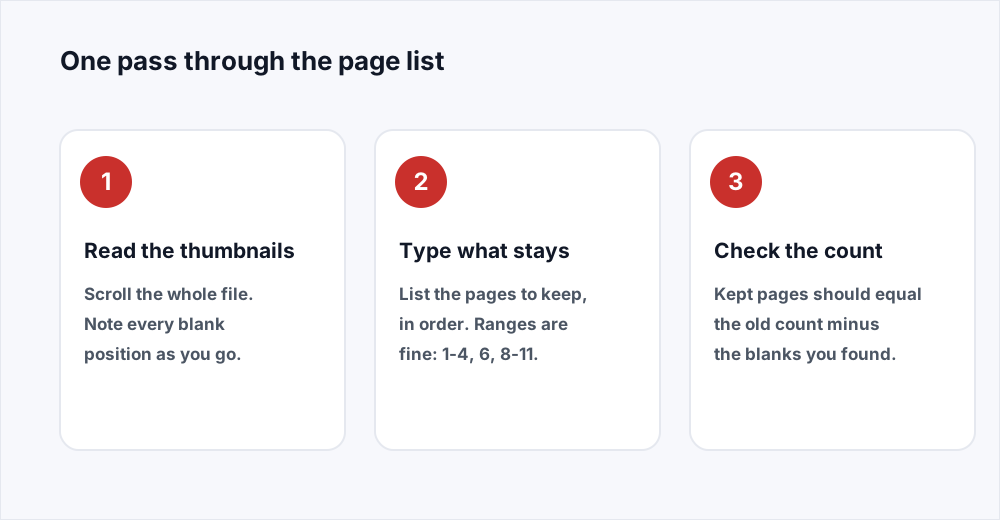
Open the file in any PDF reader and turn on the thumbnail panel. Scroll the whole document once, noting the position of every blank page. Write the numbers down; a list of twelve is not something to hold in your head while you switch windows.
ধাপ 2: Open Organize PDF
Go to Organize PDF and add the document. Up to 20 MB on the free plan and 250 MB on Pro, which covers most scans that have not been left at 600 dpi.
ধাপ 3: Type the pages that stay
List the pages you are keeping, in order, using ranges wherever they help. A file whose only blanks are at 5, 11 and 16 is 1-4, 6-10, 12-15, 17-20. A duplex scan is the odd numbers. Every page you do not name is dropped.
ধাপ 4: Check the count, then download
The result's page count is shown before you commit. It should equal the old count minus the blanks you found. If it does not, a number in your list is wrong, and it is quicker to fix here than after downloading.
Which pages to keep, for the usual patterns
Four shapes of blank-page problem, and what you type for each.
| What you have | What you type | What comes back |
|---|---|---|
| 12 one-sided sheets through a duplex feeder | 1, 3, 5, 7, 9, 11, 13, 15, 17, 19, 21, 23 | 12 pages, the printed sides only |
| A fax cover sheet on a nine-page file | 2-9 | Eight pages, the cover gone |
| A 20-page batch with separators at 5, 11 and 16 | 1-4, 6-10, 12-15, 17-20 | Seventeen pages in four clean sections |
| A 24-page export with a trailing blank | 1-23 | Twenty-three pages |
| A mixed scan, some sheets printed both sides | The list you wrote from the thumbnails | Only the pages you named |
How to find the blanks quickly
The reading is the slow part, so do it by pattern rather than page by page.
- Look for the pattern before you look at the pages. If the file has exactly twice as many pages as you had sheets of paper, every even page is a back and you are done reading.
- Use the thumbnail panel at the smallest size that is still legible. Twenty or thirty pages on screen at once makes a run of blanks obvious as a shape rather than something you check one at a time.
- Check two or three of the blanks at full size before trusting the pattern. A page that looks empty in a thumbnail can carry a footer, a faint stamp or a handwritten initial, and those are pages you want to keep.
- Watch for the sheet that broke the pattern. In a stack of one-sided paper there is nearly always one with something on the back, and its page is an even number in a file where every other even number goes.
- Note the numbers as ranges while you scroll. Writing 1-4, then 6-10, then 12-15 as you go leaves the list already written rather than a set of blanks to invert afterwards.
Checking the count before you download
Arithmetic is the whole check and it takes five seconds. Twenty-four pages in, twelve blanks found, twelve pages out. If the number the tool shows is not the one you worked out, read your list again rather than downloading and hoping.
The commonest cause of a mismatch is using the number printed on a page instead of its position in the file. A scan with a cover sheet has its printed page 1 at file position 2, and every number after that is off by one, which quietly removes the wrong half of a duplex scan. The page box in your reader shows the file position, and that is the number to use.
The second commonest is an off-by-one at the end of a duplex scan. Twenty-four pages means the last odd page is 23, not 24. Open the result and look at its last page before you send it anywhere.
Separator sheets, fax covers and other strays
Blanks are rarely the only thing wrong with a scanned file, and since the page list does keeping, dropping and reordering at once, it is worth fixing everything in the same pass. Coloured separator sheets are not blank at all but are equally unwanted, and they come out the same way: leave them out of the list.
The same applies to a fax cover sheet, a routing slip, a duplicate the feeder pulled twice. If a page has no business in the finished document, it does not go in the list. The guide to reordering, rotating and deleting pages covers the rest of what the page list can express, including rotation for sheets that went in sideways.
If a separator was there to mark where one document ends and the next begins, you may actually want several files rather than one clean one. That is Split PDF, a file per page range, and Merge PDF puts parts back together when they have to travel as one document again.
Why removing blanks makes the file smaller
Pages you keep are copied into the new document exactly as they were: nothing is re-rendered, text stays selectable, images keep their resolution. What leaves the file is the whole content of the dropped pages, images included, which is why a duplex scan that loses its blank backs loses close to half its size.
That is the only shrinking this does. If the result is still too heavy - a 3 MB twelve-page letter usually means the scanner was left on 600 dpi colour - then Compress PDF is the next step. It resamples images to 72, 150 or 300 dpi, and on a scan the images are the whole file, so the difference is large.
Do it in that order. Removing blanks first means only the pages you are keeping get re-encoded, and you are not spending quality on photographs of white paper. The compression guide explains which of the three levels to pick for a scan you still need to be able to read.
What happens to the file you upload
Organizing runs on a server. The upload is streamed to disk rather than held whole in memory, the new document is built from the pages you named, and the input is deleted the moment that finishes. The result is deleted as soon as you have downloaded it. The security page sets out each stage and how long it lasts.
There is no account, no watermark and no limit on how often you do this. A file with an open password is the exception: its pages cannot be read while encrypted, so the password has to come off first.
Frequently asked questions
How do I delete blank pages from a scanned PDF?
Open Organize PDF, add the file, and type the pages you want to keep, in order. Pages you leave out are not in the result. For a double-sided scan of one-sided paper, that is every odd number: 1, 3, 5 and so on to the end.
Why does my PDF have blank pages after scanning?
Almost always because the scanner was set to double-sided and the paper was printed on one side. The feeder photographs the back of each sheet as well as the front, so a twelve-sheet stack becomes a 24-page file with twelve blanks. Separator sheets and fax covers are the other common sources.
Can OrbitexPDF find the blank pages for me automatically?
No. There is no blank-page detection here, so you read the thumbnails and name the pages to keep. It is quicker than it sounds because the blanks in a scan follow a pattern, and it means nothing is deleted that you did not explicitly leave out.
Do double sided scan blank pages make the file bigger?
Yes, substantially. A blank page in a scan is a photograph of white paper, complete with sensor noise and paper texture, and usually weighs 100 to 300 kilobytes at 300 dpi. Twelve of them are a few megabytes, so removing them roughly halves the file.
Does removing pages change the pages I keep?
No. The pages you name are copied into the new document unchanged: same size, same fonts, same image resolution, text still selectable. Nothing is re-rendered, so nothing is degraded.
What is the fastest way to clean up a scanned PDF?
One pass through Organize PDF that drops the blanks and separators and rotates any sheets that went in sideways, then Compress PDF if the result still needs to be smaller. Two steps, a couple of minutes.
In short
A blank page in a scan is a photograph of white paper that weighs a few hundred kilobytes, and a duplex scan of one-sided paper is half of them. Read the thumbnails once, note the pattern, and type the pages to keep into Organize PDF: everything you leave out is dropped, in one pass, with the kept pages untouched. Check the new page count against your arithmetic before you download.
We do not detect blanks for you, so the numbers come from you - and nothing you did not name is ever removed. Every tool here is free and needs no account: see the full list.