Documents arrive in the wrong shape more often than they arrive in the right one. A scanner feeds the last page first. A colleague exports a report with the summary at the back. Somebody scanned a landscape drawing on a portrait setting and every page of it is on its side. And there is nearly always a page or two - a blank, a duplicate, a fax cover sheet from 2011 - that has no business being there.
Reordering, rotating and deleting are one job with three verbs, and they are done in one pass: you arrange the pages you want, in the order you want them, turned the right way up, and you get one document back. Nothing is re-rendered, so the pages you keep are exactly the pages you had.
This guide explains how to describe that with Organize PDF, the difference between this and splitting, and what to do about the cases it cannot handle.
How to organize PDF pages in four steps
The whole thing, for someone with a file to fix.
1단계: Open the organizer
Go to Organize PDF. Nothing to install, no account.
2단계: Add the document
Drag the PDF onto the page or choose it. Up to 20 MB on the free plan, or 250 MB on Pro.
3단계: Arrange the pages
Every page appears as a thumbnail. Drag pages into order, hover one to turn it or press X to take it out. If you already know the numbers, you can type the order instead - for example 3, 1, 2.
4단계: Download the new document
One file, with the pages in your order, rotated as asked, and nothing else. It is deleted from the server as soon as you have it.
Thumbnails, or a typed page list
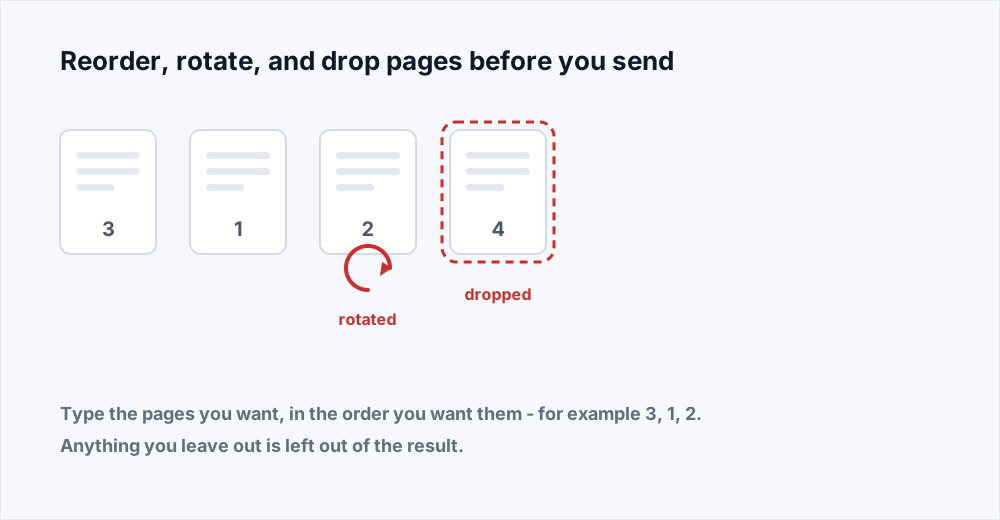
Once the file is open, every page is laid out as a thumbnail with its number under it. Drag a page to a new place and the rest move up to make room; on a phone, where dragging is awkward, the arrows under each thumbnail move it one place at a time. Hover a page and press X to take it out - it stays on screen, dimmed, so a page removed by mistake is one click from coming back.
If you already know the numbers, the typed list is quicker. It reads as a set of instructions: page three first, then page one, then page two. Write it as 3, 1, 2, press Apply, and the thumbnails rearrange to match, so you can check the result by eye before saving. Pages you do not mention are marked as removed: for a nine-page file that should lose its cover and its last page, type 2-8.
Ranges work as they do everywhere else. 2-8 is pages two to eight inclusive. 1, 5-7, 3 keeps five pages in that order: one, then five through seven, then three. Page numbers are positions in the file, counting from one, not the numbers printed on the pages - the section below on that distinction is worth reading before you type anything.
Page-list examples
| You type | You get | What it is for |
|---|---|---|
| 3, 1, 2 | Three pages, reordered | A summary that should come first |
| 2-8 | Seven pages | Dropping a cover and a trailing blank |
| 1-4, 9-12 | Eight pages | Removing a section from the middle |
| 1, 3, 5, 7 | Four pages | Keeping one side of a double-sided scan |
| 1-3, 4:90, 5-9 | Nine pages, page 4 turned | One landscape table in a portrait report |
Rotating pages that came in sideways
Rotation works in quarter turns, one page at a time or all at once. Hover a page and press the rotate button to turn just that page; use Rotate all pages when the whole scan is on its side. A page scanned on its side needs one turn; a page scanned upside down needs two. The rotation is stored as an instruction on the page rather than by redrawing it, which is how every PDF reader handles rotation and why it costs nothing in quality.
It is worth knowing that a page's stored rotation is separate from its content. A landscape page whose content was drawn sideways and a portrait page rotated ninety degrees look the same on screen but are different underneath. The organizer changes the stored rotation, which is the right lever - it is what a printer honours, and what a reader uses to decide which way is up.
Because each thumbnail turns as you rotate it, you can see which way up a page will be before you save. In the typed list, add :90, :180 or :270 after a page number to turn only that page - 4:90 turns page four a quarter turn to the right.
Organize or split: which one you want
Both tools take pages out of a document, which is why they get confused. The difference is the shape of the answer. Organize gives you one file. Split PDF gives you several. If the report should lose two pages and remain a report, organize. If the report should become six separate documents for six reviewers, split - the split guide explains page ranges there.
A useful rule: if you would describe the result as "the same document, but" - but reordered, but shorter, but the right way up - it is an organize job. If you would describe it as "these parts of the document", it is a split.
They work well in sequence. Organize first to fix rotation and drop the pages nobody needs, then split the clean document, then merge parts back together when they need to travel as one.
Organizing in practice: five common jobs
Thumbnails and the page list, applied to real documents.
- A scan that fed in backwards. A twelve-page document scanned last page first. Type 12, 11, 10 and so on down to 1 - or, if the scanner also flipped them, add a half turn. One pass.
- A double-sided scan you only need one side of. Every odd page is the front. Type 1, 3, 5, 7 through the end and the backs are gone.
- A report with the executive summary at the back. It lives on the last two pages of a thirty-page file. Type 29-30, 1-28. The summary now leads.
- A contract with two internal pages that must not go to the counterparty. Type every page except those two. What you send is a clean document with nothing to redact.
- A landscape drawing set scanned as portrait. Every page is on its side. Press Rotate all pages once and the set reads correctly on any screen or printer.
- A portrait report with one landscape table. Only page 7 is sideways. Hover it, turn it once, and leave every other page alone.
Working with long documents
The page list gets unwieldy past a few dozen pages, and it is worth knowing how to keep it short. Ranges do most of the work: a two-hundred-page file that needs three pages removed is not two hundred numbers, it is four ranges - 1-40, 42-118, 120-199 - and the three gaps are the deletions. Write the ranges you keep, and the pages you skip take care of themselves.
For a reorder that only moves one section, name the section and the rest in ranges. Moving pages 150 to 160 to the front of a two-hundred-page report is 150-160, 1-149, 161-200. Three ranges, three seconds, and the whole document is in its new order without a single page listed individually.
When a job is genuinely complicated - several sections moving, some rotated, others dropped - type the ranges first, press Apply, then finish by hand: turn the odd page, take out the stray blank. The thumbnails show the whole result before anything is saved, and the page count at the top confirms it.
Reading the page list back
Before you download, translate the list into words and see if it matches what you meant.
- 3, 1, 2 reads as: page three, then page one, then page two. Three pages.
- 2-8 reads as: pages two through eight, nothing else. Seven pages; the first page and anything after eight are gone.
- 1-4, 9-12 reads as: the first four, then nine to twelve. Eight pages; five to eight are gone.
- If the count the tool shows does not match the count you just worked out, one of the numbers is a printed page number rather than a file position.
What organizing cannot do
It works in whole pages. It cannot crop a page, split one page into two, straighten a scan that is slightly crooked, or change anything drawn on a page. Text, images and annotations inside a page are out of its reach; for those, Edit PDF is the tool.
It does not shrink files, either. The pages you keep are exactly as heavy as they were, so a document that loses ten of its thirty pages loses roughly a third of its size and no more. If the result still needs to be smaller, Compress PDF does that as a separate, deliberate step - and doing it after organizing means only the pages you are keeping get re-encoded.
And like every tool that reads a document's pages, it cannot work on a file with an open password. Remove the protection, organize, and use Protect PDF again afterwards if the result needs it.
What happens to your file
Organizing runs on a server. The upload is streamed to disk rather than held in memory, the new document is built, and the input is deleted the moment that finishes. The result is available for thirty minutes and is deleted as soon as you have downloaded it. The security page sets out every stage and how long each one lasts.
No account, no watermark, no limit on how often you use it.
Frequently asked questions
How do I delete a page from a PDF?
Open Organize PDF, add the file, hover the page you want gone and press X. Or type every page except that one - for a ten-page file losing page four, 1-3, 5-10. Removed pages are not in the result.
How do I rotate a single page in a PDF?
Hover that page in Organize PDF and press the rotate button until it is the right way up - each press is a quarter turn - then save. The other pages are left as they were. Rotation is stored as an instruction on the page, so it costs nothing in quality.
Does reordering pages reduce quality?
No. Pages are copied into their new positions without being re-rendered. Text stays selectable, images keep their resolution, and rotation is recorded as a page attribute rather than by redrawing anything.
Can I undo a page I removed?
Yes, until you save. A removed page stays on screen, dimmed, with a restore button, and Reset puts every page back in its original order and orientation.
What is the difference between Organize PDF and Split PDF?
Organize gives you one document - reordered, trimmed, rotated. Split PDF gives you several documents, one per page range. If the answer you want is a single file, organize; if it is a set of files, split.
Why did I get the wrong pages?
Because the number printed on a page is not its position in the file. A cover and a contents page push printed page 1 to file position 3. Use the page number your PDF reader shows in its page box.
Can I organize a password-protected PDF?
Not while it is protected. Remove the password, organize, then re-protect the result with Protect PDF if it still needs one.
In short
Arrange the thumbnails the way the document should read - dragged into order, single pages turned, stray pages removed - and save. When you type a page list instead, count file positions rather than printed numbers, check the page count before downloading, and use Split PDF when you want several files rather than one.
Everything here is free and needs no account - see every tool.