Almost every oversized PDF has the same thing wrong with it, and it is not the number of pages. A 40-page contract of pure text is often under a megabyte. A 3-page brochure with photographs in it can be forty times that. The weight is in the images, and compressing a PDF is mostly the business of deciding how much image detail you are willing to give up.
That framing matters, because it tells you what to expect. Compression is not a single button that makes files small. It is a trade you make once, with a document whose purpose you already know: something read on a phone and forgotten can lose a great deal of detail without anyone noticing, and something going to a printer cannot lose much at all.
This guide covers what actually changes inside the file, how to choose between the three levels on the Compress PDF tool, how to get under a specific email limit, and the cases where compression genuinely cannot help you.
How to compress a PDF in four steps
The short version, if you already know what you need.
Passo 1: Open the compressor
Go to Compress PDF. There is no account to make and nothing to install.
Passo 2: Add your file
Drag the PDF onto the page or use the file picker. Files up to 20 MB are accepted on the free plan, and up to 250 MB on Pro.
Passo 3: Pick a level
Smaller, Balanced, or Higher quality. Balanced is the right answer for most documents, and the next section explains when it is not.
Passo 4: Download the result
You are told the old size and the new one before you commit to anything. If the saving is not worth it, close the tab and nothing has happened.
What compression actually changes
A PDF is a container. Inside it are the characters of your text with instructions on where to draw them, any vector artwork as coordinates and curves, the fonts needed to render the text, and any images as embedded picture files. Those four things have wildly different weights.
Text is close to free. A page of prose is a few kilobytes: the glyphs are drawn from a font that is embedded once and reused everywhere. Vector artwork - logos, charts drawn as shapes, lines and boxes - is also small, because a rectangle is four numbers rather than a grid of pixels. Embedded fonts cost something, usually a few hundred kilobytes for a full family, and cannot sensibly be removed without breaking how the document looks somewhere else.
Images are the rest of it, and usually almost all of it. A photograph taken on a modern phone is twelve megapixels. Dropped into a document at postcard size, it is still twelve megapixels in the file - the page just draws it smaller. A scanner set to 600 dpi produces the same problem at every page.
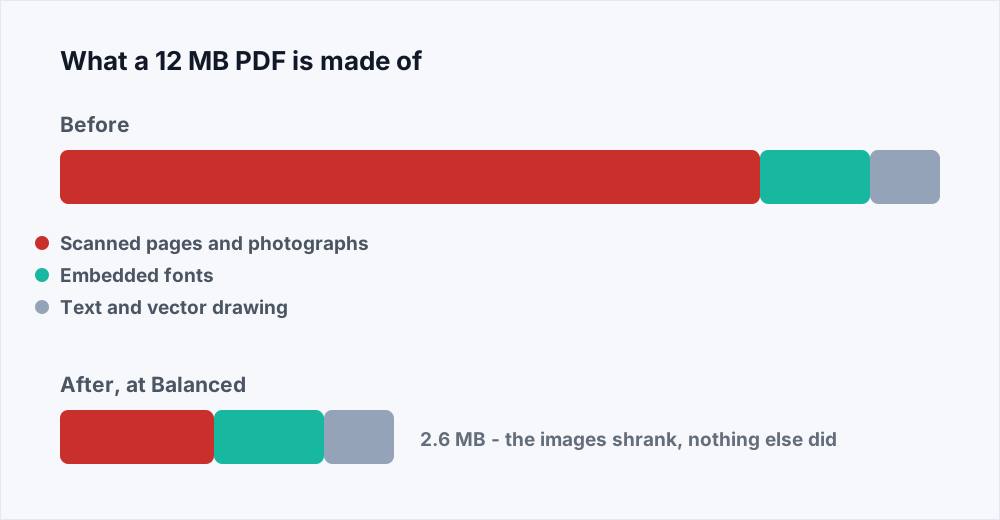
So compression downsamples the images: it redraws each one at a resolution appropriate to the size it is actually displayed, and re-encodes it. Your text is untouched. It stays selectable, searchable and copyable at every level, because nothing about it was ever the problem.
Why PDFs get so large in the first place
Knowing where the weight came from often tells you whether compressing is even the right move, or whether the document should have been made differently.
Scanning is the most common cause. Office scanners frequently default to 300 or 600 dpi in colour, which is appropriate for photographs and enormous for a page of black text. A twenty-page contract scanned at 600 dpi colour can be sixty megabytes; the same pages scanned at 200 dpi greyscale are under three, and no human being can tell them apart.
Phone photographs are the second. A picture dropped into a document keeps every one of its twelve million pixels even when the page shows it two inches wide. The page is not storing what you see - it is storing the original and drawing it small.
Exports from presentation software are the third. A slide deck saved as a PDF carries every image on every slide at full resolution, including the ones sitting under something else, plus whatever was left on the pasteboard.
The last one is worth checking before you compress anything: some documents are large because they contain pages nobody needs. A signed contract with forty pages of appendices attached is not a compression problem.
How compression compares with the alternatives
Making a file smaller is one of several ways to make it sendable, and it is not always the best one.
- Compressing keeps the document whole and loses image detail. Best when the images are incidental to the content.
- Splitting keeps full quality and sends less of the document. Best when the recipient only needs part of it - Split PDF does this without touching quality at all.
- Removing pages keeps quality and shortens the document permanently. Organize PDF lets you drop and reorder pages before you send it.
- Sharing a link keeps everything and sidesteps the limit entirely. Best for anything genuinely large, like a print-ready brochure.
- Zipping a PDF achieves almost nothing. The images inside are already compressed, so a zip typically saves a percent or two and adds a step for the recipient.
Which compression level to choose
The three levels are the same question asked in plain language: what is this document for? Resolution is measured in dots per inch, and the useful thing to know is what each threshold is for.
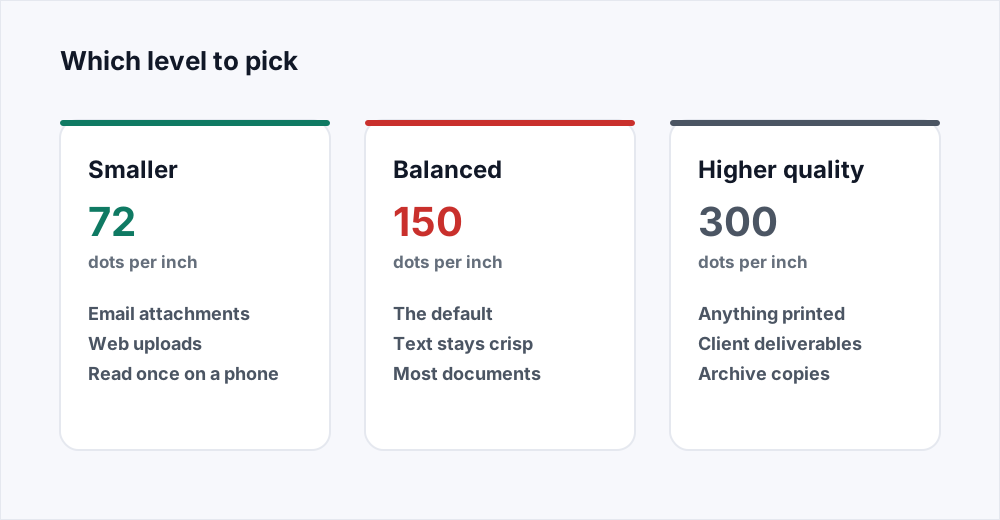
| Level | Resolution | Typical saving | Use it for |
|---|---|---|---|
| Smaller | 72 dpi | 80 to 95% | Email, web upload, anything read on a screen once |
| Balanced | 150 dpi | 50 to 80% | The default. Most documents, most of the time |
| Higher quality | 300 dpi | 20 to 50% | Anything printed, sent to a client, or archived |
Reading the levels in practice
If you want a rule rather than a range:
- Screens are roughly 72 to 110 dpi. Anything above that is detail a screen physically cannot show, which is what makes Smaller so effective on documents nobody will print.
- 150 dpi is the point where text in a scanned image stops looking soft. It is the safest default and the reason Balanced is preselected.
- 300 dpi is the long-standing print threshold. Below it, photographs start to look visibly coarse on paper even though they were fine on screen.
- Going above 300 dpi almost never helps. Most consumer printers cannot resolve it, and the file pays for it in full.
How to get a PDF under an email limit
Most people arrive at a compressor because something bounced. The limits are worth knowing, because they are smaller than people assume and they are measured after encoding, not before.
| Service | Attachment limit | What that means in practice |
|---|---|---|
| Gmail | 25 MB | Encoding overhead means aim for 20 MB or under |
| Outlook / Microsoft 365 | 20 MB by default | Often lowered to 10 MB by an administrator |
| Apple Mail (iCloud) | 20 MB | Larger files are offered via Mail Drop instead |
| Most contact forms | 5 to 10 MB | Frequently unstated until the upload fails |
If you have a hard limit to hit, work in this order:
- Try Balanced first. On a document with photographs or scans in it, this alone usually clears a 25 MB limit.
- Still too big? Try Smaller. For anything the recipient will read on screen, the difference is genuinely hard to see.
- Still too big? The document is probably longer than it needs to be. Split the PDF and send the part that matters, or use Organize PDF to drop the pages nobody asked for.
- If it must stay whole and must be small, send a link to a shared drive instead. There is a point past which a document cannot be an attachment, and pretending otherwise costs quality for nothing.
When compression cannot help
Sometimes the honest answer is that there is nothing to take out. It is worth recognising these cases so you do not spend an afternoon on a file that was never going to shrink.
A PDF that is already optimised has had this done to it once. Running it again re-encodes the same images at the same resolution and gains you a percent or two, at the cost of a little more detail.
A PDF that is almost entirely vector art - a CAD drawing, a chart-heavy report, a document exported straight from a design tool - has no images to downsample. Its weight is in the number of drawing instructions, and there is no setting that removes those without removing the drawing.
A PDF whose weight is embedded fonts, which happens with documents in scripts that need very large character sets, cannot be reduced without unembedding them, and an unembedded font is a document that renders differently on someone else's machine.
What happens to your file
Compression runs on a server, because the tools that do it well are not browser software. Your upload exists on disk for exactly as long as the job needs it and is deleted the moment processing finishes. The result is yours for thirty minutes and is deleted as soon as you have downloaded it. A cleanup process sweeps every minute for anything that slipped through. The security page sets out the whole path a file takes.
There is no account required, no watermark added, and no limit on how many files you put through it.
Frequently asked questions
Does compressing a PDF reduce its quality?
It reduces image quality, by design, and leaves text and vector graphics untouched. At the Balanced level most people cannot see the difference on screen. At Smaller the difference is visible if you zoom into a photograph, and invisible at normal reading size.
How do I compress a PDF to under 10 MB?
Start with Balanced on the Compress PDF tool and check the resulting size, which is shown before you download. If it is still over, use Smaller. If it is still over after that, the document has more pages than it needs and splitting it is the better answer than compressing it harder.
Will the text still be searchable after compression?
Yes. None of the levels re-render text as an image, so words stay selectable, searchable and readable by screen readers and CV-screening software. If a compressed PDF ever comes back as flat images, something has gone wrong.
Is it safe to compress a PDF online?
It depends entirely on what the service does with your file. Here the input is deleted the moment the job finishes, the result is deleted as soon as you download it, and nothing is kept afterwards - the security page documents the timings. For genuinely confidential material, the safest option is always a tool that never uploads at all.
Why did my PDF not get smaller?
Almost certainly because it has no images in it, or because it has already been compressed once. A text-only or vector-only document has nothing that downsampling can remove, and its size is close to the floor already.
Can I compress a PDF that has a password on it?
Not while it is encrypted - the tool cannot read the contents to work on them. Remove the protection first, compress, then protect the PDF again afterwards.
Does compressing a PDF change the page count or layout?
No. Pages, order, dimensions and layout all stay exactly as they were. Only the resolution of the embedded images changes.
In short
Compressing a PDF is a decision about images, made once, against a document whose purpose you already know. Balanced for almost everything, Smaller when it has to fit through a small hole and will only be read on a screen, Higher quality when it is going to be printed.
And if the file is large because it contains more than it needs to, the real fix is not a compressor. It is splitting, reordering, or converting it to something else entirely - PDF to Word and Word to PDF both exist for the documents that were never really finished as PDFs.