There are two ways to get a PDF to Google Docs, and they give you very different documents. The quick one: upload the file to Google Drive, right-click it, choose Open with and then Google Docs. Drive converts it and you get an editable document in seconds - with the words intact and most of the layout gone. The better one for anything designed rather than typed: convert the PDF to Word first, upload that .docx to Drive, and open that. Google Docs reads a Word file properly, so headings, tables, lists and images arrive as headings, tables, lists and images rather than as loose paragraphs.
Both routes are free and neither needs anything installed. The second takes about thirty seconds longer and is worth it for any document with a structure you would miss. The conversion step is PDF to Word, and the rest of this guide explains what each route does to your file and the one case where neither is the answer.
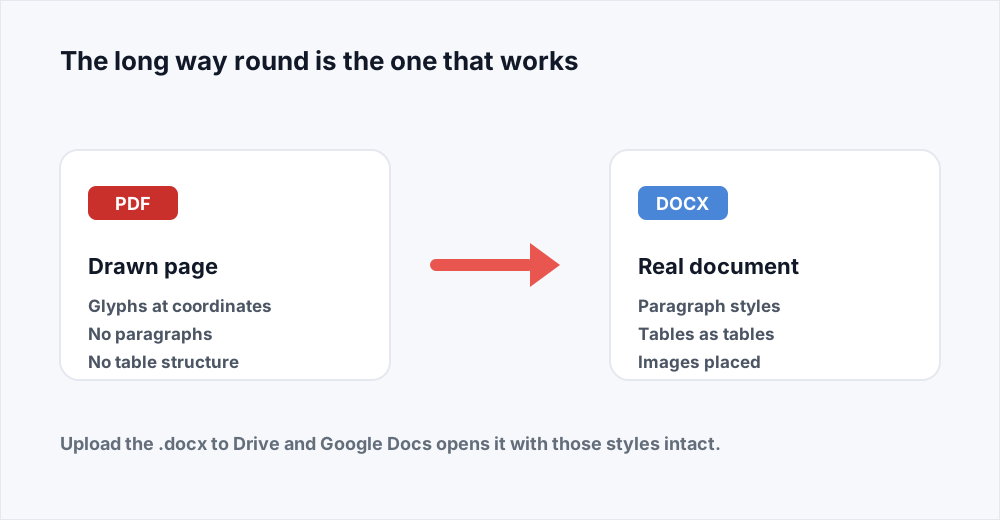
One fact explains every decision below: a PDF does not contain a document, it contains instructions for drawing one. Everything a word processor needs - this is a heading, these twelve lines are one paragraph, this grid is a table - has to be inferred from the drawing, and the two routes infer it with very different amounts of care.
How to convert a PDF to Google Docs and keep the formatting
Four steps, all free, and the whole thing takes a minute.
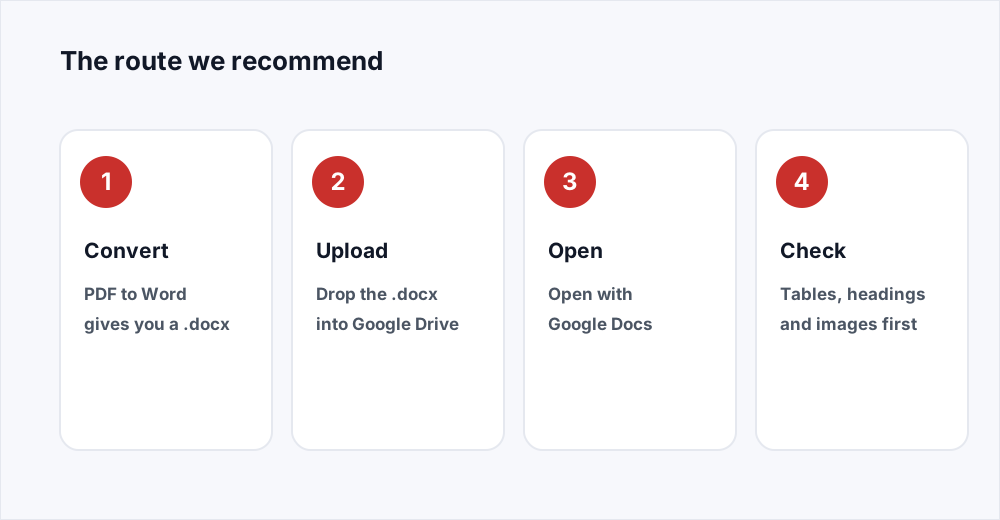
Passo 1: Convert the PDF to Word
Open PDF to Word, drop the file in and download the .docx. Up to 20 MB on the free plan, and three Office conversions a day without an account.
Passo 2: Upload the .docx to Google Drive
Drag it into any Drive folder, or use New and then File upload. Drive stores it as a Word file until you ask for something else.
Passo 3: Open it with Google Docs
Right-click the uploaded file, choose Open with, then Google Docs. The original .docx stays in Drive, so you can always start again.
Passo 4: Check the structure, not the words
Scroll through looking at headings, tables, numbered lists and image positions. The text is almost always right; the structure is where a conversion goes wrong.
What happens when you open a PDF in Google Docs directly
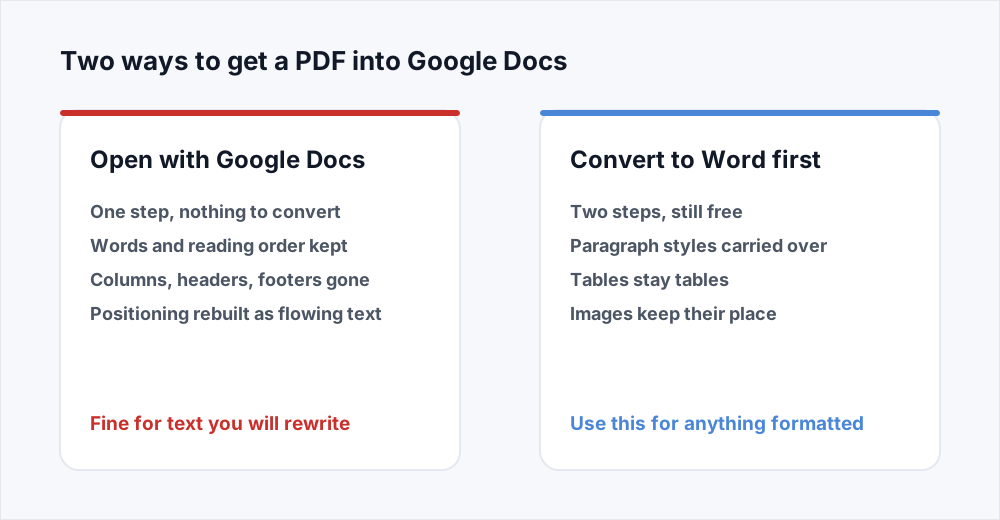
Drive's built-in conversion is doing something quite specific, and knowing what it is saves a lot of confusion. It reads the text off each page, works out the reading order, and pours the result into a fresh Google Doc as a stream of flowing paragraphs. The words, in order, in a readable typeface. On its own terms it is good at that.
What it does not do is rebuild the page. A Google Doc is a single column that reflows as you type, so anything that depended on where things sat has nowhere to go. Two columns become one, read down the first and then the second, or interleaved line by line if the spacing confused it. Headers and footers vanish or land as stray lines in the body. A logo in the corner ends up at the start of a paragraph, or is dropped. Tables come through with the cell boundaries gone, which is the failure people notice first.
Google's conversion is optimised for the commonest case by far: somebody who wants the words out of a PDF so they can rewrite them. If that is you, the one-click route is the right one. If the document is a report, an invoice template or a CV, keep going.
Why converting to Word first keeps more of the layout
A .docx is not a picture of a document, it is a description of one. Inside it, a heading is marked as a heading with a style attached. A table is a table element with rows and cells. An image has an anchor and a position relative to the text around it. A numbered list is a list, not paragraphs that happen to start with numbers.
So a PDF-to-Word converter has a richer place to put what it works out. When it decides a run of larger, bolder text is a heading, it can say so in the file. When it detects a ruled grid, it can write an actual table. When Google Docs then opens that .docx, it is not re-reading a drawing - it is reading a description that already says what everything is, and converting between two formats that both understand paragraphs, styles and tables. Almost nothing is lost in that hop.
Drive's own route skips the middle entirely. It goes from a drawing to a flowing document in one jump, and the structure never gets written down anywhere, so there is nothing for Docs to read. That is the whole of the difference. Our guide to PDF to Word goes further into what the converter can and cannot infer.
What survives each route
The same PDF put through both, element by element.
| Part of the document | Open with Google Docs | Convert to Word first |
|---|---|---|
| Body text and reading order | Kept | Kept |
| Headings as headings | Usually flattened to body text | Usually kept as styles |
| Tables | Cells lost, text runs together | Ruled tables usually survive |
| Numbered and bulleted lists | Often plain paragraphs | Usually real lists |
| Images | Dropped or moved | Placed near where they were |
| Columns, headers, footers | Gone | Gone or approximated |
| Exact positioning and page breaks | Gone | Approximated |
Five documents and the route each one wants
The choice is almost always decided by what the document is.
- A single-column letter you are rewriting anyway. Open it with Google Docs directly: there is no structure to lose and the extra step buys you nothing.
- A CV with a two-column sidebar. Convert to Word first. The sidebar still needs attention, but you are adjusting a document rather than rebuilding one from a wall of text.
- A report with headings, a contents page and tables. Convert to Word first, without hesitation. This is the case the two-step route exists for.
- A PDF that is mostly a data table you want in Sheets. Neither route. Use PDF to Excel and upload the spreadsheet to Drive instead - a table put into a word processor is a table you have to pull apart again.
- A scanned contract you need to sign. Do not convert it at all. The next section is about why.
When not to convert a PDF at all
A lot of people reach for Google Docs when what they actually want is to change three words, tick a box, add a date and sign at the bottom. Converting for that is the expensive way round: you flatten a layout somebody designed, fix your three words, then rebuild the layout well enough to send it back as a PDF.
For that job, edit the PDF where it is. Edit PDF changes existing text in the document's own font, adds text, images, shapes, highlights and freehand notes, draws or places a signature, and fills form fields - with every other pixel exactly where the author put it. Nothing is rebuilt, because nothing is converted. It also runs entirely in your browser: the file is never uploaded to us at all, which matters more for a contract than for a newsletter.
The rule of thumb is how much of the document you are changing. Changing a small part of it, or adding to it: edit the PDF, and the guide to editing a PDF covers what the editor can reach. Rewriting or restructuring most of it: convert, and accept some tidying.
Fixing a Google Doc when the PDF formatting is lost
Assume some tidying either way, and do it in a fixed order, because fixing the small things first means doing them twice. Start with structure: apply real heading styles from the Styles menu rather than making text big and bold, so the outline pane works. Then rebuild any tables the route lost - pasting the text into a real table column by column beats fighting tab stops. Then lists, because text that starts with 1. but is not a real list falls apart the moment you insert an item. Images next. Spacing and fonts last, because every step above moves them.
One artefact looks like a bug and is not. Lines that break mid-sentence, so a paragraph arrives as six short ones, mean the converter read each drawn line as its own block. The fastest fix is Find and replace with the regular-expression option, replacing a line break followed by a lowercase letter.
Fonts will change, and that is a property of the formats rather than a fault: a PDF embeds letter shapes, while Docs needs a font by name from its own library. Apply a font you do have to the whole document early, so the reflowing happens once. When the tidying is done, Docs will download the result as a PDF directly, and Word to PDF does the same job if you exported a .docx instead.
What happens to your file
The PDF-to-Word conversion runs on a server, because the software that does it well is not browser software. The upload is streamed to disk rather than held in memory, the job runs, and the input is deleted the moment it finishes. The .docx is deleted as soon as you have downloaded it, and the security page sets out every stage.
Anything you then upload to Google Drive is on Google's systems under Google's terms, which is a separate decision and worth making deliberately for a confidential document. The editor is the exception: it never uploads your file at all.
Frequently asked questions
How do I open a PDF in Google Docs?
Upload the PDF to Google Drive, right-click it, choose Open with and then Google Docs. Drive converts it into an editable document in a few seconds. The words come across; columns, headers, footers and precise positioning do not.
Why is my Google Docs PDF formatting lost?
Because Drive's conversion rebuilds the page as a single column of flowing text rather than reproducing the layout. A Google Doc has no fixed page positions, so anything that depended on where things sat - columns, headers, footers, a logo in a corner - is dropped or moved.
What is the best way to convert a PDF to a Google Doc?
For anything with structure, convert the PDF to Word with PDF to Word, upload the .docx to Drive, and open that with Google Docs. Docs reads a Word file's headings, tables and lists directly, so far more survives than when Drive converts the PDF itself.
Can I edit a PDF in Google Docs without converting it?
No. Google Docs cannot edit a PDF in place; opening one always converts it to a Google Doc first. If you want to change a PDF without converting it, use a PDF editor - Edit PDF changes text, adds images and signatures and fills form fields while leaving the rest of the page exactly as it was.
Can Google Docs edit a scanned PDF?
Only if optical character recognition succeeds on it, which depends on the quality of the scan. A scanned page is a photograph, so there is no text in the file to edit. On Pro, PDF to Word can run OCR before converting, and the Word file then opens in Docs like any other. Text recovered from a scan by any tool needs checking word by word.
Why did my table come through as a jumble of text?
Because a PDF does not store tables - it stores lines and text drawn at positions, and a converter has to work the grid out from the spacing. Drive's route does not attempt it, so cells run together. Converting to Word first usually recovers a ruled table, and if the table is the point of the document, PDF to Excel is the better tool.
In short
Getting a PDF to Google Docs is easy; keeping the document intact is the part that needs a decision. Drive's Open with Google Docs is one click and gives you the words in a flowing document, with columns, headers, footers and positioning gone. Converting to Word first gives Docs a file that already says what each part of the document is, so headings, tables, lists and images arrive as themselves. A scanned page is a picture, so either route needs OCR first: Drive tries it on some scans, and PDF to Word offers it on Pro.
And if you only need to sign, fill in or annotate the thing, do not convert it at all - edit the PDF and keep the layout exactly. Every tool here is free and needs no account: see all of them.