Most documents are longer than the part anyone needs. The lease is forty pages and the landlord wants page twelve. The board pack is two hundred pages and finance needs their six. The scanner produced one enormous file when what you wanted was one file per invoice. All of these are the same operation: take a PDF, decide which pages go where, and produce smaller PDFs from it.
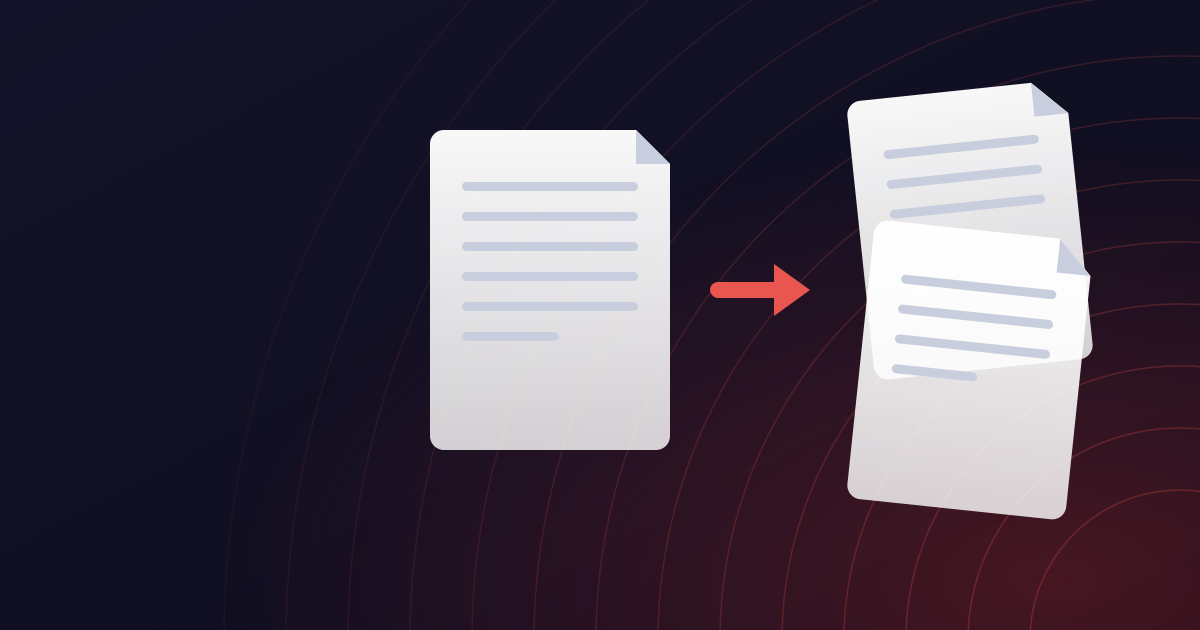
Splitting is a copy, like merging in reverse. Pages are lifted out of the source file and placed into new files exactly as they were - same size, same fonts, same image resolution, text still selectable. Nothing is re-rendered, so nothing is degraded.
This guide covers how to describe the pages you want, how Split PDF turns that description into files, the difference between splitting and extracting, and the cases where a different tool is the right answer.
How to split a PDF in four steps
The short version.
ধাপ 1: Open the splitter
Go to Split PDF. No installation, no account.
ধাপ 2: Add the file
Drag the PDF onto the page or choose it. Files up to 20 MB are accepted on the free plan and up to 250 MB on Pro, which covers all but the very largest scans.
ধাপ 3: Say which pages
Type the pages or ranges you want, such as 1-3 or 4, 7, 12-15. Each range becomes its own file. Leave the box empty and every page becomes a separate file.
ধাপ 4: Download the results
You get one PDF per range you asked for, or one per page if you asked for everything. They are deleted from the server once you have downloaded them.
How page ranges work
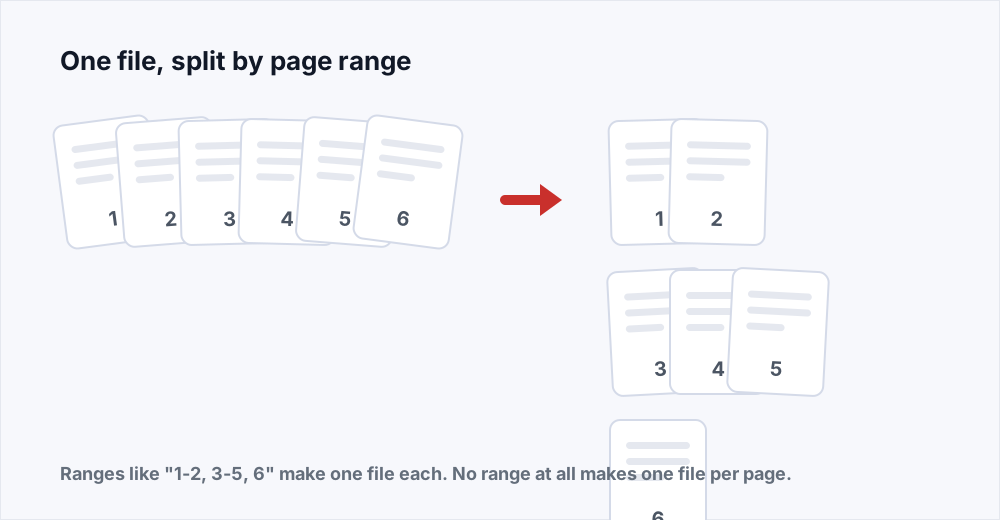
The box that asks for pages accepts the notation everyone already uses for printing. A single number is one page. Two numbers with a hyphen are a run of pages, inclusive at both ends. Commas separate ranges from each other, and every range produces one output file.
So 1-3 gives you one file containing pages one, two and three. 1-3, 8 gives you two files: pages one to three, and page eight on its own. 2, 4, 6 gives you three single-page files. The order you write the ranges in is the order the files are made in, and it does not have to be ascending - 10-12, 1-2 is perfectly valid and gives you the later pages first.
Pages you do not mention are simply not in any output. That is the whole mechanism for extracting: if you want pages four to nine and nothing else, type 4-9 and you get one file of six pages. The other fifty-four pages are untouched in your original and absent from the result.
Range examples
| You type | You get | Use it for |
|---|---|---|
| (nothing) | One file per page | Bursting a scanned batch into individual documents |
| 4-9 | One file, six pages | Extracting a chapter or a section |
| 1-3, 4-6, 7-9 | Three files, three pages each | Breaking a document into equal parts |
| 1, 5, 12 | Three single-page files | Pulling out specific pages - a cover, a signature, a summary |
| 1-2, 1-2 | Two identical files | Rarely useful, but allowed - ranges may repeat |
Splitting and extracting are the same thing
People search for both, and tools sometimes present them as separate features, but there is one operation underneath. Splitting into parts means writing several ranges that together cover the document. Extracting means writing one range that covers only the part you want. The mechanism - copy these pages into a new file - is identical.
What differs is what you do with the leftover pages, and the answer is nothing: they stay in your original file, which is never modified. Splitting produces new files and leaves the source alone. If you want to remove pages from a document permanently and keep everything else in one file, that is a different job, and the next section is about it.
When to use Organize PDF instead
Split PDF answers one question: which pages go into which new file. It does not reorder pages, rotate them, or produce a single file with some pages removed. For any of those, Organize PDF is the tool. It takes one document and lets you say which pages to keep, in what order, and at what rotation - and gives you one document back.
The distinction is easy to remember. If the answer you want is several files, split. If the answer you want is one file that is a rearranged, trimmed or rotated version of the original, organize. A sixty-page report with the two confidential pages taken out is an organize job. The same report broken into six ten-page parts for six reviewers is a split job.
They combine well. Organize first to fix rotation and drop what nobody needs, then split the cleaned document into parts. And if the parts later need to become one file again, Merge PDF puts them back together - the merge guide covers getting the order right.
Splitting in practice: five common jobs
The same operation applied to documents people actually have.
- One file per invoice from a scanned batch. Leave the range box empty; every page becomes its own PDF. If each invoice is two pages, type 1-2, 3-4, 5-6 and so on instead.
- The one clause the landlord asked for. Open the lease, find the clause, read the file page number from your reader, type it. One page, one file, done in a minute.
- A board pack for six departments. Each department's section is a range. Type all six ranges separated by commas and you get six files in one go, named in order.
- A CV with a cover letter attached. Type 1 for the letter and 2-3 for the CV. Now they can be sent separately when a portal wants them as separate uploads.
- The signed page out of a returned contract. The counterparty printed it, signed the last page, scanned everything back. Extract just that page and merge it onto your clean original rather than keeping the whole scan.
What the output files are called
Each output takes the original filename with the range appended, so a split of report.pdf into 1-3 and 4-9 gives you two files whose names say which pages they hold. Bursting into single pages numbers them in order. That is enough to tell them apart, and not enough to file them, so rename them for what they are - the invoice number, the section title, the reviewer's name - before they go anywhere. A folder of files called report-4-9 is a folder nobody can search.
If the parts are going to several people, name each for its recipient. If they are going to a portal that wants particular names, use those. The one thing to avoid is sending someone a file called report-1-3 and expecting them to know what it is.
Splitting for review
The commonest reason to split a long document into parts is that several people each need to read one part, and sending each of them the whole thing guarantees nobody reads their section. Split by section, name each part for its reviewer, send. When the comments come back, they are about the right pages and nothing else.
It works the other way too. A document that arrives as one enormous file for a meeting can be split into the agenda items, so each item can be opened, read and closed on its own. Nothing about the original is changed, and merging the parts back together at the end is one step if a single file is needed for the record.
Splitting a large or heavy file
Because splitting copies pages without touching their content, each output is exactly as heavy as the pages in it. Ten pages of a scan at 600 dots per inch make a heavy ten-page file. That is correct behaviour - a splitter that quietly compressed your pages would be making decisions you did not ask for.
If a part needs to be small enough to email, compress it after splitting with Compress PDF. Doing it after rather than before means only the pages you are actually sending are re-encoded, and the rest of the document keeps its full quality in your original.
Very long documents are fine. A file within your plan's size limit can have as many pages as it likes, and a range like 1-400 is no harder than 1-4. The only cost is time, and even that is seconds.
What splitting cannot do
A split works in whole pages. It cannot cut a page in half, separate two documents that were scanned onto one sheet, or pull one paragraph out of a page. If the unit you need is smaller than a page, you are editing rather than splitting, and Edit PDF is the tool for that.
It also does not carry bookmarks across. An outline belongs to the file it was made in, and the new files start without one. The pages themselves - text, images, links within a page - are copied intact.
What happens to your file
Splitting runs on a server. The upload is streamed to disk without being held whole in memory, the split runs, and the input is deleted the moment it finishes. The results are available for thirty minutes and are deleted as soon as you have downloaded them. The security page sets out the whole path a file takes.
There is no account, no watermark, and no limit on how often you split.
Frequently asked questions
How do I extract just one page from a PDF?
Open Split PDF, add the file, and type the page number - for example 7. You get a one-page PDF containing only that page. Your original is not changed.
How do I split a PDF into separate pages?
Leave the page range box empty. Every page of the document becomes its own file, numbered in order. For a 30-page file you get 30 single-page PDFs.
Does splitting a PDF reduce quality?
No. Pages are copied without being re-rendered, so text stays selectable, images keep their resolution and page sizes are unchanged. Each output is exactly as good as the pages it contains.
Can I split a PDF and keep the rest as one file?
Splitting leaves your original untouched, so the rest is already there. If what you want is one new file with certain pages removed, that is Organize PDF: list the pages to keep and it produces a single trimmed document.
Why does my range give me the wrong pages?
Because the number printed on the page is not the page's position in the file. A document with a cover and a contents page has its printed page 1 at file page 3. Use the page number your PDF reader shows in its page box, not the one printed on the paper.
Can I split a password-protected PDF?
Not while it is protected - an encrypted file's pages cannot be read. Remove the password, split, and re-protect the parts with Protect PDF if they need it.
Is there a limit on file size or page count?
Each upload can be up to 20 MB on the free plan, or 250 MB on Pro. There is no separate limit on pages; a long document splits as easily as a short one, it just takes a few seconds longer.
In short
Splitting copies whole pages into new files without changing them. Describe what you want as page ranges, using the file page numbers your reader shows, and each range becomes a file. Leave the box empty for one file per page. If you want one rearranged or trimmed file rather than several, that is Organize PDF, and if you want the parts back together later, that is Merge PDF.
All of it is free and none of it needs an account - see every tool.