A spreadsheet has no pages. It is a grid that goes on in both directions for as long as it needs to, and the idea of a page is imposed on it only when it is printed. Converting to PDF is printing, in every way that matters: the converter has to decide where the grid is cut into sheets of paper, which columns fit across, and which rows fit down. Those decisions come from the workbook's own page setup, and when the page setup has never been looked at, the PDF looks like nobody looked at it.
The good news is that all of this is controllable, and controllable from inside Excel before you convert. Set the print area, choose the orientation, tell it to fit the width to one page, and the conversion does exactly what you said. The converter honours the workbook's settings faithfully - which is also why a workbook with bad settings produces a faithful copy of the problem.
This guide covers how Excel to PDF turns a grid into pages, the settings that decide the outcome, the one behaviour that reads as a bug and is not, and what to do with multi-sheet workbooks.
How to convert Excel to PDF in three steps
The conversion itself has no settings. The settings are in the workbook.
Paso 1: Set the workbook up for print
In Excel: Page Layout, then orientation, print area and scaling. This is where the PDF's appearance is decided, and it is the step everyone skips. The next section explains what to set.
Paso 2: Open the converter and add the file
Go to Excel to PDF and drag the .xlsx or .xls onto the page. Up to 20 MB on the free plan, or 250 MB on Pro. No account, nothing to install.
Paso 3: Download the PDF and check the page breaks
Page through it. Every column should be on the page and no table should be cut mid-way. If not, the fix is in the workbook, not the converter - see below.
How a grid becomes pages
The conversion lays the sheet out the way Excel's own print preview does. It takes the print area if one is set, or the used range if not. It applies the page size and orientation from the sheet's page setup. It then fills pages left to right and top to bottom: as many columns as fit across the first page, then the rows that fit down it, then the next set of columns on the next page, and so on. A wide table with no scaling set becomes a patchwork of pages that has to be reassembled by hand.
Scaling is the setting that changes everything. Fit all columns on one page - in Excel, a width of one page and height automatic - shrinks the sheet uniformly until it is one page wide, and lets it run to as many pages tall as it needs. For almost every table anyone converts, this is the right setting, and it turns the patchwork into a single readable document.
Orientation is the other. A table with many columns and few rows is a landscape page; forcing it into portrait means either tiny type or a split. Set landscape in the page setup and the converter uses it.
The settings that decide the PDF
| Setting in Excel | What it does to the PDF | Set it to |
|---|---|---|
| Print area | Which cells are converted at all | The table, and nothing around it |
| Orientation | Portrait or landscape pages | Landscape for wide tables |
| Scaling | How many pages wide and tall | Fit to 1 page wide, automatic height |
| Print titles | Header row repeated on every page | The header row, for anything over a page |
| Gridlines | Whether cell borders print | On, unless the sheet has its own borders |
| Page size | A4 or Letter | Whatever the reader will print on |
Workbooks with several sheets
Every sheet is converted, in workbook order, each starting on a new page. A workbook with a summary sheet, a data sheet and three scratch sheets produces a PDF with all five, and the scratch sheets are usually not what anyone wanted to send.
Two ways to handle it. Hide the sheets you do not want before converting - hidden sheets are not printed and not converted. Or convert everything and take the pages you need with Organize PDF, which lets you keep and reorder pages from the result. The first is cleaner; the second is useful when you have already converted and would rather not go back.
Each sheet keeps its own page setup. A landscape data sheet and a portrait summary sheet come out as landscape pages and portrait pages respectively, in one PDF, which is exactly right and which no reader will mind.
What is preserved, and what is not
The PDF is the printed sheet. Anything that is not part of the printed sheet does not come across.
- Cell values, number formats, fonts, fills and borders: preserved exactly as they print.
- Charts and images placed on the sheet: preserved, at the size and position they have on the page.
- Formulas: the results are preserved, the formulas are not. A PDF has cells with numbers in them, not cells with calculations. Recalculate before converting if anything is stale.
- Frozen panes, filters, hidden rows and columns: hidden rows and columns are not printed and not converted; freezing and filtering are screen features and do not exist on paper.
- Comments and notes: not converted. They are attached to cells, not printed on the page.
- Conditional formatting: preserved, as the colours and icons it currently shows.
Common jobs and how to set them up
A price list to send to customers. One sheet, portrait if it is narrow, landscape if it is wide. Print area set to the table. Fit to one page wide. The header row as a print title so it repeats on every page.
A monthly report with a summary and a data tab. Hide the scratch sheets. Set the summary to portrait and the data to landscape. Convert once; both sheets appear in order.
A budget that will be signed off. Set the print area to exactly the cells being approved. Convert. Add a password with Protect PDF if it should not be readable by everyone who can find it.
A pricing table for a proposal that is otherwise a Word document. Convert the Word part with Word to PDF, the sheet here, and combine them with Merge PDF. The pricing table can be landscape inside a portrait document without any trouble.
Page breaks you can see, and set
Excel decides where pages break from the page size, margins and scaling, and it shows you the result in page break preview - a view with the breaks drawn as lines across the grid. Anything that looks wrong there will be wrong in the PDF. Dragging a break in that view moves it, and a break you set by hand is honoured by the conversion exactly as an automatic one is.
The usual reason to set a break is a table that should not be cut through the middle of a group: a section of rows that belong together, a subtotal that should sit with its lines. Put a manual break above the group and it starts on a fresh page. It is a thirty-second job in Excel and there is no way to do it after the fact in the PDF.
Very long sheets
A sheet with ten thousand rows converts to a PDF with a few hundred pages, correctly and uselessly. Nobody reads a spreadsheet as a document past a few pages, and a PDF that long is a sign the wrong thing is being sent. Filter the sheet to the rows that matter, or set a print area around the summary, and convert that. If the full data genuinely has to travel, send the workbook, not a PDF of it.
Where a long table is the right thing - a price list, a schedule, a register - set the header row as a print title so it repeats at the top of every page, and consider fit-to-width so the columns never split across pages. A long, narrow, correctly headed PDF is perfectly readable; a long, wide, unheaded one is not.
Numbers, dates and what the PDF shows
The PDF shows what the cell displays, not what it contains. A cell holding 1234.5678 formatted to two decimals prints as 1234.57, and that is what the PDF has. A date formatted as March 2026 prints as March 2026, not as the serial number underneath. This is what you want, and it means the formatting is worth checking before converting: a column of numbers formatted as General prints with however many decimals each one happens to have, which looks untidy on paper.
Cells too narrow for their number show as a row of hashes in Excel, and print that way too. If the PDF has hashes in it, widen the column.
What happens to your file
Conversion runs on a server, one job at a time, using the same layout engine a desktop office suite uses to print. The upload is streamed to disk without being held whole in memory, converted, and deleted the moment the job finishes. The PDF is available for thirty minutes and is deleted as soon as you have downloaded it. The security page sets out every stage.
No account, no watermark. And if the PDF ever needs to become a spreadsheet again, PDF to Excel extracts the tables back out - though keeping the workbook is easier.
Frequently asked questions
Why are my columns cut off in the PDF?
Because the sheet is wider than the page and scaling is not set. In Excel, Page Layout, set the width to one page and the height to automatic. That shrinks the sheet until every column fits across, then convert again.
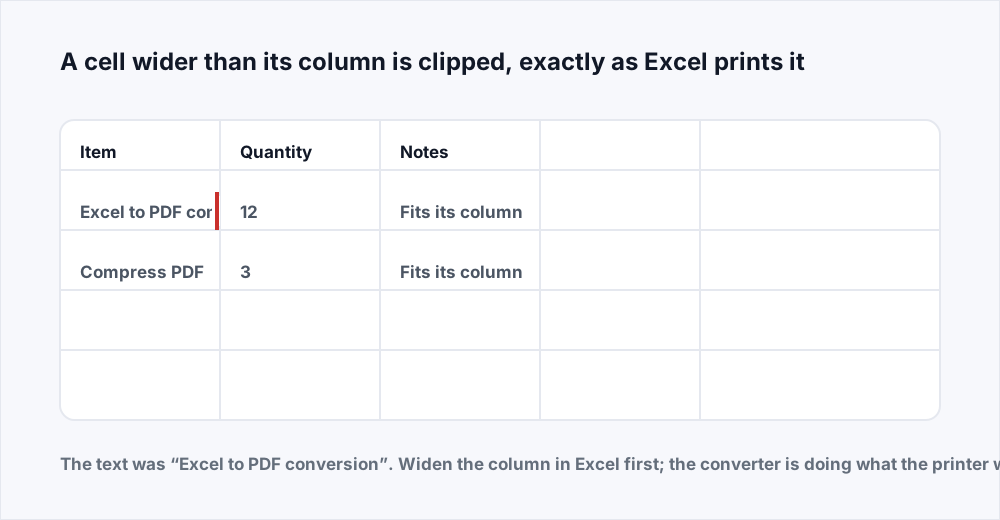
Why is text in a cell cut short?
Because the cell is wider than its column, and printing clips at the column edge - the converter does exactly what Excel's own print does. Widen the column or enable wrap text in the cell, and convert again.
How do I convert only one sheet?
Hide the other sheets in Excel before converting; hidden sheets are not included. Or convert the whole workbook and keep only the pages you want with Organize PDF.
Does the PDF keep my formulas?
It keeps the values the formulas produce, not the formulas themselves. A PDF is a printed page; it has no calculation in it. Make sure the workbook is recalculated before converting.
How do I make the header row repeat on every page?
In Excel, Page Layout, Print Titles, set the rows to repeat at the top. It is saved in the workbook and the converter honours it, so a long table has its column headings on every page of the PDF.
Does it convert .xls as well as .xlsx?
Yes, both. Excel to PDF accepts either and produces the same PDF from each.
Is it free and is my data safe?
Free, no account, no watermark. The workbook is deleted the moment conversion finishes and the PDF is deleted when you download it; the security page documents the timings.
In short
Converting a spreadsheet is printing it, and the PDF looks like the print preview. Set the print area, the orientation and fit-to-one-page-wide in Excel first, repeat the header row, hide the sheets you do not want, and the conversion does the rest exactly. A clipped cell is a narrow column, not a lost value.
Every tool here is free and needs no account - see them all.