There is a particular kind of afternoon that begins with a PDF full of numbers and ends with a spreadsheet full of typos. Statements, price lists, published results, invoice line items, tender schedules: the data is on the page, in rows and columns, and it needs to be in cells. Typing it is slow and, worse, it is where the mistakes come from - a transposed digit in row forty that nobody notices until the totals are wrong.
Table extraction reads the page instead. It finds the text, works out which pieces of it line up into columns and rows, and writes them into a spreadsheet. When the table on the page is drawn with lines between the cells, this is close to mechanical and the result is reliable. When the columns are implied only by spacing, the extractor is inferring the structure, and inference has to be checked.
This guide covers how PDF to Excel decides where the cells are, which tables it handles well, how to prepare a document so it does better, and how to verify the numbers before anyone relies on them.
How to convert a PDF table to Excel in three steps
For a PDF with real text, the extractor reads what is on the page. For a scan, turn on OCR, which is part of Pro.
Paso 1: Open the converter
Go to PDF to Excel. No account, nothing to install.
Paso 2: Add the PDF
Drag it onto the page or choose it. Up to 20 MB on the free plan, or 250 MB on Pro. If only some pages have the tables you want, cutting those pages out first makes the result easier to check - see below.
Paso 3: Download the .xlsx and check it
Open it in Excel, LibreOffice or Google Sheets. Each table becomes a block of cells. The section on verification below is not optional reading if the numbers matter.
How the extractor finds the cells
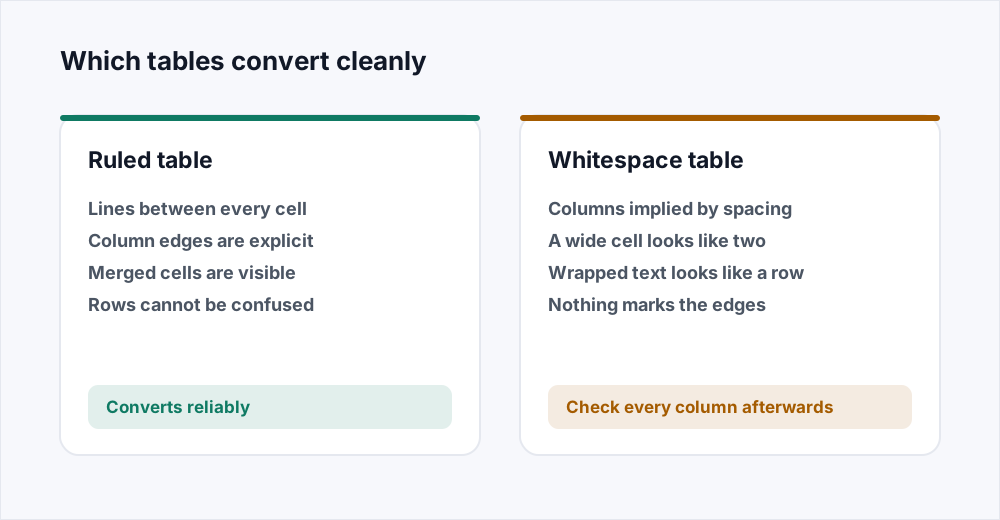
A PDF has no idea it contains a table. It contains text at positions, and possibly some lines drawn near that text. The extractor's job is to turn positions into structure. It looks for text that shares a horizontal band - a row - and within rows for text that shares a vertical band across the whole table - a column. Where the page draws rules between cells, those rules are used as the column and row boundaries directly, which is why ruled tables come out so cleanly.
Where there are no rules, the extractor looks at gaps. A consistent gap running down the page between two blocks of text is a column boundary. This works well when the gaps are wide and regular. It becomes ambiguous when a cell's text is long enough to reach almost into the next column, when a number is right-aligned in a wide column so that its gap to the left is huge and its gap to the right is tiny, or when a cell wraps onto a second line and the second line looks like a new row.
Those are the three failure modes to know about, because they are nearly the only ones: a wide cell read as two, a wrapped cell read as an extra row, and columns merged because the gap between them was too narrow. Each is visible at a glance in the spreadsheet, and each is quick to fix once seen.
What to expect by table type
| The table on the page | How it converts | What to check |
|---|---|---|
| Ruled, every cell boxed | Reliably | Merged header cells, which may repeat |
| Ruled rows only | Well | Column edges in the widest column |
| Whitespace, regular columns | Usually well | Any cell with long text |
| Whitespace, ragged or wrapped | Needs work | Every row - look for split or merged cells |
| Scanned | Only with OCR, on Pro | Every figure - OCR confuses similar digits |
Preparing the document for a better result
Convert only the pages that hold tables. A forty-page report with a six-page appendix of results produces a spreadsheet with forty pages' worth of stray text in it if you convert the whole thing. Cut the appendix out first with Split PDF or Organize PDF, convert that, and the result is nothing but the tables.
If you have any say over how the PDF is made, ask for ruled tables. A single line between columns turns a guess into a fact. This is the biggest single thing that improves extraction, and it costs the author nothing.
Check the page is not rotated. A landscape table on a page stored sideways is read sideways - each column becomes a row. Organize PDF rotates pages without touching their content; fix the rotation, then convert.
How to verify the result in two minutes
The extraction is fast; the checking is what makes it safe to use. A short routine catches nearly everything.
- Count the rows. The PDF table has a number of lines; the spreadsheet should have the same number plus a header. More means a wrapped cell became a row; fewer means two rows were merged.
- Count the columns. Same test. An extra column means a wide cell was split; a missing one means two narrow columns were read as one.
- Sum a column that has a printed total. If the PDF shows a total at the bottom, sum the extracted cells above it. Matching totals mean both the numbers and their types are right. A total of zero means the cells are text.
- Read the first and last row against the page. Errors cluster at the edges, where headers, footers and page breaks live.
- Look for anything in the wrong place. A stray page number, a footnote marker, a header repeated mid-table - these land in cells and are obvious once you look.
Tables that run across several pages
A long table in a PDF is broken into pages, and each page usually repeats the header row and carries a page number in the footer. The extractor reads each page's table on its own, so the spreadsheet has the header row repeated wherever a page began, and may have a page number sitting in a cell where the footer landed near the table's edge.
Both are easy to clean once you know to look: sort or filter for the repeated header text and delete those rows, and delete any row that is only a page number. A table of two hundred rows across eight pages becomes two hundred rows in a couple of minutes. Convert the pages together rather than one at a time, so the parts arrive in order and in one sheet.
Cleaning the spreadsheet afterwards
A short routine that turns an extracted table into one you can work with.
- Delete repeated header rows and stray page numbers, as above.
- Convert numeric columns to numbers. Select the column, use the spreadsheet's convert-to-number action, and check a SUM works.
- Trim spaces. Extracted cells sometimes carry a leading or trailing space that makes two identical values sort apart; a TRIM over the column fixes it.
- Check dates. A date may arrive as text in the page's format; convert it to a real date so it sorts and filters correctly.
- Look at merged cells. A heading spanning columns is usually in the first of them; fill or split as your layout needs.
- Sum against a printed total, once more, after cleaning. It is the last check and the one that catches everything else.
What this is for
Bank and card statements, where every transaction is a row and the totals let you verify the extraction. Price lists and catalogues, which are tables by nature. Published data - results, league tables, government statistics - that arrives as a PDF and needs to be sorted or charted. Invoice line items, tender schedules, timetables. Anything that was a spreadsheet before somebody turned it into a document, and needs to be a spreadsheet again.
When Excel is not the destination
If the document is mostly prose with a table or two in it, and you need the prose as well, PDF to Word keeps the text as paragraphs and carries simple ruled tables across as Word tables. Use the Excel converter when the tables are the point and the words around them are not.
And once the numbers are corrected and the spreadsheet is finished, Excel to PDF turns it back into a document to send - which is where a lot of these tables came from in the first place.
What happens to your file
Extraction runs on a server. The upload is streamed to disk without being held whole in memory, the tables are read, and the input is deleted the moment the job finishes. The spreadsheet is available for thirty minutes and is deleted as soon as you have downloaded it. The security page sets out every step and how long each lasts.
There is no account, no watermark, and the result is a standard .xlsx that opens in Excel, LibreOffice Calc, Numbers and Google Sheets.
Frequently asked questions
Will the spreadsheet match the table exactly?
For a table drawn with lines between the cells, almost always. For a table laid out with spacing alone, usually, with the occasional split or merged cell where a gap was ambiguous. Either way, check the row and column counts and sum a column against a printed total before relying on it.
Why are my numbers not adding up?
Because they arrived as text. A figure can look like a number and be a string of characters. Select the column, convert it to numbers, and the SUM will work. This is the single most common issue with any table extraction and takes seconds to fix.
Can I convert a scanned PDF to Excel?
Yes, on Pro. A scan has no text in it to extract, so turn on OCR and choose up to three languages in the document; the text is read first and the columns are worked out from it. Be doubly careful verifying totals from OCR - it confuses similar-looking digits.
What if the PDF has several tables?
Each becomes a block of cells. If they are on different pages, converting the pages separately with Split PDF first keeps them apart and makes checking easier.
Does it handle merged header cells?
A header spanning several columns is usually placed in the first of them, with the rest empty, or repeated across all of them. Both are easy to see and fix. Merged cells inside the body of a table are rarer and should be checked by eye.
Is it free?
Yes, with no account and no watermark. The free plan takes files up to 20 MB and 3 Office conversions a day; Pro takes 250 MB with no daily limit. Jobs run one at a time on the server, so at busy moments you may briefly see your place in a queue.
Is it safe to upload financial documents?
The file is deleted the moment extraction finishes and the result is deleted as soon as you download it - the security page documents the timings. Nothing is kept afterwards and there is no account to attach it to.
In short
Extraction turns positions on a page into cells. Ruled tables convert reliably; whitespace tables convert usually, with splits and merges where a gap was ambiguous. Convert only the pages that matter, check row and column counts, sum a column against a printed total, and convert text to numbers before you use them. Scans need OCR, which is part of Pro, and a second check of every total.
Every tool here is free and needs no account - see them all.