Merging PDFs is the most ordinary document task there is, and it is remarkable how often it is made hard. The application you already have either cannot do it, wants a subscription to do it, or does it by printing everything to a new file and quietly turning your crisp text into a blurry picture of text.
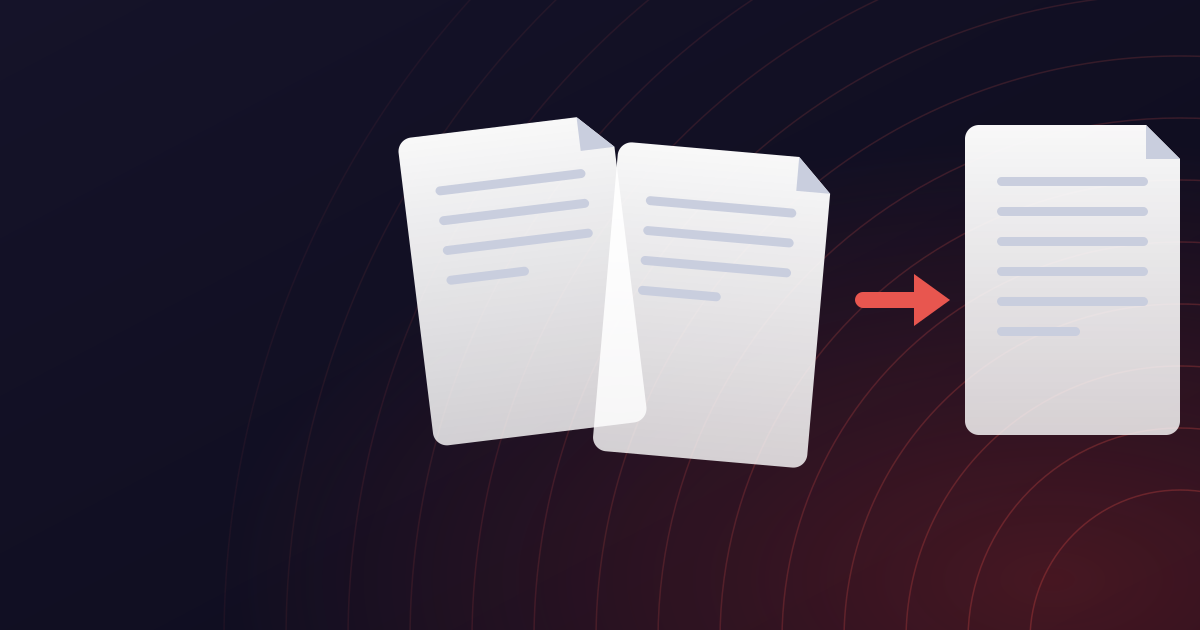
Combining files should be a copy, not a conversion. The pages in your appendix are already finished; they just need to sit after the pages in your contract. Done properly, nothing about any page changes - not the fonts, not the image resolution, not the page size - because nothing is re-rendered. The pages are lifted out of one file and placed into another.
This guide walks through doing exactly that with Merge PDF, explains how to get the order right the first time, and covers the cases that trip people up: files that will not merge, results that come out enormous, and pages that arrive sideways.
How to merge PDF files in four steps
The whole process, for someone who just needs the file.
Paso 1: Open the merger
Go to Merge PDF. There is nothing to install and no account to make.
Paso 2: Add your files
Drag every PDF onto the page at once, or pick them with the file chooser. Each file can be up to 20 MB on the free plan, or 250 MB on Pro. You can add more afterwards if you missed one.
Paso 3: Put them in order
The files are listed in the order they will appear. Drag them into the sequence you want. The first file's pages come first, then the second's, and so on - the order of the pages within each file is never changed.
Paso 4: Name it and download
Give the result a filename if you want something better than the default, then merge. The combined file is ready in a few seconds and is deleted from the server as soon as you have downloaded it.
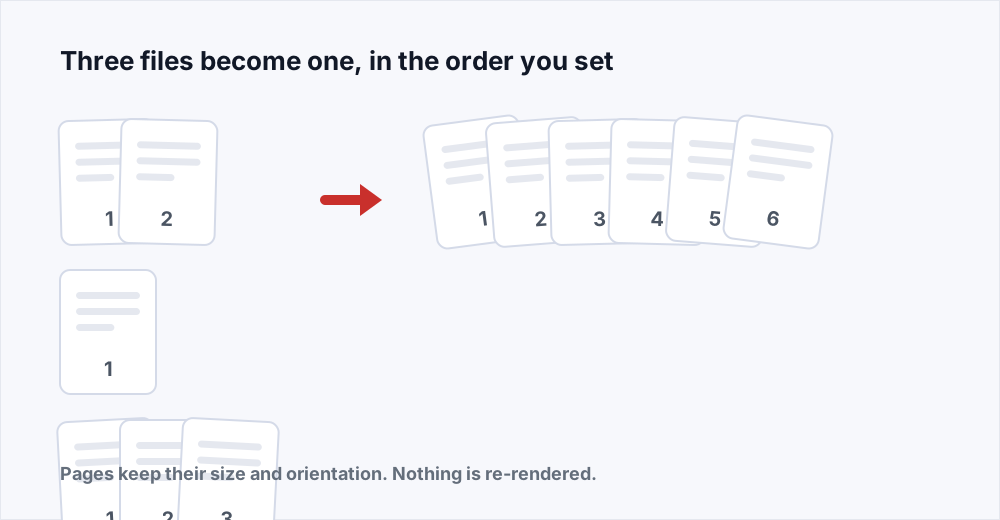
What merging actually does to your pages
It helps to know what a merge is, because it tells you what to expect from the result. A PDF is a container of pages, and each page is a self-contained description: its size, the fonts it uses, the images it embeds, and the instructions for drawing them. Merging copies those page objects from each source file into a new file, one after another.
That is why a merged file does not lose quality. There is no re-rendering step, no resampling, no conversion from one thing to another. A page that was 300 dots per inch stays 300 dots per inch. A page that was A4 landscape stays A4 landscape even when the page before it is US Letter portrait. Text stays selectable and searchable because it was never turned into anything else.
It is also why a merged file is roughly the sum of its parts. If you merge a 4 MB file with a 6 MB file, expect about 10 MB. Shared fonts are deduplicated where the tool can tell they are the same, which sometimes makes the result a little smaller than the sum, but never much. If the result needs to be small, that is a separate job - see the section on file size below.
Getting the order right
Almost every merge that goes wrong goes wrong here, and it is usually because of how the files were named. A file chooser sorts alphabetically, so a set of scans named page1, page2 through page12 arrives as page1, page10, page11, page12, page2. Nobody notices until the merged document has its second page in fifth place.
The fix is to look at the list before you merge, not after. The files are shown in the order they will be combined, and any of them can be dragged to a new position. If you are merging more than a handful, it is worth thirty seconds to read the list top to bottom against what you expect.
If you need to change the order of pages within a file - the appendix has its own cover page at the end, say - merging cannot do that, because it never looks inside a file. Organize PDF can: it lets you reorder, rotate and drop individual pages of one document. Fix the file first, then merge.
Merging in practice: five common jobs
The same operation, applied to the documents people actually have. Each of these is a single merge with no other tool involved.
- A contract and its signed signature page. The main document is a PDF from Word; the signature page came back as a phone scan. Merge the contract first and the scan second. The scan will be a different page size and that is fine - it stays as scanned.
- A set of scanned receipts into one expenses file. Scanners produce one PDF per receipt. Add them all, check they are in date order, merge. If the scanner gave them unhelpful names, rename them with a date prefix first so the list sorts itself.
- Chapters written separately into one manuscript. Each chapter is its own PDF from its own author. Merge in chapter order; page numbers printed on the pages will not be renumbered, because they are part of the page content, so if continuous numbering matters, set it in the source documents before exporting.
- A proposal made of three exports. The cover from a design tool, the body from Word, the pricing table from Excel. Merging handles the mix without complaint, because a page is a page whatever produced it.
- Application forms and supporting documents for a submission portal. Portals often insist on one file. Merge the form, the identity document and the reference letters in the order the portal lists them, and name the result the way the portal asks.
When the files are not all PDFs
A merger merges PDFs. If part of what you want to combine is still a Word document, a spreadsheet or a slide deck, convert it first: Word to PDF, Excel to PDF and PowerPoint to PDF each produce a proper PDF from the original, with fonts embedded and layout preserved. Then merge the results.
Converting first rather than printing to PDF from the application matters more than it sounds. Some print-to-PDF paths rasterise the page, producing a picture with no selectable text, and once that page is merged into a document it is a picture forever. A real conversion keeps the text as text.
Problems, and what is actually wrong
| What you see | What is happening | What to do |
|---|---|---|
| A file will not add | It is password-protected. A merger cannot read an encrypted file's pages. | Remove the password, merge, then protect the result. |
| Pages are in the wrong order | The files were listed alphabetically and their names sort badly. | Reorder the list before merging. Rename with a numeric prefix if it recurs. |
| One section is sideways | That page was scanned in landscape and stored that way. | Rotate it with Organize PDF first, then merge. |
| The result is huge | It is the sum of its parts, and one part is a heavy scan. | Compress the result once, after merging, not each part before. |
| Bookmarks vanished | Outlines belong to the source file and are not copied with pages. | Expected. Rebuild them in an editor if they matter. |
Keeping the merged file a sensible size
A merged document is never smaller than its largest part, and is usually close to the sum of all of them. When one of the inputs is a scan at high resolution, the result inherits that weight in full.
The right sequence is to merge first and compress once at the end. Compress PDF reduces the resolution of images across the whole document in a single pass, and doing it once to the finished file is both simpler and better than compressing every input separately - each compression re-encodes the images and loses a little detail, so one pass loses less than five. The compression guide covers which level to choose.
And if the file is big because it contains pages nobody needs - forty pages of boilerplate terms after a two-page order form - the honest fix is not compression. Use Split PDF or Organize PDF to keep only what matters, then merge that.
What happens to your files
Merging runs on a server. Each upload is streamed to disk without ever being held whole in memory, the merge runs, and the inputs are deleted the moment it finishes. The result is available for thirty minutes and is deleted as soon as you have downloaded it. A cleanup process sweeps every minute for anything that slipped through. The security page sets out the full path a file takes and how long each stage lasts.
No account is required, no watermark is added, and there is no limit on how many files you combine or how often.
Frequently asked questions
Does merging PDFs reduce their quality?
No. Merging copies pages from one file into another without re-rendering them. Text stays text, images keep their resolution, and page sizes are preserved exactly. The only way to lose quality is to compress the result afterwards, which is a separate, deliberate step.
Can I merge PDFs of different page sizes?
Yes. Each page keeps its own dimensions, so an A4 page can sit next to a US Letter page or a landscape scan. Readers simply display each page at its own size. If uniform pages matter for printing, resize them in the source documents before exporting.
How many PDFs can I merge at once?
Up to 5 files in one merge on the free plan, and up to 20 on Pro. Each file can be up to 20 MB on the free plan, or 250 MB on Pro. If you are combining more documents than that, Merge PDF will take them in batches just as happily - merge ten, then merge the results.
Why will one of my files not merge?
Almost always because it is password-protected. An encrypted PDF cannot be read, so its pages cannot be copied. Remove the password first, merge, and then use Protect PDF on the combined document if it still needs one.
Can I merge a Word document with a PDF?
Not directly - a merger combines PDFs. Convert the Word file first with Word to PDF, which keeps fonts and layout intact, then merge the two PDFs.
Will the page numbers be updated?
No. Page numbers printed on a page are part of that page's content, and merging does not edit content. If continuous numbering across the combined document matters, set it in the source documents before you export them.
Is it safe to merge confidential documents online?
Files are deleted the moment the merge finishes, and the result is deleted as soon as you download it - the security page documents the timings. For material that must never leave your machine, a desktop tool is the only option that meets that bar; for everything else, this is designed to be as short-lived as an upload can be.
In short
Merging is a copy, not a conversion. Get the file order right in the list before you press the button, convert anything that is not yet a PDF, fix page order and rotation inside individual files with Organize PDF first, and compress once at the end if size matters.
Every tool mentioned here is free and needs no account - see them all.