A PDF is designed not to change, which is why editing one has always felt like breaking in. The traditional answer is to convert it to something editable, make the change, and convert back - three steps that each lose something, for a fix that was one word. The other traditional answer is a desktop application that costs more than most people's laptops.
Neither is necessary for most edits. The text on a PDF page is text; it can be selected, deleted and retyped, in the page's own font, at the exact position it occupied. Annotations - highlights, notes, shapes, a signature - are a layer the format has always supported. Form fields can be added to a page that has none. All of this can be done in a browser, and done without sending the document anywhere.
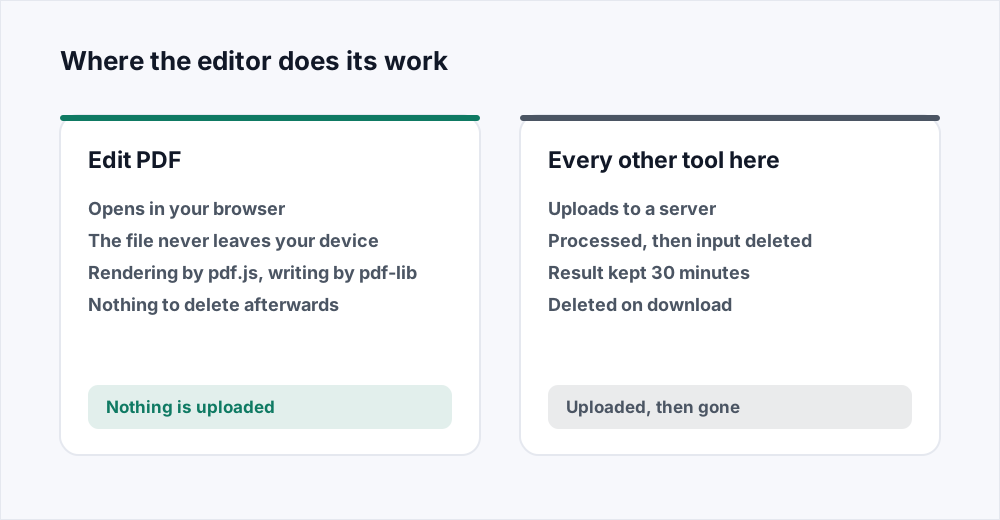
This guide covers what Edit PDF can do, how each kind of edit works, where the limits are, and why - alone among the tools on this site - it never uploads your file.
How to edit a PDF in four steps
The whole flow, for someone with a correction to make.
Шаг 1: Open the editor and choose the file
Go to Edit PDF and pick the PDF. It opens in the browser; nothing is uploaded. No account, nothing to install.
Шаг 2: Pick what you are doing
The toolbar has five groups: Edit Text, Annotate, Shapes, Insert and Forms. Editing existing text is the default - click any paragraph and it becomes editable.
Шаг 3: Make the change
Type over text, drag a highlight, place a signature, draw a box. The panel on the right shows the properties of whatever is selected - font, size, colour, alignment, and more.
Шаг 4: Save changes
The button at the top writes a new PDF and downloads it. Your original is untouched. The edits are baked into the file, so they show in every reader.
Editing the text that is already there
Click a paragraph and it becomes a text box you can type in. The words are the document's own, in the document's own typeface, and when you save, the original glyphs are removed from the page and your replacement is written in their place. This is real editing, not a patch pasted over the top: the old text is gone from the file, not hidden behind a white rectangle where a search or a screen reader could still find it.
Where the page's own font can be used, it is, so a corrected word matches the words beside it. The editor can carry the page's font when the change is to the words alone or to their colour, size and alignment. Change the typeface, or ask for bold or italic where the page's font has no such face, and the text is set in one of the three standard PDF families instead - Helvetica, Times or Courier - which every reader renders identically.
A heading stays one line however long you make it; a paragraph keeps wrapping at the width the page gave it. Alignment is measured against the page's text column, so right-aligning a heading puts it against the right edge of the body text below, which is what right-aligned means on a page.
Text styling
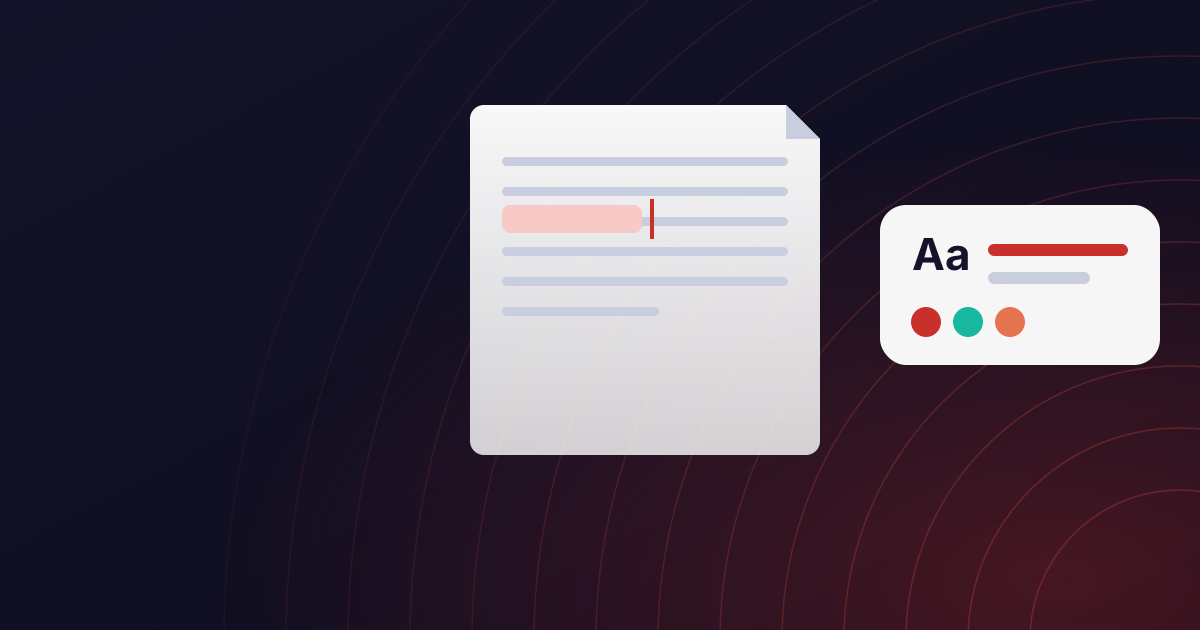
Whatever text is selected - a paragraph you are rewriting or a box you have added - the panel on the right controls its font, size, colour, bold, italic, underline and strikethrough, alignment, line spacing, letter spacing and opacity. Every one of these reaches the saved file, not just the screen: opacity is written as a real graphics state, letter spacing as the PDF's own character-spacing operator, so the download matches what you saw.
A rewritten paragraph can be restored to what the page originally said with one button, which is the way out of a paragraph that has been edited into a corner. Undo covers everything else, one step at a time.
What each toolbar group does
| Group | Tools | Typical use |
|---|---|---|
| Edit Text | Click any paragraph | Correcting a date, a name, a price, a sentence |
| Annotate | Highlight, underline, strikeout, squiggle, note, pen | Reviewing a contract or a draft |
| Shapes | Rectangle, ellipse, line, arrow, polyline, polygon | Marking a region, redlining a diagram |
| Insert | Text box, image, signature | Adding a note, a logo, a signature |
| Forms | Text, checkbox, radio, dropdown, list fields, link | Making a form fillable, adding a clickable link |
Annotating and reviewing
Highlight, underline, strikeout and squiggle are applied to the page's own words: click a block of text with the tool selected and the mark is placed on that text, sized to it, rather than drawn freehand somewhere near it. A sticky note is a marker with a comment inside it. The pen draws freehand for the rare case where nothing else fits.
Shapes have a stroke colour, a fill, a line width, a dash style and an opacity, all in the panel. An arrow is a line with a head. A polygon closes; a polyline does not. All of them are written into the PDF as real annotations that any reader shows.
Signing, and adding things
A signature is drawn once on a pad and placed anywhere, at a believable size. It is an image in the file, like any scanned signature, and carries no legal weight beyond what a scanned signature carries - which for most purposes is exactly what is wanted. An image from your computer can be placed the same way; a logo, a stamp, a photograph.
A new text box is placed by clicking where it should go, and typed into. It has every styling option the rewritten paragraphs have. It can be dragged and resized; a rewritten paragraph cannot, because moving it would leave the original words showing beside it.
Forms and links
A form field placed on the page becomes a real field in the saved PDF - the kind a reader can type into and another program can read the answer out of. Text fields, checkboxes, radio groups, dropdowns and lists each have a name, and fields sharing a name share a value, which is how a group of radio buttons works. Required and read-only are flags in the panel.
A link is a clickable region over any part of the page with a URL attached. Nothing is drawn; the words underneath stay exactly as they were. It is how a printed URL in a document becomes a link that works.
What the editor does not do
It edits pages; it does not rearrange them. Reordering, rotating and deleting pages is Organize PDF, and combining documents is Merge PDF. It does not shrink files - Compress PDF does - and it does not add passwords, which is Protect PDF.
It does not reflow a document. Rewriting a paragraph to be twice as long makes that paragraph twice as long and moves nothing below it, because a PDF has no idea what is below it. For a rewrite that changes the shape of the document, converting to Word and back - the PDF to Word guide covers what to expect from PDF to Word - is the right tool, and for a correction it is not.
And it cannot edit text that is not there. A scanned page is a picture; there are no words in it to select. The editor will happily annotate a scan, stamp it and sign it, but the text on it is ink in a photograph and stays that way.
Working faster
A few things that are not obvious from the toolbar and save a lot of clicking.
- Every tool has a single-key shortcut, shown in its tooltip. Press the key and the tool is selected without reaching for the toolbar.
- Delete or Backspace removes whatever is selected - a shape, a note, an added text box. Inside a text box they delete characters, as you would expect.
- Escape deselects, and closes a text box you are typing in. Click any paragraph to start editing it again; there is no separate select mode to leave first.
- The thumbnails down the left jump to a page. Zoom controls at the bottom fit the page to the window or step through fixed sizes; the model works in points, so zooming never changes what is saved.
- Undo and redo walk back through every change, including text edits, one step at a time. Restore original, in the panel, puts a rewritten paragraph back to the page's own words in one step.
- Open a different PDF from the toolbar without reloading the page. You are warned if there are unsaved changes, because there is no server copy to fall back on.
Why this tool alone never uploads
Every other tool on this site sends the file to a server, because the software that compresses, converts or encrypts a PDF well is not browser software, and then deletes it the moment the job is done - the security page sets out the timings. Editing is different. Rendering a page and rewriting it are things a browser can do, so they are done there, and the document never leaves the machine it is on.
That is a stronger guarantee than a deletion policy, and it is the reason to edit here rather than upload a confidential document to be edited elsewhere. No account, no watermark, no limit on how many files or how often.
Frequently asked questions
Can I edit the existing text in a PDF, not just add text on top?
Yes. In Edit PDF, click any paragraph and type. The original words are removed from the page when you save and your replacement is written in their place, in the page's own font where possible. It is not a patch over the top.
Will the edited text match the original font?
When the change is to the words, or to their colour, size or alignment, the page's own font is used and the correction matches its neighbours. Changing the typeface, or asking for bold or italic the page's font does not have, sets the text in Helvetica, Times or Courier instead.
Is my file uploaded?
No. The editor runs entirely in your browser. The file is opened from your disk, edited in memory, and saved back to your disk. It is the one tool on this site for which there is nothing to delete afterwards, because nothing ever arrived.
Can I sign a PDF?
Yes. Draw a signature on the pad and place it. It is stored as an image, which carries the same standing as a scanned signature - enough for almost everything that asks for one. It is not a cryptographic digital signature.
Can I edit a scanned PDF?
You can annotate, stamp and sign it, but the text on it cannot be edited, because a scan has no text - only a picture of some. Editing the words needs optical character recognition first, which is a different tool.
Why can I not move a paragraph I edited?
Because it is a rewrite of words that are on the page, and dragging it would leave the originals showing beside it. Added text boxes can be moved and resized freely; rewritten paragraphs stay where the words were.
Do the edits show in every PDF reader?
Yes. Rewritten text is written into the page content, annotations are standard PDF annotations, and form fields are real form fields. Nothing depends on this site to display it.
In short
Click text to change it, in its own font, in place. Highlight, note, draw, sign, add fields and links. Save a new file with the changes baked in. It all happens in your browser and nothing is uploaded, which makes it the right place for a confidential document and the wrong place for a rewrite that needs the document to reflow - that is a conversion job.
Every tool here is free and needs no account - see them all.