The contract arrives at four in the afternoon and has to go back today, and the only printer is in an office you are not in. To sign a PDF online you open it in a browser-based editor, draw your name once with a finger or a trackpad, place the drawing on the signature line, type the date beside it and save a new file. Two minutes, no account, nothing to install.
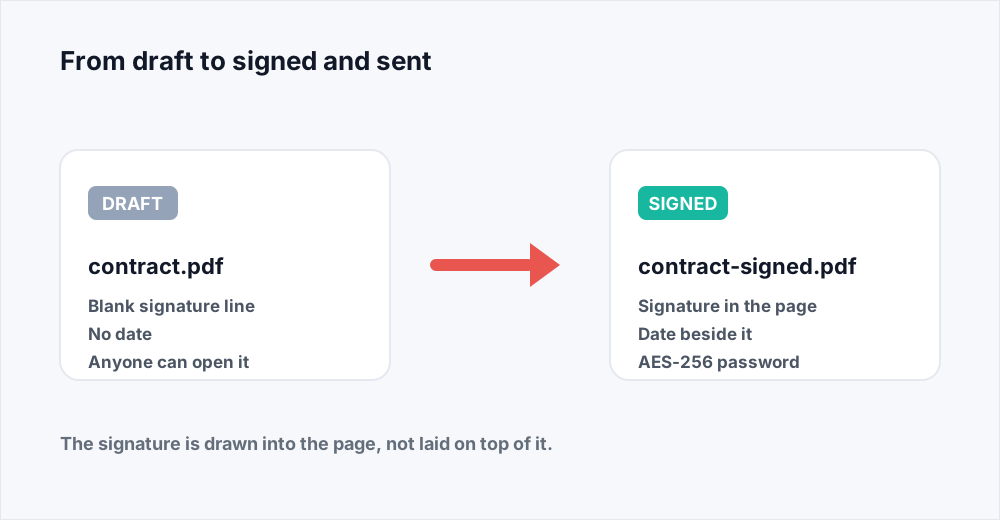
Your drawing becomes a small PNG trimmed to the ink, so there is no white box around it, and on save it is written into the page's own content rather than laid on top. The signed PDF is the original document with a signature on it: same text, still searchable.
This guide covers making a signature that does not look pasted on, placing and sizing it, the date and the initials, and the one thing Edit PDF cannot do: a digital signature with a certificate.
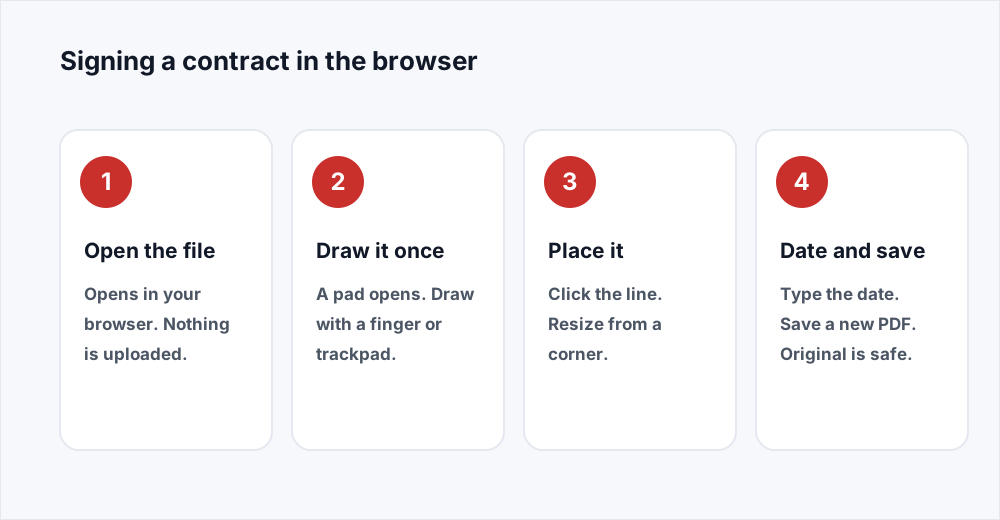
How to add a signature to a PDF in five steps
The whole job, for somebody with a contract and no printer.
Шаг 1: Open the document in the editor
Go to Edit PDF and choose the PDF. It opens in the browser: nothing uploaded, nothing installed, no account.
Шаг 2: Draw your signature once
Pick the signature tool from the Insert group, or press S. A pad opens and you draw on it with a finger, a stylus or a trackpad, in navy, black or blue. Redraw until it looks like your hand.
Шаг 3: Place it on the signature line
Click where the signature belongs. It lands about 160 points wide, a little over a quarter of an A4 page, with its proportions kept. Drag it onto the line and resize from a corner.
Шаг 4: Add the date and whatever else the form asks for
The text tool sets type anywhere: the date, your printed name under the line, a job title. Initials go in the margins the same way.
Шаг 5: Save the signed copy
Save writes a new PDF with everything drawn into the pages. Your original is untouched, and the copy you send carries the signature as part of the page rather than as something a reader could drag off.
Making a signature that does not look pasted on
There are two honest ways to get your handwriting into a PDF. The first is to draw it. The pad is 480 by 180 pixels and the signature you place is about 160 points wide, so whatever you draw is reduced to roughly a third on the way to the page, and the wobble that looks awful on the pad vanishes at signature size. Draw large, draw fast, and do not try to be neat. A signature is muscle memory: moving quickly produces the better likeness.
The second is to photograph one. Sign unlined white paper with a dark pen, put it in daylight, hold the phone directly above rather than at an angle, crop tight to the ink, and place it with the image tool. Know what you are placing, though: a photograph brings its paper with it, which on a white page shows as a faint grey rectangle behind the ink. The drawn signature is transparent; a photograph is not.
Typing your name and calling it a signature is the third thing people try, and we cannot do it convincingly: the editor sets Helvetica, Times or Courier, none of which is a handwriting face. Typed, your name is type, which is right under a signature line and wrong on it.
Three ways to get your name onto the page
What each one actually puts in the file.
| How you make it | What lands in the PDF | Best for |
|---|---|---|
| Drawn on the pad | A transparent PNG, cropped to the ink | Almost everything, and the cleanest |
| Photographed on paper | A photo, paper background included | A hand you cannot draw on a screen |
| Typed with the text tool | Real text in a standard PDF font | The printed name, not the line itself |
Sizing and positioning it on the signature line
A signature of the wrong size is the single thing that makes a signed PDF look forged. Real signatures on paper are four to six centimetres across. The 160 points the editor places is 5.6 centimetres, which is why that is the default: on an A4 page 595 points wide it fills a little over a quarter of the line. If you scale it, scale from a corner. Dragging an edge stretches the letterforms one way, and a stretched signature is obvious at a glance.
Sit the ink on the line rather than floating above it. A pen held by a person crosses the rule - descenders drop below it, the tail runs along it - and a signature hovering three millimetres clear reads as an image dropped in, because it is one. Line it up at 200 per cent, then zoom out and check it against the whole page.
The date, the initials and the boxes nobody mentions
Most contracts want more than a name. There is a date, usually beside the signature. Write the month as a word: 18 September 2026 is unambiguous everywhere, while 09/18/2026 and 18/09/2026 are the same day written by two people who each think the other is wrong.
Then the initials. Long agreements ask for them in a margin box on every page, so that no page can be swapped afterwards. Draw your initials instead of your name and click once in each box: the mark is kept for the session, so a twenty-page lease is one click per page. The pad holds one mark at a time, so do the initials in one pass and open the file again for the full signature.
Printed name, job title, a tick in a box: all of these are the text tool or a form field. If the PDF already has fields, fill those rather than typing over them - the guide to the editor covers forms.
Electronic signature and digital signature are not the same thing
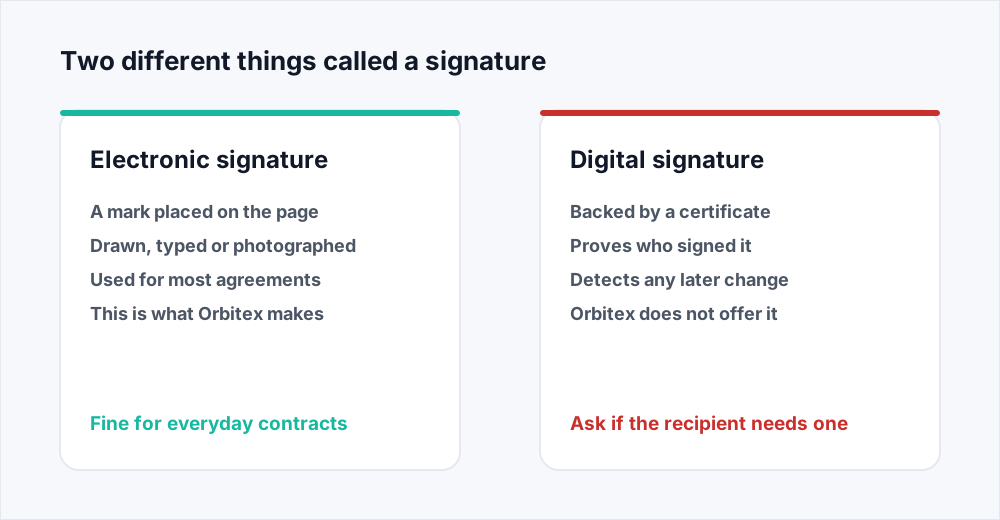
What you have made is an electronic signature: a mark you applied to a document, deliberately, to show that you agree to it. Its weight comes from the intent and the surrounding evidence - the email it arrived in, the reply you sent, the record of when - rather than from anything cryptographic in the file. In many countries an electronic signature is accepted for most everyday agreements: a freelance contract, a non-disclosure agreement, a school consent form.
A digital signature is a different mechanism that happens to share a word. It uses a certificate issued to you by a certification authority: the document is hashed, the hash is signed with your private key, and the result travels inside the PDF. A reader can then check two things a drawn signature cannot show - that the certificate belongs to who it says, and that not one byte has changed since. That is why one gets a badge in the reader and the other gets nothing.
We do not offer digital signatures. Orbitex places a signature on a page; it does not issue certificates or apply them. If the other side has asked for a certificate-based or qualified signature, this is not the tool for it.
Why the print, sign, scan round trip is worse
Print the contract, sign the paper, scan it back, email the scan: the recipient gets something with your name on it, and the document is quietly destroyed on the way.
The first loss is the text. Printing turns words into ink and scanning turns ink into pixels, so every sentence that was selectable text becomes part of a photograph. Nobody can search the contract for a clause, copy a figure out of it, or read it with a screen reader. Getting it back needs optical character recognition, and even the OCR in our PDF to Word and PDF to Excel, on Pro, gives you the words in a new file to proofread, not the original PDF back.
The second is size. Ten pages of nothing but text are often 150 to 300 KB. The same ten pages scanned in colour at 300 dots per inch are commonly 8 to 15 MB, enough to bounce off a mail server with a 10 MB limit. Compression pulls a scan back down, but it cannot undo the conversion of text into pictures of text.
The third is everything else. A sheet fed by hand goes through a degree or two crooked, permanently. Pages come back in different greys, or with a shadow down one edge. A clickable email address becomes a picture of one, and form fields do not survive.
Five signing jobs and what each one needs
The same tool, applied to documents people actually have on their desk.
- A one-page freelance contract. Draw, place on the line, type the date under your printed name, save, and send it back.
- A twenty-page lease wanting initials on every page. Draw your initials rather than your name, click once in each margin box, then reopen the file for the full signature on the last page.
- A form that came as a proper PDF with fields. Fill those first - filling real fields keeps the text as text - then place the signature in the box at the bottom.
- A scanned form sent as a picture. There is no text in it to edit, but a signature can still be placed on it and the date typed beside it.
- An agreement both sides sign separately. Sign your copy and send it, and when their signed page comes back, Merge PDF makes one document of it rather than three attachments.
Getting the signed file to the other side
A signed contract usually contains a fee, an address or a date of birth, and email is not a private channel. Protect PDF puts an AES-256 open password on the signed copy, so the attachment is useless to anybody who receives it by mistake. Send the password by another route, not in the same email - the guide to password protection covers what it protects.
If you signed a scan rather than a text PDF, the result may be too heavy to send. Compress PDF brings it down by resampling the images, and Balanced at 150 dots per inch is usually indistinguishable on screen. A signed text PDF barely shrinks, because there is nothing to resample.
The contract never leaves your computer
Every other tool here uploads your file, works on it on a server and deletes it once you have the result. The editor is the exception: it reads the PDF, renders it and writes the new one in your browser, on your own processor. No upload, and nothing to delete afterwards because nothing arrived. The security page sets out the path every other file takes, and how we handle files explains why the editor is built this way.
For a contract that is the part that matters: the only computer that sees a salary, a settlement or terms still under negotiation is the one in front of you. Where it stops is worth knowing. Protecting and compressing are server tools, so a signed file you password afterwards does go to a server, and is deleted the moment you have it.
Frequently asked questions
How do I add a signature to a PDF for free?
Open the file in Edit PDF, choose the signature tool, draw your name on the pad that opens, and click the page where it should go. Then save. No charge, no account, no watermark.
Can I sign a PDF on a phone?
Yes, and a phone is the best drawing surface most people own. The editor runs in a mobile browser and the pad takes touch input, so you draw with a finger rather than pushing a cursor with a trackpad.
Is an electronic signature on a PDF legally binding?
In many countries an electronic signature is accepted for most everyday agreements, and a drawn signature placed on a PDF is one. It is not a digital signature backed by a certificate, which proves identity and detects tampering. Rules vary by country and by document type, so ask the recipient what they require. This is not legal advice.
How do I draw a signature on a PDF rather than typing it?
Use the signature tool, not the text tool. It opens a pad you draw on with a finger, a stylus or a trackpad, and saves what you draw as a PNG trimmed to the ink, with a transparent background.
Can I esign a document without printing and scanning it?
Yes, and you should. Printing and scanning turns selectable text into a photograph of text, makes the file thirty to fifty times larger, and loses links and form fields. Signing the PDF directly changes nothing else.
Does Orbitex upload my contract when I sign it?
No. The editor runs entirely in your browser, so nothing is sent anywhere and there is nothing on a server to delete. Other tools do upload, then delete the file once you have the result, as the security page sets out.
In short
To sign a PDF online, open it in the browser editor, draw your signature once on the pad, place it on the line at about five centimetres wide, type the date beside it, and save. The drawing is written into the page itself, so the signed copy is the original document plus your name, with its text intact. Printing and scanning instead costs you the text and thirty times the file size.
It is an electronic signature, which is what most agreements need, and not a certificate-based digital signature, which we do not offer - so check what the recipient wants before you sign. Everything here is free: see every tool.