You opened a PDF, clicked on the wrong date, and typed. Nothing happened. The cursor never appeared, the text would not select, and the reader may have told you the file is read only. Nothing is broken and nothing is locked: PDFs are not documents you type into, and no reader pretends otherwise.
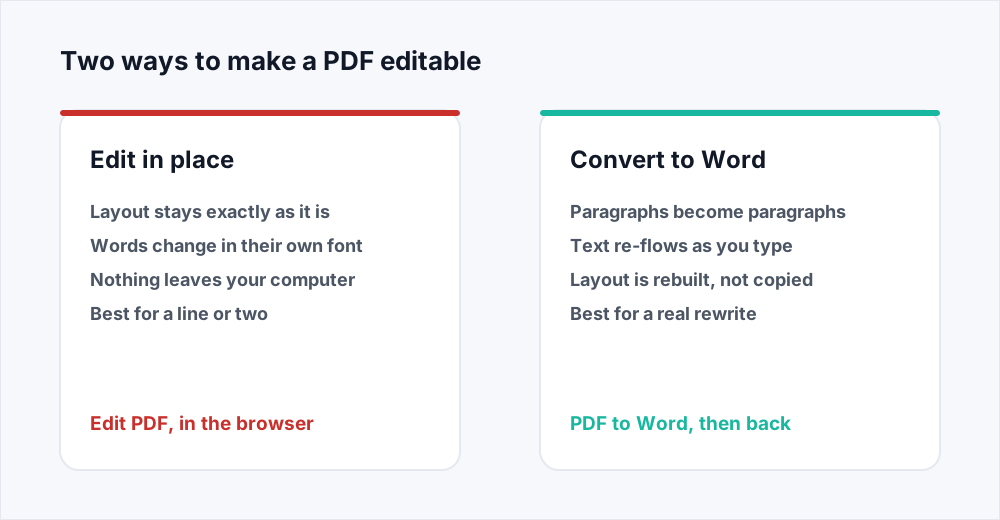
There are two honest ways to make a PDF editable, and the right one depends on how much is changing. To fix a date, a price or a sentence while the page stays exactly as it is, open the file in Edit PDF, click the paragraph and type: the words change in the document's own font, and the file never leaves your computer. To rewrite the document, move sections or make paragraphs re-flow, send it through PDF to Word, edit it as a Word file, and convert it back.
The rest of this guide explains why a PDF behaves this way, gives a rule for choosing between the two routes, and covers the three cases that resist both.
Why a PDF is read only when nothing has locked it
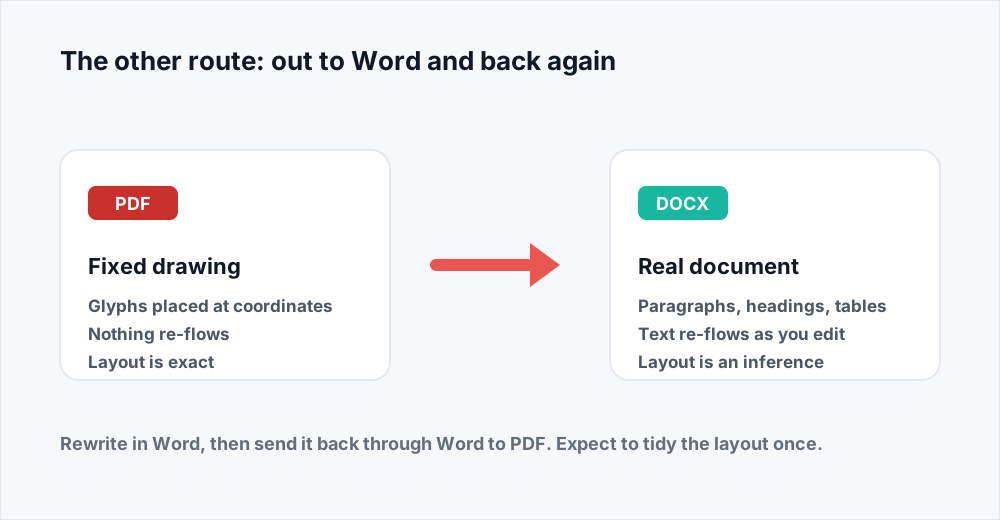
A Word file is a description of a document. It says: here is a heading, here is a paragraph, here is a table of four columns. The words live inside those structures, so adding a sentence makes the paragraph grow and pushes what is below it down.
A PDF is the opposite. It is a set of drawing instructions, produced once and then frozen. It does not say "heading" or "paragraph". It says: place this glyph at x=72, y=698, in this font, at this size, and the next one 6.4 points to the right. That is why a PDF looks identical everywhere, and exactly why you cannot type into it. There is no paragraph to type into, only a picture of one built from letters placed individually.
So making a PDF editable is not a setting to flip. It is a choice between two operations: rewrite some of the drawing instructions, or rebuild the document behind the drawing.
How to change text in a PDF without converting it
The in-place route, which is the one most people actually need.
Шаг 1: Open the editor
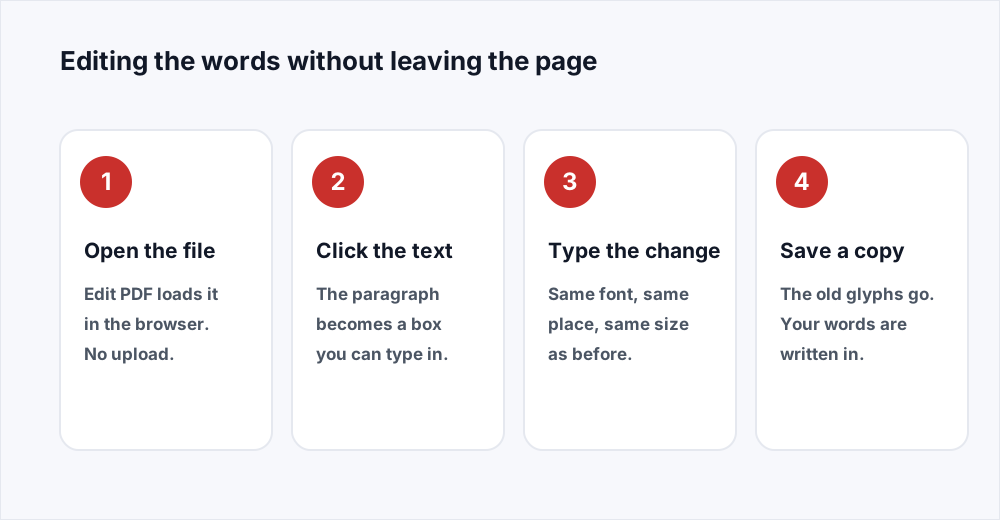
Go to Edit PDF and choose your file. No account, no installation, and nothing is sent anywhere.
Шаг 2: Click the text you want to change
The paragraph becomes a text box with the document's own words in it, ready to type in. There is no mode to switch on first.
Шаг 3: Type the correction
Where the page's own font can be used it is, so the corrected word matches the words beside it in typeface, size and colour.
Шаг 4: Save the edited copy
The original glyphs are removed and yours written in their place. You get a new file with -edited in the name; the one on your disk is untouched.
What editing in place actually changes
That last step matters more than it sounds. Plenty of tools "edit" a PDF by drawing a white rectangle over the old text and putting new text on top: the page looks right and the file is a lie, because searching it still finds the old price and a screen reader still reads it. Real in-place editing removes the original glyphs. The full editor guide covers the rest of the toolbar.
There is one thing this route cannot do, and it follows from how a PDF is built: nothing re-flows. Double the length of a sentence and that paragraph overlaps what was below it. Delete half a page and the gap stays a gap. If the layout can absorb the change, edit in place. If it cannot, you want the other route.
Which route your document needs
The size of the change decides it, and then the length of the document.
| What you are changing | How long the document is | Route |
|---|---|---|
| A date, a price, a name, a typo | Any length | Edit in place |
| A sentence, kept to roughly its old length | Any length | Edit in place |
| Filling a form, signing, adding a note | Any length | Edit in place |
| A paragraph that gets much longer or shorter | Under about 10 pages | Convert to Word |
| Several sections rewritten or moved | Under about 10 pages | Convert to Word |
| Anything at all | Over about 30 pages | Edit in place if you can |
When to convert a PDF to an editable document instead
PDF to Word reads the drawing and infers the document: letters close together become words, lines sharing a left edge become a paragraph, larger bolder text becomes a heading. What comes back is a real .docx, so text re-flows, sections can move, and the thing can be rewritten rather than patched.
The cost is that the layout is an inference rather than a copy. A single-column report converts almost perfectly. A two-column paper often reads across both columns. A table with ruled lines usually survives; one held together by tab stops does not.
That is why length is in the rule. On a short document, tidying the layout costs a few minutes. On an eighty-page report it costs an afternoon, and if the change was one paragraph you have traded a two-minute fix for a day's work. The PDF to Word guide sets out what survives the trip, and Word to PDF closes the loop when the result has to be a PDF again - check the page breaks before you send it.
Three reasons a PDF will not let you edit it at all
If neither route seems to work, it is one of these. Open the file and try to select a line of text with your mouse.
- The text will not highlight, and dragging across it draws a box. The page is a picture, with no text in it to select.
- The file asked for a password before it would open, or defeats every tool you point at it. It is encrypted, and nothing can read its pages.
- The text highlights and copies perfectly, but your tool only draws on top of it. The file is fine; the tool annotates rather than edits.
The document is a scan, so there is no text to recover
A scanned page is a photograph of paper wrapped in a PDF. What looks like text is ink in an image: no glyphs, no font, no coordinates, just pixels and nothing to click into. It is why a scanned contract behaves nothing like the same contract from Word.
Turning a picture of text back into text is optical character recognition. Edit PDF cannot do it, so no setting there will make a scan editable in place. PDF to Word can, on Pro: turn on OCR, choose up to three languages the document is written in, and the scan comes back as a Word file with the words as words. Expect to proofread the result, because recognition is only as good as the scan.
What you can still do is everything that sits on top. Edit PDF will place text boxes on a scanned form, highlight it, draw on it and sign it. The scan stays a scan and your additions are real PDF text over it, which for most scanned paperwork is the job.
The file is protected, so nothing can read it
An open password encrypts the contents of the file. Until it is decrypted the pages are unreadable by anything: not our editor, not a converter, not a page organiser. That is scrambled bytes, not a permission flag a tool can politely ignore. We add passwords and we do not remove them: Protect PDF puts AES-256 encryption on a file, deliberately a one-way door, because a website that strips passwords off documents on request is a website with an obvious problem. If you know the password, open the file in a desktop reader, save a copy without the protection, and edit that. If you do not, ask whoever sent it. The password guide covers the rest.
There is a second kind: a permissions password, which leaves the file readable but marks it as not-for-editing. Some readers honour that by greying out their tools, which is where a good share of "my PDF is read only" reports come from. It is a request rather than a lock, but ask the sender for an editable version.
Your tool only annotates, and calls it editing
This is the case people waste the most time on. The PDF is perfectly normal - the text selects, copies and searches - but every tool in the toolbar draws on top of the page. You can highlight, add an arrow and put a text box anywhere, but you cannot touch the sentence that is wrong. Most built-in readers work this way.
Annotation and editing are different operations. An annotation is an object attached to the page, stored separately from the content and drawn over it; some readers hide them entirely. Editing rewrites the content itself, and a tool that only does the first cannot do the second.
The test takes five seconds. Click on a word in the middle of a paragraph. If the paragraph becomes something you can type in, you have an editor. If an empty box appears above the text, you have an annotator.
Five documents and the route each one needs
The rule applied to files people genuinely have on their desks.
- An invoice with the wrong date. Two characters, layout unchanged. Edit in place; converting it would take longer and give a worse file.
- A CV you are bringing up to date. Entries are added and removed and everything below moves. Convert to Word, rewrite, convert back, and keep the Word file for next time.
- A contract where one clause needs correcting before re-signing. Edit in place if the replacement is roughly the same length; if it is being properly rewritten, send it back to its drafter.
- A scanned application form. No text to edit, but boxes to fill. Place text boxes on the lines, add a signature, save.
- A twelve-page proposal being rewritten for a new client. Names, prices and two sections change. That is a rewrite, not a correction: convert it and work in Word.
What happens to your file on each route
Editing runs entirely in your browser: the PDF is read into the tab's memory, rendered, changed and saved back to your disk, and never sent to us. There is no upload to delete because there is no upload. It also means closing the tab before saving loses the work.
Converting runs on a server, because the software that infers a document from a PDF's drawing instructions is not browser software. The input is deleted the moment the job finishes and the result as soon as you have downloaded it; the security page sets out every stage. So when a document is confidential and the change is small, editing in place is not only faster, it is the route where the document never travels.
Frequently asked questions
How do I edit a PDF that is not editable?
In most cases it is editable and the tool you are using only annotates. Open it in Edit PDF and click on a paragraph: if it becomes a typing box, you can change the words in place. If the text will not even select, the page is a scan.
Why does my PDF say it is read only?
Usually because the reader has no editing feature and is saying so, or because the file carries a permissions flag asking readers not to change it. Neither means the content is locked. A file that genuinely cannot be read has an open password, and asks for it before displaying anything.
How do I convert a PDF to an editable document?
Run it through PDF to Word. You get a .docx with real paragraphs, headings and tables, so text re-flows as you edit. Expect to tidy the layout: the converter infers the structure from where the glyphs sit, so a complex page comes back approximately right.
Can I edit a locked PDF?
Not while it is locked. An open password encrypts the contents, so no tool can read the pages. Open it with the password in a desktop reader, save a copy without the protection, edit that, and re-protect it with Protect PDF. We add passwords but never remove them.
Can I change text in a scanned PDF?
Not in place. A scan is an image, so the text is ink in a picture rather than characters in a file, and recovering it needs optical character recognition. On Pro, PDF to Word has an OCR option that reads the scan into an editable Word file, which needs proofreading. On any plan you can still add text on top, fill the form in and sign it.
Will editing a PDF change how it looks?
Editing in place leaves everything you did not touch exactly as it was, including fonts, images and page size. The thing to watch is length: a paragraph that grows much longer extends downwards and can overlap what is below it. Keep a replacement close to the original's length, or convert to Word.
In short
A PDF is a drawing, not a document, which is why typing into one does nothing. To make it editable you either rewrite the drawing in place or rebuild the document behind it. Change a date, a price or a sentence in place with Edit PDF, where the layout is untouched and nothing is uploaded; rewrite a short document by converting it to Word and back. If the text will not select it is a scan; if the file wants a password, nothing can read it until that is gone; and if your tool only draws on top, it is an annotator.
Everything here is free and none of it needs an account - see every tool.