An invoice arrives from a supplier you have dealt with twice. A delivery notice arrives for a parcel you do not remember ordering. The attachment is a PDF, and the question is whether opening it is the mistake. In almost every case a PDF is safe to open, as long as your reader is up to date and you open it and nothing else: the format describes a page, and looking at a page does not run a program. What is not safe is what the file asks you to do next - follow a link to a sign-in screen that is not your bank's, save and run a second file hidden inside it, or agree to a prompt that unblocks a feature.
PDF security risks are real but narrow. The useful question is not whether PDFs are dangerous in general: it is which parts of one can do anything at all, and which of those your reader has already switched off.
Below: what is inside the file, why a browser is the safest place to open one, and a check anybody can run in a minute. We do not scan anything for malware, and the file-handling policy sets out what we do instead.
What a PDF can and cannot do on your computer
Most of a PDF is inert. The bulk of any file is a description of pages: glyphs placed at coordinates, images, vector drawing, and the fonts to draw them with. A reader parses that and paints it, much as a browser paints an image. There is no version of a page description that quietly installs something.
On top of that, the format allows four optional extras, and every real risk is one of them. It can carry JavaScript, added originally so a form could add up its own totals. It can carry embedded files, tucked inside and offered to you as an attachment. It can carry link actions, which open a URL. And it can carry launch actions, which ask the reader to hand a file to a separate application.
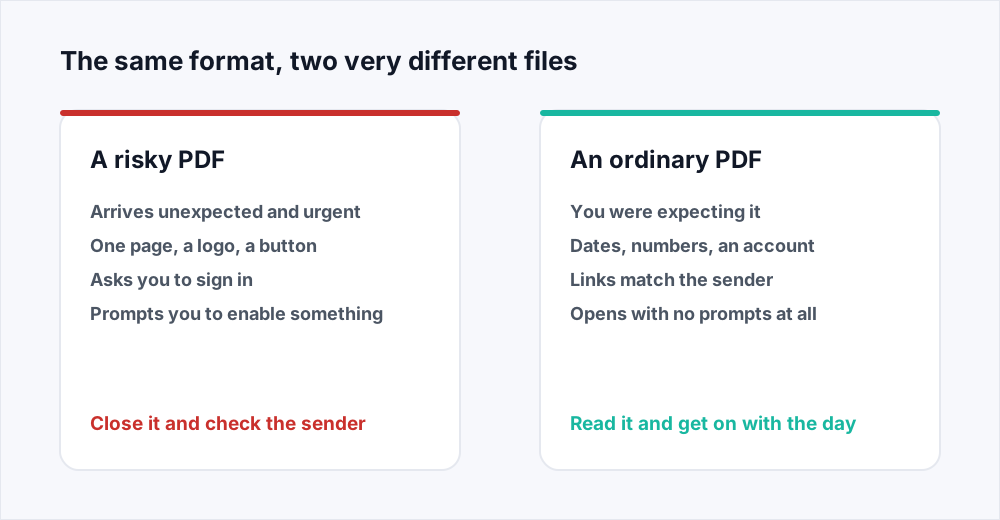
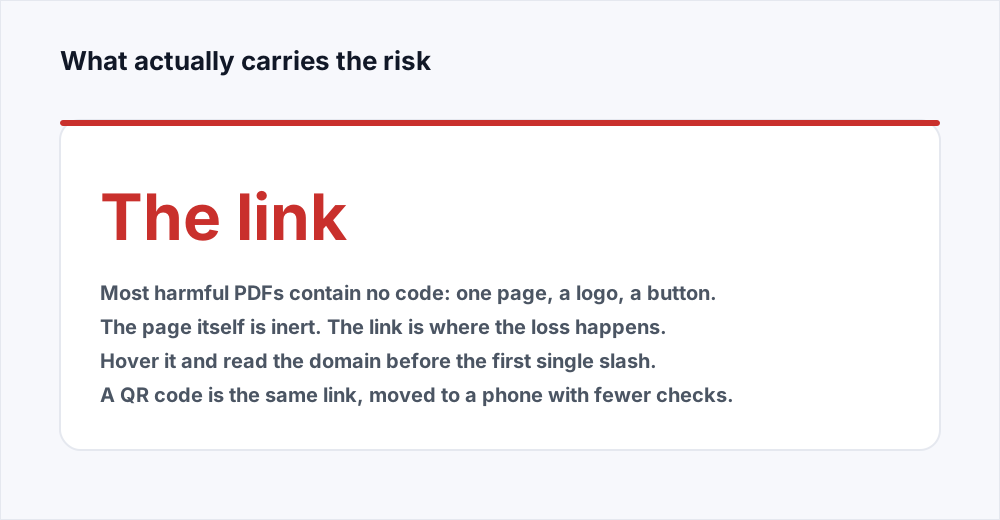
None of those run by themselves in a current reader without either a bug being exploited or you agreeing to something. And the commonest harmful PDF uses none of them except the link: one page, a logo, a button, and everything bad happening on a website afterwards.
Why your browser is the safest place to open an unfamiliar PDF
Chrome, Edge and Firefox render PDFs themselves rather than handing them to a desktop application. The document is drawn inside the same sandbox that holds an ordinary web page, the most heavily tested isolation layer on your machine, and it is patched every time the browser updates itself.
They also implement far less of the format than a desktop reader does. Launch actions are not supported at all, so a PDF in a browser tab cannot ask to start another application: the code to do it is not there. An embedded file is, at most, something you can save. Scripting is limited to a narrow subset, mainly form calculation, and runs inside that same sandbox.
Desktop readers have closed most of the same doors. Adobe Acrobat Reader ships with JavaScript disabled by default and Protected Mode on, which confines rendering to a restricted process. The weak point is neither the format nor the current version of anything: it is a reader nobody has updated in three years, still carrying bugs fixed long ago. Ten years ago the advice was not to open PDFs from strangers. Today it is to open them in a browser and suspect the link rather than the pages.
How to check if a PDF is safe before you open it
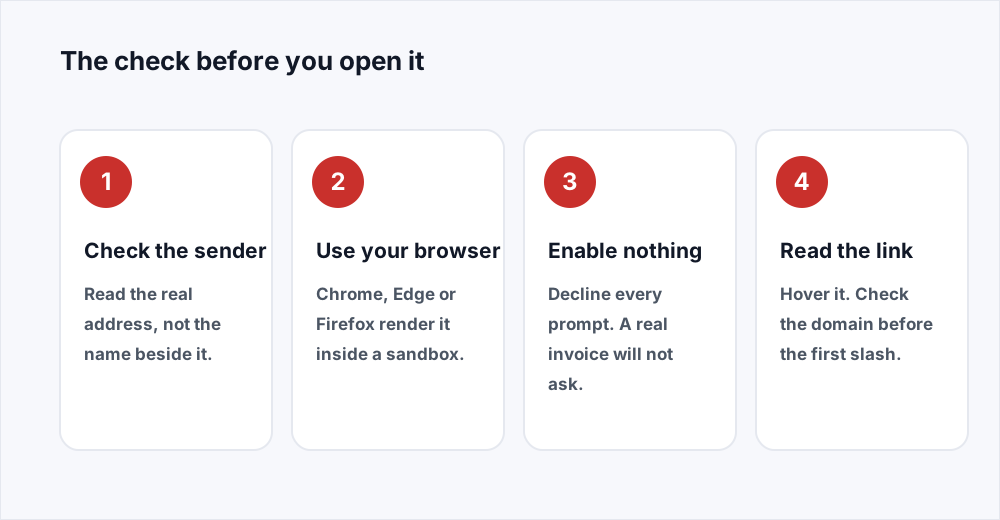
Six checks, none needing software you do not already have. The first two happen before you touch the file.
Step 1: Check who really sent it
A display name is free text anybody can set to anything. Open the message details, read the actual address, then read the reply-to, a separate field: a forged message often shows a convincing From and routes any reply elsewhere. A mismatch between the two is the most reliable warning you get.
Step 2: Ask whether you were expecting it
An invoice from a supplier with an open order is ordinary. One from a supplier you last paid a year ago, for an amount you do not recognise, is not. If in doubt, ring a number you already had.
Step 3: Open it in a browser rather than a desktop reader
Save the file and drag it onto a browser tab: you get the sandbox, the missing launch actions and a renderer that updates itself. Our own Edit PDF opens a document the same way, without uploading it anywhere.
Step 4: Never enable content or scripting when asked
If a bar offers to enable all features or turn scripting on, the answer is no. The prompt appeared because the file asked for something the reader would not grant on its own.
Step 5: Hover a link and read the real domain
Every reader shows a link's destination when you hover it. Read from the start to the first single slash and ignore the rest: the domain just before that slash is where you are going, so a long address with your bank's name buried in it is not your bank.
Step 6: Treat a request to sign in as phishing
No invoice needs your email password, and no courier needs card details to release a parcel. A PDF that opens onto a page saying the document is secured and asking you to sign in is phishing nearly every time.
What each prompt is really asking for
The wording varies between readers. What is being requested, and the right answer, does not.
| What you are shown | What it is asking for | What to do |
|---|---|---|
| This document contains a form. Enable all features | Permission to run the file's own JavaScript | Decline. A real form fills in without it |
| Open file attachment? | To hand you a second file to save and open | Do not save it. Check with the sender first |
| Allow this document to open an external application? | To pass the document to another program | Always no. Nothing routine needs this |
| Sign in to view this secured document | Your email or account password | Close it. No document needs a login inside it |
Can a PDF have a virus, in the way people mean it?
Yes and no, and the distinction is the point. A PDF is not a program, and opening one does not by itself execute anything the author wrote. But the format has room to carry something harmful, and three ways that has worked.
The first is an embedded file: the PDF carries a second file and presents it as an attachment, you save it, you open it, and that second file does the damage. The PDF is a wrapper, no more dangerous than the envelope a letter came in. The second is scripting written against a flaw in a particular version of a particular reader - the closest thing to a PDF virus in the old sense, and the rarest, because it needs an unpatched reader and usually needs scripting enabled. The third is a launch action, which every current reader refuses or prompts on.
Against all three, the commonest harmful PDF of recent years contains no code at all. There is nothing in it for an antivirus product to object to, because the harmful part is a website that did not exist last week.
Six signs a PDF phishing attachment gives itself away
None is proof on its own. Two together is enough to stop and check by another route.
- The display name is right and the address is not: your accounts team's name over a free mail address, or a domain one character from the real one.
- The reply-to differs from the sender. Almost nothing legitimate does this except mailing lists and ticketing systems, and neither sends invoices.
- The file name is doing the persuading: final-notice-overdue-urgent.pdf is named for how it wants you to feel, not for what it is.
- The page has a logo and a button and nothing else. A genuine invoice carries a number, a date, an amount and an account reference.
- There is a QR code where a link would have done, to move you onto a phone where the checks are fewer.
- It wants you to authenticate: sign in to view, confirm your address, verify your account to avoid suspension.
What to do if you have already opened it
Usually, nothing. If you opened it, looked at a page and closed it, in a browser or a reader you keep updated, you have done the electronic equivalent of reading a letter you did not want. Update the reader and carry on.
What matters is what happened afterwards. If you clicked a link and typed a password, change it now from a device you trust, change it anywhere you reused it, and turn on two-factor authentication. Harvested credentials get used in hours, so speed does most of the work. If you entered card details, ring the number on the back of the card, not one from the email.
If you saved and ran a second file that came out of the document, treat that as the serious case: disconnect the machine and hand it to your IT desk, or run a full scan with a proper security product. We build document tools and are not a security vendor, so that step belongs with somebody whose job it is. At work, report it either way.
What processing a PDF here does, and does not, involve
People reasonably ask whether running a suspect file through an online tool makes it safer. It does not, and we would rather say so. None of our tools scans a document for malware or forms any opinion about whether it is hostile. A file that compresses or converts without complaint has been found readable, not found clean. The security page describes what happens instead.
What does happen is the part we control. A file's type is decided by reading its opening bytes rather than trusting its name, so renaming something to end in .pdf gets it no further than the front door. Each job runs in its own working directory, destroyed when the job ends, on success, failure and timeout alike. Your original goes the moment processing finishes, and the result expires after thirty minutes or as soon as you download it. We keep a row saying which tool ran, never the contents.
One tool never uploads anything: Edit PDF renders and rewrites the document in your own browser, so a file you open there has not left your machine. Everything else, Compress PDF among them, runs on a server, and the whole path a file takes is set out in the file-handling guide.
A word for when you are the sender. Never ask people to sign in to read an attachment: every phishing kit does that, and a recipient who hesitates is right to. If the content is confidential, control access with the file rather than a link - Protect PDF adds an AES-256 open password, and the guide to password-protecting a PDF covers sending it by a different route from the document.
Frequently asked questions
Is a PDF safe to open?
Usually, yes. A PDF describes pages, and displaying it does not run a program. The risks come from optional extras: a link to a phishing site, a file embedded inside the document, or scripting aimed at a bug in an old reader. Open it in a browser tab, decline any prompt to enable features, and be careful with the links rather than the pages.
Can a PDF have a virus?
A PDF can carry something harmful, but it is not itself a program. The three routes are an embedded file you save and open, JavaScript exploiting a flaw in an unpatched reader, and a launch action asking to start another application. Current readers block or prompt on all three, and browsers do not support launch actions at all.
How can I check if a PDF is safe without opening it?
Check the message rather than the file. Read the real sender address instead of the display name, compare it with the reply-to address, and ask whether you were expecting the document. If anything is off, ring a number you already had.
Is it safer to open a PDF in a browser than in a desktop reader?
For an unfamiliar file, yes. Browsers render PDFs inside the same sandbox as a web page, do not implement launch actions, allow only a narrow subset of scripting, and update themselves. A current Acrobat Reader is well defended too, but a reader nobody has updated in years is the weakest of the three.
What does enable all features mean in a PDF?
It is a request to run the JavaScript embedded in that document, which the reader blocks by default. It was designed for forms that calculate their own totals, and an invoice has no need of it. Treat the prompt as a reason to stop.
Do your tools scan a PDF for malware?
No. Our tools compress, convert, organise and protect documents; none inspects a file for malicious content, and a file that processes cleanly has not been cleared of anything. What we do instead is on the security page and in the answers to common questions.
In short
A PDF describes a page, and looking at a page runs nothing. The parts that can act - scripting, embedded files, launch actions - are optional, and modern readers either refuse them or ask first, which is why a browser tab is the safest place for a file you are unsure about. Check the sender address and the reply-to before you open anything, enable nothing when prompted, read a link's domain before the first slash, and treat any request to sign in as phishing.
We do not scan files for malware and will not pretend otherwise. What we do with a document you send us is written out plainly - read the security page or see every tool.