The form says maximum 100 KB. Your scanned page is 1.8 MB, the upload button has gone grey, and the deadline is tomorrow. To compress a PDF to 100 KB, open the compressor, choose the Smaller level, and read the new size it reports before you download anything. On a one-page or two-page scan that single pass usually gets you there. If it does not, the answer is almost never a harder setting: it is fewer pages, or one page re-scanned at a lower resolution.
One thing decides whether any of this can work at all. Compress PDF resamples images. It does not touch text, fonts or vector drawing, because none of those are what makes a file heavy. If your 1.8 MB file is a scan, you have a great deal of room. If your 400 KB file is a typed letter from Word, you have almost none.
How to compress a PDF to a specific size
The whole job, for somebody with a form open in another tab.
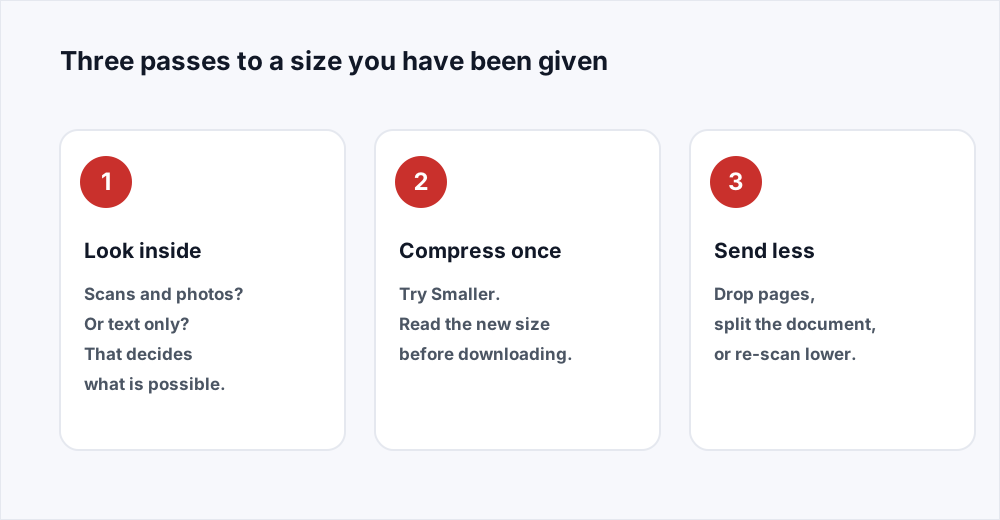
Step 1: Check what you are actually allowed
Read the limit off the form rather than guessing. Some say 100 KB, some say 1 MB, and a surprising number only tell you after the upload fails.
Step 2: Open the compressor and add the file
Go to Compress PDF and drag the PDF in. No account, nothing to install, and the free plan takes files far larger than any form will accept.
Step 3: Pick Smaller and read the number
When you have a hard limit, start at Smaller, which resamples images to about 72 dots per inch. You are shown the old size and the new one before you commit to anything.
Step 4: If it is still over, send less document
Drop the pages the form did not ask for, or split out the one page it did. A shorter document is the only reliable way past a limit compression cannot clear.
Why 100 KB is a harder number than it looks
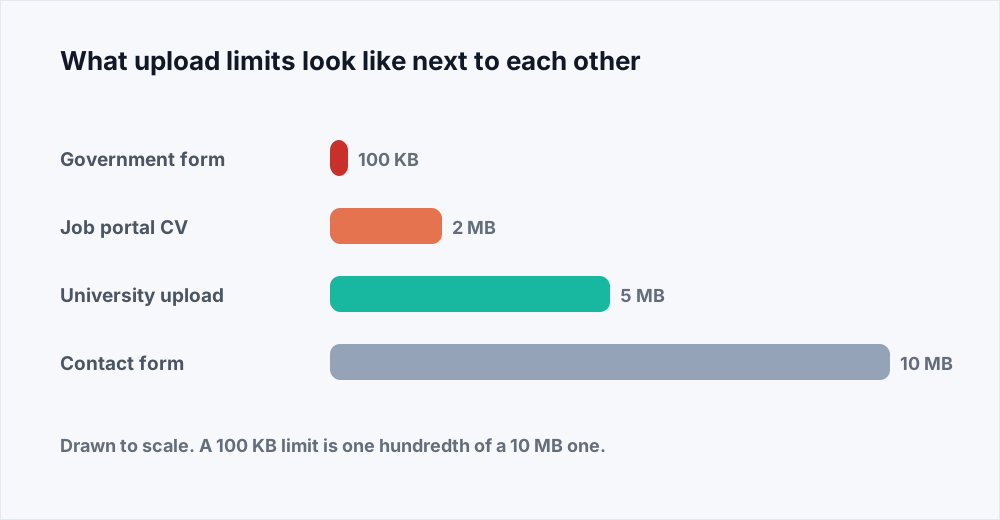
Most advice about making a PDF smaller is written for email, where the target is 10 or 25 megabytes and almost any document can be persuaded to fit. A hundred kilobytes is roughly one two-hundred-and-fiftieth of a Gmail attachment, small enough that the shape of the document matters more than the setting you choose.
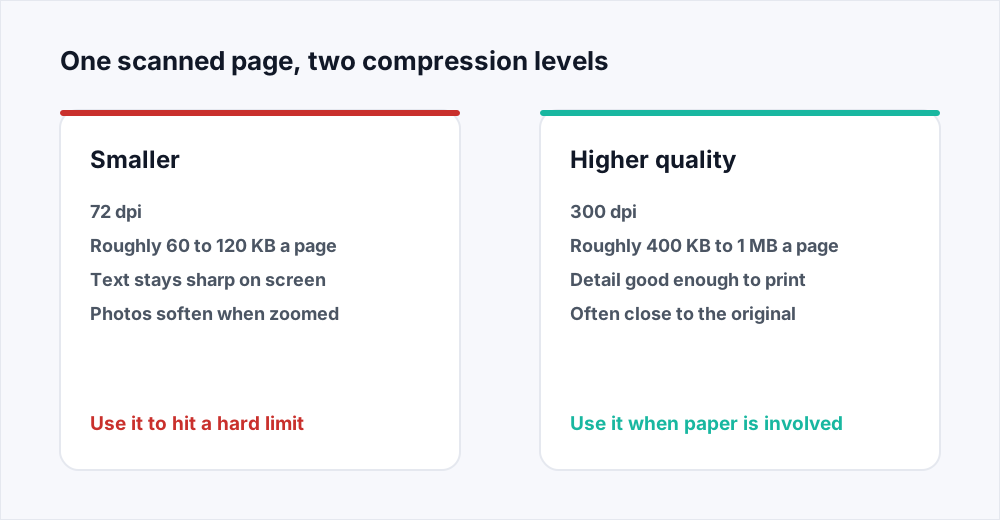
Here is the arithmetic that governs everything else. A single A4 page scanned in colour at 72 dots per inch, which is what the Smaller level produces, lands between 60 and 120 KB depending on how busy the page is. Mostly white space with a few lines of black text sits at the bottom of that range; a photograph, a stamp and a signature put you at the top.
So a one-page scan under 100 KB is realistic, a two-page scan is borderline, and a five-page scan is not going to happen at any setting that leaves the pages readable. Forms that ask for 100 KB are nearly always asking for one document: a photograph page, a certificate, a single signed declaration. If you are trying to fit five pages through that hole, re-read what the form asked for.
Work out what is making your file big
Spend thirty seconds establishing what kind of file you have. It tells you what is possible and saves you from grinding away at something that was never going to shrink.
Open the PDF and try to select a word with your cursor. If the text highlights, the page is real text and the weight is elsewhere. If nothing highlights, or the whole page selects as one rectangle, the page is a picture of text, which means it is a scan and there is plenty to take out.
Four kinds of file, and what each one can give you
Divide the original size by the page count and compare it with this.
- Under 30 KB a page, text selectable. A typed document from Word. It is already at its floor and comes back almost unchanged.
- 50 to 300 KB a page, text selectable, with a logo or a chart in it. Compression takes a little out of any raster images; vector logos and charts will not move at all.
- 300 KB to 2 MB a page, nothing selectable. A scan at a moderate resolution. This is the common case, and Smaller typically removes 80 to 95 per cent of it.
- Over 2 MB a page. A scan at 600 dots per inch in colour, or phone photographs at full camera resolution. Smaller will often clear a 100 KB target on a single page in one pass.
What one page weighs after each level
Rough figures for a single A4 page, so you can predict the result before you upload.
| Level | Resolution | A scanned page | A page of typed text |
|---|---|---|---|
| Smaller | 72 dpi | 60 to 120 KB | Unchanged, already tiny |
| Balanced | 150 dpi | 150 to 350 KB | Unchanged, already tiny |
| Higher quality | 300 dpi | 400 KB to 1 MB | Unchanged, already tiny |
Which level to choose when you have a number to hit
There are three levels, and when there is a form involved the choice is less open than usual. Smaller resamples images to about 72 dots per inch, roughly what a screen displays. Balanced uses 150, the point at which scanned text stops looking soft. Higher quality uses 300, the long-standing threshold for print.
For an upload form, start at Smaller and only move up if you come in comfortably under the limit. Nobody prints the file you send to a visa portal: it is looked at once on a screen, or read by a machine, and at reading size a 72 dpi scan of a printed page is perfectly legible. The detail you give up is detail that screen could not have shown you.
That is the opposite of the advice for a document going to a client or a printer, where Balanced is the sensible default. If yours is in that second group, the guide on compressing without losing quality walks through the same three levels from the other direction.
When Smaller is still not small enough
You have run it at Smaller, the file is 240 KB, and the form wants 100. There is no fourth level hiding behind the third, and a tool that offered one would be offering you an unreadable page. What is left is to change the document rather than the setting.
Four ways to change the document instead of the setting
Each attacks the size from a direction compression cannot reach.
- Send only the page that was asked for. Use Split PDF to pull out the single page the form wants, then compress that one page. A five-page document at 240 KB becomes one page at about 50 KB, and it is the page the reviewer needed.
- Drop the pages nobody asked for. If the document must stay whole but carries a cover sheet, a blank back page or a scanner's separator sheet, Organize PDF removes them in one pass. A blank page at 300 dpi still costs tens of kilobytes.
- Re-scan at a lower resolution, in greyscale. This is the biggest single lever and the one people skip. Office scanners default to 300 or 600 dpi in colour, which is right for photographs and absurd for a page of black text. The same page at 200 dpi in greyscale is a fraction of the size before you compress it at all.
- If a page is a phone photograph of a document, crop it to the paper before it becomes a PDF. A third of that image is usually your desk.
Hitting an exact number rather than a maximum
Some forms are written as though file size were a dial: between 50 KB and 200 KB, or exactly 100 KB. It is not. Compression chooses a resolution and re-encodes the images at it, and what falls out depends on what is on the pages. Two documents put through the identical setting can come out at 70 KB and 400 KB.
What you can do is aim and check. Pick Smaller, read the result, and if it is over, shorten the document and try again. One or two rounds is usually enough, because the levels are far apart: a file that is 240 KB at Smaller is around 600 KB at Balanced, so there is no point creeping between them. If a form sets a minimum as well and you come in under it, upload the version at Higher quality instead.
When the target simply cannot be met
Some combinations of document and limit have no solution, and recognising one early is worth more than another hour of trying. A ten-page scanned contract will not become 100 KB and stay legible. A typed export already at 40 KB a page cannot go lower, because there is nothing in it to remove. A file whose weight is embedded fonts, which happens with scripts that need large character sets, cannot be reduced without unembedding them, and an unembedded font renders differently on somebody else's machine.
At that point the honest options are outside the compressor. Ask whether the limit applies per file, and if it does, send the document as several uploads. Ask what the limit is for, because it is often a default nobody chose and an administrator can raise it.
What we will not do is pretend. There is no setting that turns a ten-page scan into 100 KB, and a tool claiming otherwise is handing you grey smudges under the word compressed. The full compression guide covers the other cases where compression cannot help, including already-optimised files and documents made entirely of vector artwork.
What happens to the file you upload
Compression runs on a server, because the software that does it properly is not browser software. The upload is streamed to disk, the job runs, and the input is deleted the moment it finishes. The result is yours for thirty minutes and is deleted as soon as you have downloaded it. The security page sets out every stage and how long each one lasts.
There is no account, no watermark and no cap on how often you compress. The free plan covers files up to 20 MB, more than any upload form will need; Pro raises that for people working with large scans all day.
Frequently asked questions
How do I reduce a PDF size to 100 KB?
Open Compress PDF, add the file, choose Smaller, and read the resulting size before downloading. A single scanned page usually lands between 60 and 120 KB. If the document is longer than one or two pages, split out the page the form actually wants and compress that instead.
Can I compress a PDF to a specific size exactly?
No tool can, including this one. Compression sets a resolution and re-encodes the images; the size that results depends on what is on the pages. Aim with the Smaller level, check the number you get, and shorten the document if you are still over.
Why will my PDF not get any smaller?
Almost certainly because it contains no images. We resample images and leave text, fonts and vector drawing untouched, so a typed document comes back roughly the size it went in. If nothing highlights when you try to select a word, it is a scan and it will shrink; if the text selects normally, it will not.
Will the text still be readable after compressing to 100 KB?
Typed text stays perfectly sharp at every level, because it is never re-rendered as an image. Scanned text is a picture, so at 72 dots per inch small print softens. Open the result at 100 per cent zoom and read the smallest thing on the page before you upload it.
What is the best pdf size reducer for a visa or job application?
Whichever one shows you the resulting size before you download and adds no watermark. Ours does both and deletes your file once you have it - the security page explains the timings. What matters is that the text is still legible, not which brand did the compressing.
Can I make a PDF smaller online without uploading it anywhere?
Not for compression. Resampling images needs server-side tooling, so the file is uploaded, processed and then deleted. Our PDF editor is the tool that runs entirely in your browser and never uploads at all, but it edits pages rather than shrinking them.
In short
Find out whether your pages are scans or text, because that decides what is possible. If they are scans, one pass at Smaller clears most 100 KB targets on a single page. If they are text, the file is already as small as it goes. When Smaller is not enough, shorten the document rather than pushing the setting: split out the page that was asked for, drop the blanks and covers, or re-scan at 200 dpi in greyscale.
And read the smallest print on the page before you upload. A file that fits and cannot be read has failed at the only thing it was for. Every tool here is free and needs no account - see all of them.